DinkToPdf: HTML to PDF in C# with Footer & Page Numbers

If you need a reliable way to convert HTML to PDF in C# and .NET, this guide walks you through using DinkToPdf, a .NET wrapper for the wkhtmltopdf library, to generate PDFs from HTML content. DinkToPdf can handle invoices, reports, and other documents that need consistent PDF output. This step-by-step tutorial covers setting up a complete HTML to PDF conversion system in your .NET application, from project scaffolding to a finished invoice generator.
What is DinkToPdf?
DinkToPdf is a lightweight .NET library that wraps wkhtmltopdf, an HTML to PDF conversion tool. As a cross-platform solution, it lets developers generate PDFs from HTML content in .NET applications without browser installations.
Unlike browser-based solutions, DinkToPdf uses the WebKit rendering engine (circa 2012 vintage) – the same output regardless of OS, but no support for modern CSS. The last NuGet release (v1.0.8) dates back to 2017, and the underlying wkhtmltopdf project was archived on GitHub in 2023 – so keep that in mind when evaluating it for new projects.
Why Choose DinkToPdf for PDF Generation?
DinkToPdf provides a practical solution for many HTML to PDF conversion needs in .NET environments:
- Lightweight Implementation: Requires minimal setup without the need for a full browser engine.
- Fast Rendering: Offers relatively quick conversion with low resource usage.
- Basic HTML/CSS Support: Supports standard HTML/CSS, but lacks full compatibility with modern CSS.
- Simple Integration: Easily integrates into .NET applications via native bindings.
- Open-Source Solution: Freely available on GitHub with community support (though development activity has stopped).
Limitations of DinkToPdf
DinkToPdf has several limitations you should know about:
- Native Dependencies: Requires manual setup of wkhtmltopdf binaries appropriate for each operating system, which can be challenging to manage.
- Limited CSS Support: Struggles with modern layouts like flexbox and grid.
- JavaScript Limitations: Has restricted support for JavaScript execution, which may affect dynamic content rendering.
- No Active Maintenance: The library has not received updates since 2017, and wkhtmltopdf itself is archived.
- Memory Usage: Can be resource-intensive with complex documents.
- Security Concerns: Inherits known vulnerabilities (CVE-2022-35583) from wkhtmltopdf that will not be patched.
Step-by-Step Guide: Creating a PDF with DinkToPdf
Step 1: Preparing Your Development Environment
Before generating PDFs with DinkToPdf in your .NET application, make sure your development environment is properly configured with the following prerequisites:
- Your preferred .NET development environment - Visual Studio, Visual Studio Code, or Rider.
- .NET 9.0 or .NET 10.0 - Download from the official Microsoft .NET website.
Verify your .NET setup by running this command in your terminal:
dotnet --version
Step 2: Create a New .NET Project
Start by creating a new .NET Console Application for PDF generation with DinkToPdf:
mkdir HtmlToPdfWithDinkToPdf
cd HtmlToPdfWithDinkToPdf
dotnet new console
This creates a basic console application structure with a Program.cs file.
Step 3: Organize Your Project Directory
For better maintainability, set up a clear directory structure:
HtmlToPdfWithDinkToPdf/
│
├── Program.cs               # Application entry point
├── NativeLibraryHelper.cs   # Helper for loading wkhtmltopdf native libraries
│
├── Templates/               # HTML templates
│   └── Invoice.hbs          # Invoice template file
│
├── Output/                  # Generated PDFs storage
│   └── (PDF files)
│
├── Models/                  # Data models
│   └── InvoiceModel.cs      # Invoice data structure
│
├── libwkhtmltox/            # Native wkhtmltopdf libraries
│   └── libwkhtmltox.dll     # (or .so/.dylib depending on platform)
│
└── Services/                # Service classes
    ├── TemplateService.cs   # Template rendering service
    └── PdfService.cs        # PDF generation service
Step 4: Install Required NuGet Packages
Add these essential packages to your project:
- Install DinkToPdf for HTML to PDF conversion:
dotnet add package DinkToPdf
Install Handlebars.NET for templating:
dotnet add package Handlebars.Net
Handlebars.Net is a lightweight templating engine for .NET that implements the popular Handlebars syntax in C#. It provides a clean way to separate your HTML/presentation logic from your application code. With Handlebars.Net, you can create templates with placeholders like {{PropertyName}}, conditionals, and loops to dynamically populate templates with data. For a comparison of different template engines, see our HTML template engines comparison.
Step 5: Download and Set Up wkhtmltopdf
We need to download and integrate the wkhtmltopdf native libraries directly into our project.
The wkhtmltopdf project was archived on GitHub in 2023 and is no longer maintained. Consider this when choosing DinkToPdf for new projects.
- Download wkhtmltopdf:
- Go to the wkhtmltopdf download page.
- Select version 0.12.6 for your operating system.
- Extract the Library Files:
- For Windows:
- Run the installer.
- After installation, find the
wkhtmltox.dllfile (typically inC:\Program Files\wkhtmltopdf\bin\).
- For macOS or Linux:
- Extract the
libwkhtmltox.dylib(macOS) orlibwkhtmltox.so(Linux) file.
- Extract the
- Copy to Your Project:
- Create a
libwkhtmltoxfolder in your project root. - Copy the extracted library file to this folder.
- Rename it to
libwkhtmltox.dll(Windows),libwkhtmltox.so(Linux), orlibwkhtmltox.dylib(macOS).
- Configure Your Project File:
- Open your .csproj file.
- Add the following item group to ensure the library is copied to the output directory:
<ItemGroup>
  <None Include="libwkhtmltox\**" CopyToOutputDirectory="PreserveNewest" />
</ItemGroup>
Step 6: Create an Invoice Data Model
Let's build a model class for our invoice data.
Create InvoiceModel.cs in the Models directory:
InvoiceModel.cs
namespace HtmlToPdfWithDinkToPdf.Models
{
    public class InvoiceModel
    {
        public required string InvoiceNumber { get; set; }
        public DateTime InvoiceDate { get; set; }
        public DateTime DueDate { get; set; }
        public required string CompanyName { get; set; }
        public required string CompanyAddress { get; set; }
        public required string CompanyEmail { get; set; }
        public required string CompanyPhone { get; set; }
        public required string CompanyLogo { get; set; }
        public required string ClientName { get; set; }
        public required string ClientAddress { get; set; }
        public required string ClientEmail { get; set; }
        public decimal SubTotal => Items.Sum(item => item.Total);
        public decimal TaxRate { get; set; }
        public decimal TaxAmount => Math.Round(SubTotal * (TaxRate / 100), 2);
        public decimal Total => SubTotal + TaxAmount;
        public string Currency { get; set; } = "$";
        public List<InvoiceItem> Items { get; set; } = new List<InvoiceItem>();
        public required string Notes { get; set; }
    }

    public class InvoiceItem
    {
        public required string Description { get; set; }
        public int Quantity { get; set; }
        public decimal UnitPrice { get; set; }
        public decimal Total => Quantity * UnitPrice;
    }
}
Step 7: Create a Handlebars Template
Now, let's create an HTML template using Handlebars syntax.
Create a file named Invoice.hbs in the Templates directory:
Invoice.hbs
<!DOCTYPE html>
<html lang="en">
<head>
    <meta charset="UTF-8">
    <meta name="viewport" content="width=device-width, initial-scale=1.0">
    <title>Invoice {{InvoiceNumber}}</title>
    <style>
        body {
            font-family: Arial, sans-serif;
            margin: 0;
            padding: 10px;
            font-size: 18px;
        }

        .invoice-container {
            width: 100%;
            max-width: 800px;
            margin: 0 auto;
            padding: 30px;
        }

        .invoice-header {
            width: 100%;
            margin-bottom: 30px;
            border-bottom: 2px solid #1FB7BF;
            padding-bottom: 20px;
            line-height: 1.4;
        }

        .header-table {
            width: 100%;
            border-collapse: collapse;
        }

        .invoice-title {
            font-size: 38px;
            font-weight: bold;
            color: #159ca3;
            margin-bottom: 10px;
        }

        .client-info-table {
            width: 100%;
            border-collapse: collapse;
            margin-bottom: 30px;
        }

        .client-info-table td {
            vertical-align: top;
            padding: 5px;
            line-height: 1.4;
        }

        .items-table {
            width: 100%;
            border-collapse: collapse;
            margin-bottom: 30px;
        }

        .items-table th {
            background-color: #312F30;
            color: white;
            padding: 12px;
            text-align: center;
            border: 1px solid #555;
        }

        .items-table td {
            padding: 12px;
            border: 1px solid #ccc;
        }

        .text-right {
            text-align: right;
        }

        .items-table th.text-right {
            text-align: right;
        }

        .items-table tr:nth-child(even) {
            background-color: #eaf5f4;
        }

        .summary-table {
            width: 50%;
            margin-left: auto;
            border-collapse: collapse;
        }

        .summary-table td {
            padding: 12px;
            border: 1px solid #ccc;
        }

        .summary-table td:last-child {
            text-align: right;
        }

        .summary-table tr.total {
            font-weight: bold;
            font-size: 16px;
            background-color: #eaf5f4;
        }

        .notes {
            margin-top: 40px;
            border-top: 1px solid #ddd;
            padding-top: 20px;
        }

        .footer {
            text-align: center;
            margin-top: 30px;
            padding-top: 20px;
            border-top: 1px solid #ddd;
            color: #777;
            font-size: 15px;
        }

        .section-title {
            font-size: 24px;
            font-weight: bold;
            margin-bottom: 5px;
            color: #159ca3;
        }
    </style>
</head>
<body>
<div class="invoice-container">
    <!-- Header -->
    <div class="invoice-header">
        <table class="header-table">
            <tr>
                <td width="60%">
                    <div class="invoice-title">INVOICE</div>
                    <div>{{CompanyName}}</div>
                    <div>{{CompanyAddress}}</div>
                    <div>{{CompanyEmail}}</div>
                    <div>{{CompanyPhone}}</div>
                </td>
                <td width="40%" class="text-right">
                    {{#if CompanyLogo}}
                        <img src="{{CompanyLogo}}" alt="Company Logo" height="80">
                    {{/if}}
                </td>
            </tr>
        </table>
    </div>

    <!-- Client info and invoice details -->
    <table class="client-info-table">
        <tr>
            <td width="50%">
                <div class="section-title">Bill To:</div>
                <div>{{ClientName}}</div>
                <div>{{ClientAddress}}</div>
                <div>{{ClientEmail}}</div>
            </td>
            <td width="50%" class="text-right">
                <div><strong>Invoice Number:</strong> {{InvoiceNumber}}</div>
                <div><strong>Invoice Date:</strong> {{formatDate InvoiceDate}}</div>
                <div><strong>Due Date:</strong> {{formatDate DueDate}}</div>
            </td>
        </tr>
    </table>

    <!-- Items -->
    <table class="items-table">
        <thead>
        <tr>
            <th width="50%">Description</th>
            <th width="15%">Quantity</th>
            <th width="15%">Unit Price</th>
            <th width="20%">Total</th>
        </tr>
        </thead>
        <tbody>
        {{#each Items}}
            <tr>
                <td>{{Description}}</td>
                <td class="text-right">{{Quantity}}</td>
                <td class="text-right">{{formatCurrency ../Currency UnitPrice}}</td>
                <td class="text-right">{{formatCurrency ../Currency Total}}</td>
            </tr>
        {{/each}}
        </tbody>
    </table>

    <!-- Summary -->
    <table class="summary-table">
        <tr>
            <td>Subtotal</td>
            <td>{{formatCurrency Currency SubTotal}}</td>
        </tr>
        <tr>
            <td>Tax ({{TaxRate}}%)</td>
            <td>{{formatCurrency Currency TaxAmount}}</td>
        </tr>
        <tr class="total">
            <td>TOTAL</td>
            <td>{{formatCurrency Currency Total}}</td>
        </tr>
    </table>

    <!-- Notes -->
    <div class="notes">
        <div class="section-title">Notes</div>
        <p>{{Notes}}</p>
    </div>

    <!-- Footer -->
    <div class="footer">
        Thank you for your business!
    </div>
</div>
</body>
</html>
Step 8: Create a Template Service with Handlebars.NET
Now, let's build a service that handles HTML templating using Handlebars.NET.
Create a file named TemplateService.cs in the Services directory:
TemplateService.cs
using HandlebarsDotNet;

namespace HtmlToPdfWithDinkToPdf.Services
{
    public class TemplateService
    {
        private readonly IHandlebars _handlebars;

        public TemplateService()
        {
            // Initialize Handlebars
            _handlebars = Handlebars.Create();

            // Register custom helpers for formatting
            _handlebars.RegisterHelper("formatDate", (context, arguments) =>
            {
                if (arguments.Length > 0 && arguments[0] is DateTime date)
                {
                    // Use English (US) culture for date formatting
                    return date.ToString("MMMM dd, yyyy", new System.Globalization.CultureInfo("en-US"));
                }

                return string.Empty;
            });

            _handlebars.RegisterHelper("formatCurrency", (context, arguments) =>
            {
                if (arguments.Length > 1 && arguments[1] is decimal amount)
                {
                    string currency = arguments[0].ToString();
                    return $"{currency}{amount:0.00}";
                }

                return string.Empty;
            });
        }


        public string RenderTemplate<T>(string templatePath, T model)
        {
            try
            {
                // Read the template content
                string templateContent = File.ReadAllText(templatePath);

                // Compile the template
                var template = _handlebars.Compile(templateContent);
                if (template is null)
                {
                    throw new InvalidOperationException("Failed to compile template");
                }

                // Render the template with the provided model
                string result = template(model);

                return result;
            }
            catch (Exception ex)
            {
                Console.WriteLine($"Template rendering error: {ex.Message}");
                throw;
            }
        }
    }
}
Step 9: Create a Native Library Helper for DinkToPdf
Let's create a helper class to load the wkhtmltopdf native libraries:
NativeLibraryHelper.cs
using DinkToPdf;
using DinkToPdf.Contracts;
using System.Runtime.InteropServices;

namespace HtmlToPdfWithDinkToPdf
{
    public static class NativeLibraryHelper
    {
        // Import Windows library loading function
        [DllImport("kernel32.dll", CharSet = CharSet.Unicode)]
        private static extern IntPtr LoadLibrary(string lpFileName);

        // NOTE: For Linux or macOS, uncomment the appropriate import and update the code accordingly
        /*
        [DllImport("libdl.so.2")]
        private static extern IntPtr dlopen(string fileName, int flags);

        [DllImport("libdl.dylib")]
        private static extern IntPtr dlopen_macos(string fileName, int flags);
        */


        // Initializes DinkToPdf by loading the necessary native wkhtmltopdf library
        public static IConverter InitializeDinkToPdf()
        {
            // Define path to the DLL - replace with your actual path if different
            string libraryPath = Path.Combine(
                AppDomain.CurrentDomain.BaseDirectory,
                "libwkhtmltox",
                "libwkhtmltox.dll");

            if (!File.Exists(libraryPath))
            {
                throw new FileNotFoundException($"Native library not found at: {libraryPath}");
            }

            // Load the library
            LoadLibrary(libraryPath);

            // Create and return the converter
            return new SynchronizedConverter(new PdfTools());
        }
    }
}
If you encounter the error "Unable to load DLL 'libwkhtmltox' or one of its dependencies", try these steps:
- Verify you have the correct file name:
libwkhtmltox.dll(notwkhtmltox.dll). - Check if the file exists in the expected locations.
- Install the Visual C++ Redistributable.
- Try placing the DLL directly in your application's output directory (
bin/Debug/net9.0/). - Run the program with administrator privileges.
Step 10: Create a PDF Service
Let's build a service that handles PDF generation using DinkToPdf.
Create a file named PdfService.cs in the Services directory:
PdfService.cs
using DinkToPdf;
using DinkToPdf.Contracts;
using HtmlToPdfWithDinkToPdf.Models;

namespace HtmlToPdfWithDinkToPdf.Services
{
    public class PdfService
    {
        private readonly IConverter _converter;
        private readonly TemplateService _templateService;

        public PdfService(IConverter converter, TemplateService templateService)
        {
            _converter = converter;
            _templateService = templateService;
        }

        public string GenerateInvoicePdf(InvoiceModel invoice, string templatePath, string outputPath)
        {
            try
            {
                // Render the HTML template with data
                string html = _templateService.RenderTemplate(templatePath, invoice);

                // Save the processed HTML for debugging (optional)
                string? directory = Path.GetDirectoryName(outputPath);
                if (directory == null)
                {
                    directory = ".";
                }

                string htmlOutputPath = Path.Combine(
                    directory,
                    $"{Path.GetFileNameWithoutExtension(outputPath)}.html"
                );
                File.WriteAllText(htmlOutputPath, html);

                // Configure conversion settings
                var doc = new HtmlToPdfDocument()
                {
                    GlobalSettings = {
                        ColorMode = ColorMode.Color,
                        Orientation = Orientation.Portrait,
                        PaperSize = PaperKind.A4,
                        Margins = new MarginSettings { Top = 10, Right = 10, Bottom = 10, Left = 10 },
                        Out = outputPath
                    },
                    Objects = {
                        new ObjectSettings {
                            PagesCount = true,
                            HtmlContent = html,
                            WebSettings = { DefaultEncoding = "utf-8" },
                            FooterSettings = { FontSize = 9, Center = "Page [page] of [toPage]" },
                        }
                    }
                };

                // Generate the PDF
                _converter.Convert(doc);

                return outputPath;
            }
            catch (Exception ex)
            {
                Console.WriteLine($"Error generating PDF: {ex.Message}");
                throw;
            }
        }
    }
}
Step 11: Implement the Main Program
Finally, let's update the Program.cs file to bring everything together:
Program.cs
using DinkToPdf.Contracts;
using HtmlToPdfWithDinkToPdf.Models;
using HtmlToPdfWithDinkToPdf.Services;

namespace HtmlToPdfWithDinkToPdf
{
    class Program
    {
        static void Main(string[] args)
        {
            Console.WriteLine("Starting HTML to PDF conversion process with DinkToPdf");

            try
            {
                // Define the output directory
                string outputDir = Path.Combine(
                    Environment.CurrentDirectory,
                    "Output"
                );

                Directory.CreateDirectory(outputDir);
                Directory.CreateDirectory("Templates");

                // 1. Initialize DinkToPdf converter
                IConverter converter = NativeLibraryHelper.InitializeDinkToPdf();
                Console.WriteLine("DinkToPdf converter initialized");

                // 2. Initialize Template and PDF services
                var templateService = new TemplateService();
                var pdfService = new PdfService(converter, templateService);
                Console.WriteLine("PDF and Template services initialized");

                // 3. Generate sample invoice data
                var invoice = CreateSampleInvoice();
                Console.WriteLine($"Created sample invoice with number: {invoice.InvoiceNumber}");

                // 4. Define template and output paths
                string templatePath = Path.Combine("Templates", "Invoice.hbs");
                string pdfOutputPath = Path.Combine(outputDir, $"Invoice_{invoice.InvoiceNumber}.pdf");

                // 5. Generate the PDF
                Console.WriteLine("Generating PDF...");
                pdfService.GenerateInvoicePdf(invoice, templatePath, pdfOutputPath);

                Console.WriteLine("PDF generation process completed successfully!");
                Console.WriteLine($"PDF saved to: {Path.GetFullPath(pdfOutputPath)}");
            }
            catch (Exception ex)
            {
                Console.ForegroundColor = ConsoleColor.Red;
                Console.WriteLine($"Error: {ex.Message}");
                Console.WriteLine(ex.StackTrace);
                Console.ResetColor();
            }
        }

        // Creates a sample invoice with test data
        static InvoiceModel CreateSampleInvoice()
        {
            // Generate an invoice number with year and random identifier
            Random random = new Random();
            string invoiceNumber = $"INV-{DateTime.Now:yyyy}-{random.Next(100, 999)}";

            return new InvoiceModel
            {
                InvoiceNumber = invoiceNumber,
                InvoiceDate = DateTime.Now,
                DueDate = DateTime.Now.AddDays(30),
                CompanyName = "Miracle Stack Solutions",
                CompanyAddress = "404 Dev Street, Cloud City, JS 40404",
                CompanyEmail = "contact@miracle.example",
                CompanyPhone = "+1 (555) 123-4567",
                CompanyLogo = "https://img.pdfbolt.com/logo-example-dark.png",
                ClientName = "Null Industries",
                ClientAddress = "16 Infinite Loop, Sandbox, CA 90210",
                ClientEmail = "billing@example.com",
                Currency = "$",
                TaxRate = 8.5m,
                Notes = "Payment is due within 30 days. Please include the invoice number with your payment.",
                Items = new List<InvoiceItem>
                {
                    new InvoiceItem
                    {
                        Description = "Web Application Development",
                        Quantity = 15,
                        UnitPrice = 95.00m
                    },
                    new InvoiceItem
                    {
                        Description = "UI/UX Design Services",
                        Quantity = 20,
                        UnitPrice = 85.00m
                    },
                    new InvoiceItem
                    {
                        Description = "Server Configuration",
                        Quantity = 5,
                        UnitPrice = 110.00m
                    },
                    new InvoiceItem
                    {
                        Description = "Annual Hosting Fee",
                        Quantity = 1,
                        UnitPrice = 499.99m
                    },
                    new InvoiceItem
                    {
                        Description = "Technical Documentation Writing",
                        Quantity = 3,
                        UnitPrice = 75.00m
                    }
                }
            };
        }
    }
}
Step 12: Run the Application
Run the application to generate your PDF invoice:
dotnet run
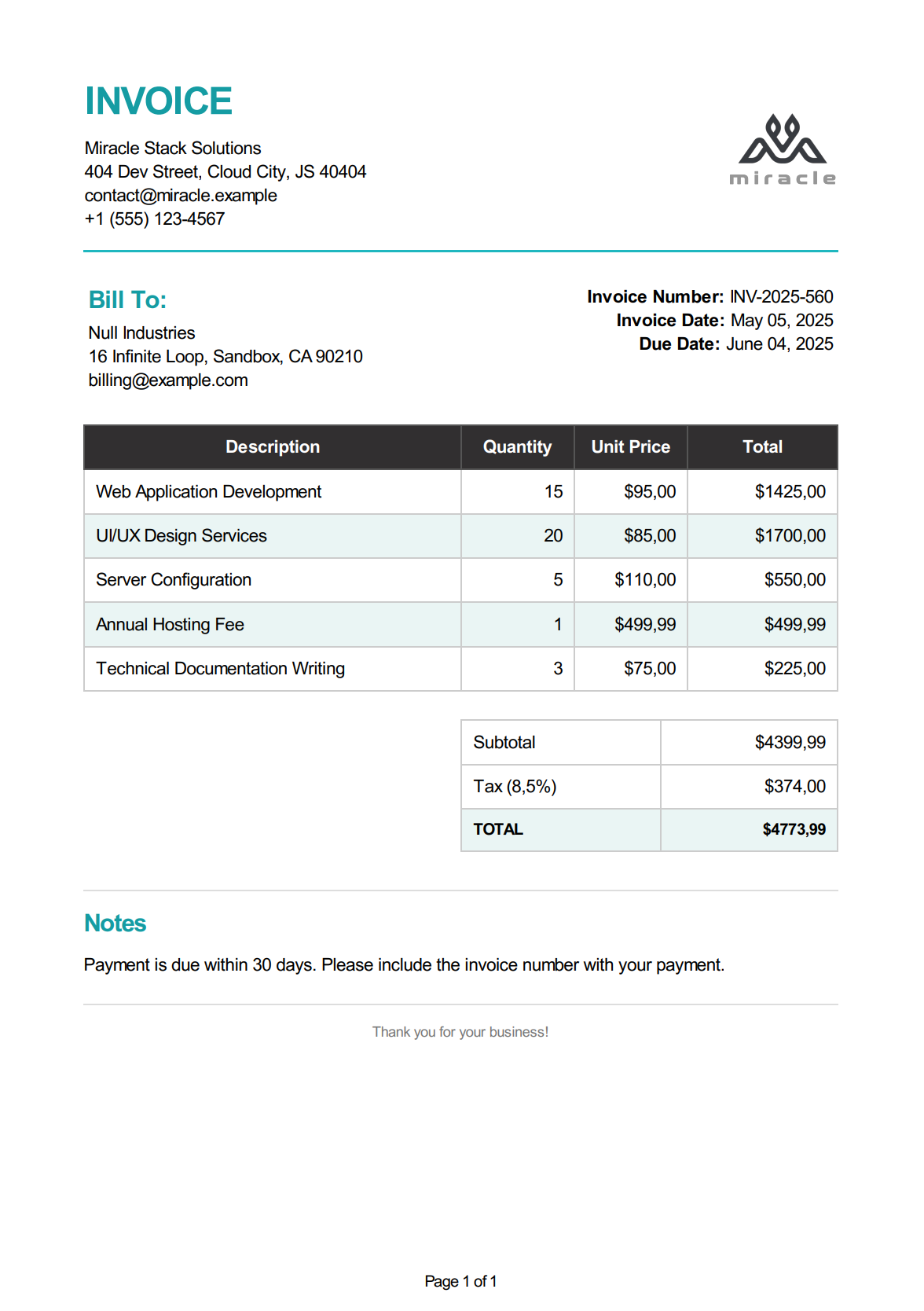
When successful, the program will output the location of your generated PDF file in the Output directory. Opening this file will show your generated invoice.
Here's a preview of the generated invoice PDF:
DinkToPdf Configuration Options for PDF Output
DinkToPdf offers several configuration options to control your PDF output:
| Setting | Description | Example |
|---|---|---|
| PaperSize | Standard paper size | PaperKind.A4, PaperKind.Letter etc. |
| ColorMode | Color settings | ColorMode.Color, ColorMode.Grayscale |
| Orientation | Page orientation | Orientation.Portrait, Orientation.Landscape |
| Margins | Page margins | new MarginSettings { Top = 10, Bottom = 10 } |
| DPI | Resolution in DPI | 300 |
| ImageDPI | Image resolution | 300 |
| ImageQuality | JPEG compression | 100 (highest quality) |
| HeaderSettings | Custom headers | { FontSize = 9, Right = "Page [page]" } |
| FooterSettings | Custom footers | { Line = true, Center = "Confidential" } |
| LoadSettings | Page loading settings | { BlockLocalFileAccess = false } |
| WebSettings | Web page settings | { DefaultEncoding = "utf-8" } |
Here's an example with advanced settings:
var doc = new HtmlToPdfDocument()
{
    GlobalSettings = {
        ColorMode = ColorMode.Color,
        Orientation = Orientation.Portrait,
        PaperSize = PaperKind.A4,
        DPI = 300,
        ImageDPI = 300,
        ImageQuality = 100,
        Margins = new MarginSettings {
            Top = 20,
            Right = 20,
            Bottom = 20,
            Left = 20
        },
        Out = outputPath
    },
    Objects = {
        new ObjectSettings {
            PagesCount = true,
            HtmlContent = html,
            WebSettings = {
                DefaultEncoding = "utf-8",
                EnableJavascript = true,
                PrintMediaType = true
            },
            HeaderSettings = {
                FontSize = 9,
                Right = "Page [page] of [toPage]",
                Line = true
            },
            FooterSettings = {
                FontSize = 9,
                Center = "Confidential Document",
                Line = true
            },
            LoadSettings = { BlockLocalFileAccess = false }
        }
    }
};
Performance Optimization for DinkToPdf in Production
When implementing DinkToPdf in production environments, consider these performance optimization techniques:
Converter Singleton Pattern
Since DinkToPdf's converter initialization is resource-intensive:
- Create a single, application-wide converter instance.
- Implement thread-safe access to this shared instance.
- Consider using dependency injection to manage the converter lifetime.
Template Caching
For better performance with Handlebars.NET:
- Cache compiled templates to avoid repeated processing.
- Include proper error handling for cache misses.
- Store templates in a dictionary keyed by file path.
Background Processing for Large Volumes
For applications generating many PDFs:
- Implement a background service or queue.
- Set appropriate timeouts for long-running operations.
- Consider scaling horizontally with multiple workers for high-volume scenarios.
- Implement file cleanup for temporary files.
C# and .NET Alternatives for HTML to PDF Generation
While DinkToPdf works well for basic scenarios, consider these alternatives based on your specific requirements:
| Alternative | Best For | Learn More |
|---|---|---|
| PuppeteerSharp | Complex, dynamic content requiring Chrome/Chromium-based rendering with full JavaScript and modern CSS support. | PuppeteerSharp HTML to PDF Guide |
| Playwright | Cross-browser PDF generation with modern async API and better maintenance than PuppeteerSharp. | Playwright HTML to PDF in C#/.NET |
| iText7 | Applications needing advanced PDF operations beyond conversion with low-level creation and manipulation capabilities. | iText 7 HTML to PDF in C#/.NET |
| PDFsharp | Simple PDF creation and manipulation in C# without HTML rendering. | PDFsharp PDF Generation Guide |
| QuestPDF | Developers who prefer a code-first approach with a fluent C# API rather than HTML templates. | PDF Generation Using QuestPDF |
| HTML to PDF API | High-volume PDF generation with minimal server-side implementation through cloud-based conversion services. | Convert HTML to PDF Using API |
For a full comparison of all available options, see Top C# PDF Generation Libraries.
API-Based Alternative: Template-Driven PDF Generation
While DinkToPdf gives you a self-hosted solution, it comes with real trade-offs – managing native wkhtmltopdf binaries, dealing with cross-platform library loading, and working around an outdated rendering engine. For teams that want to skip that setup, PDF generation APIs like PDFBolt offer a different approach (see PDFBolt vs wkhtmltopdf for a side-by-side breakdown).
- Design templates visually: Create invoice layouts in a template designer or choose from the template gallery.
- No native dependencies: No wkhtmltopdf binaries, no platform-specific DLLs, no
LoadLibraryworkarounds. - Modern rendering: Full support for flexbox, grid, and modern CSS – unlike wkhtmltopdf's 2012-era WebKit.
- Simple integration: Just HTTP requests from your C# application (see also our API integration essentials guide).
Simple API call
using System;
using System.Net.Http;
using System.IO;
using System.Threading.Tasks;
using System.Text.Json;

public class PdfApiExample {
    public static async Task Main(string[] args) {
        using var client = new HttpClient();

        var requestData = new {
            templateId = "your-template-id",
            templateData = new {
                invoice_number = "INV-2025-042",
                invoice_date = "May 5, 2025",
                due_date = "June 4, 2025",
                company_name = "Miracle Stack Solutions",
                company_address = "404 Dev Street, Cloud City, JS 40404",
                company_email = "contact@miracle.example",
                company_phone = "+1 (555) 123-4567",
                company_logo = "https://img.pdfbolt.com/logo-example-dark.png",
                client_name = "Null Industries",
                client_address = "16 Infinite Loop, Sandbox, CA 90210",
                client_email = "billing@example.com",
                line_items = new object[] {
                    new {
                        description = "Web Application Development",
                        quantity = 15,
                        unit_price = 95.00
                    },
                    new {
                        description = "UI/UX Design Services",
                        quantity = 20,
                        unit_price = 85.00
                    },
                    new {
                        description = "Server Configuration",
                        quantity = 5,
                        unit_price = 110.00
                    }
                }
            }
        };

        var request = new HttpRequestMessage {
            Method = HttpMethod.Post,
            RequestUri = new Uri("https://api.pdfbolt.com/v1/direct"),
            Content = new StringContent(
                JsonSerializer.Serialize(requestData),
                System.Text.Encoding.UTF8,
                "application/json"
            )
        };

        request.Headers.Add("API-KEY", "XXXXXXXX-XXXX-XXXX-XXXX-XXXXXXXXXXXX");

        try {
            using var response = await client.SendAsync(request);

            if (!response.IsSuccessStatusCode) {
                var errorContent = await response.Content.ReadAsStringAsync();
                Console.WriteLine($"HTTP {(int)response.StatusCode}");
                Console.WriteLine($"Error Message: {errorContent}");
                return;
            }

            var pdfBytes = await response.Content.ReadAsByteArrayAsync();
            await File.WriteAllBytesAsync("invoice_pdfbolt.pdf", pdfBytes);
            Console.WriteLine("PDF generated successfully");
        } catch (Exception ex) {
            Console.WriteLine($"Error: {ex.Message}");
        }
    }
}
This approach works well for applications that need consistent document output without the overhead of managing native library dependencies, or in containerized environments where deploying wkhtmltopdf binaries can be problematic.
Conclusion
DinkToPdf with Handlebars.NET templates gives you a working HTML to PDF pipeline in C# and .NET – from project setup to a finished invoice generator with Handlebars templating, native library loading, and configurable PDF output.
That said, DinkToPdf and wkhtmltopdf are no longer maintained. The outdated CSS support and unpatched security vulnerabilities (CVE-2022-35583) mean you should think carefully before using it in new projects. For production workloads that need modern rendering, consider browser-based libraries like PuppeteerSharp or an HTML to PDF API that handles the infrastructure for you.
HTML converted, coffee consumed, developer satisfied. 🔥