How to Automate PDF Generation in n8n

Most n8n workflows eventually need to produce documents – invoices after purchases, scheduled reports, certificates for course completions. Setting up PDF generation inside n8n usually means dealing with HTML rendering quirks or managing headless browser instances. PDFBolt's API plugs directly into n8n's HTTP Request node, so you send template data and get back a finished PDF. No browser setup, no rendering config – just an API call.
PDFBolt now has a verified community node for n8n that handles authentication, Base64 encoding, and all parameters through a visual interface. This guide covers the HTTP Request approach – useful when you need full control over the API call or prefer not to install community nodes. For ready-to-import examples, see the n8n workflow templates. The n8n invoice automation guide provides an invoice-specific walkthrough.
Why Automate PDF Generation in the First Place?
Businesses often struggle with inconsistent document formatting, time-consuming manual processes, and the need to generate hundreds of similar documents with different data.
Teams often spend hours weekly manually creating invoices, reports, or certificates. Beyond wasted time, manual processes introduce formatting errors and inconsistencies that can look unprofessional.
Automation solves these problems by:
- Ensuring every document follows the same template and branding.
- Processing hundreds or thousands of documents without manual effort.
- Eliminating errors in data entry and formatting.
- Allowing teams to focus on more valuable work.
- Connecting with CRM systems, databases, and other business tools.
- Triggering based on specific events (new orders, completed forms, scheduled reports).
PDFBolt API Endpoints: Choosing the Right Mode
Choose from three PDFBolt API endpoints depending on how you need to handle PDF generation:
Direct Mode
Endpoint: /v1/direct
Best for: Immediate PDF delivery in workflow responses.
- Returns raw PDF data directly in the HTTP response.
- Perfect for real-time document generation.
- Ideal when the PDF needs to be immediately processed or sent.
Use cases: Instant invoice generation after a purchase, generating tickets that need to be sent immediately.
Sync Mode
Endpoint: /v1/sync
Best for: URL-based PDF delivery and storage.
- Returns a JSON response with downloadable PDF URL.
- Allows storage in your own S3 bucket for complete control.
- Useful when PDFs will be accessed multiple times.
Use cases: Monthly reports that need to be stored and sent to multiple stakeholders.
Async Mode
Endpoint: /v1/async
Best for: High-volume processing and webhook-based workflows.
- Processes PDFs in the background and sends results via webhook → see async workflow details.
- Perfect for bulk operations or very complex documents that might take longer to generate.
Use cases: End-of-month batch processing, generating hundreds of certificates at once.
For complete endpoint specifications and parameters, refer to the PDFBolt API Documentation. You can also follow the n8n Integration Guide in the docs – including the PDFBolt Community Node setup guide.
Setting Up PDFBolt Integration in n8n
You can integrate PDFBolt with n8n in two ways:
- PDFBolt Community Node (recommended) – install the verified node, add your API key, and configure everything through a visual UI. No Base64 encoding or JSON body to write.
- HTTP Request Node (covered below) – call the PDFBolt API directly using n8n's built-in HTTP Request node. Gives you full control over the request.
The rest of this guide walks through the HTTP Request approach.
Prerequisites
1. PDFBolt API Key: Sign up at PDFBolt and obtain your API key. You'll use this key to authenticate your n8n HTTP requests to PDFBolt.
2. Template Setup: Create or customize a template in the app:
- Choose to customize a template from the gallery or create one from scratch.
Check out our Template Gallery for ready-to-use examples and Templates Documentation for creation guides.
- Publish the template to make it available for API use.
- When making API calls to PDFBolt, you'll send: the
templateId(to specify which template to use) andtemplateData(containing the actual values to populate your template).
Template Data Mapping Details
- When sending API requests later, the keys in your
templateDataobject must exactly match the variable names you define in your PDFBolt template. - For example, if your template uses
{{invoice_number}}and{{client_name}}, your API data must includeinvoice_numberandclient_namefields. - Mismatched field names will result in empty values in the generated PDF.
3. n8n Access: Either n8n Cloud account or self-hosted n8n instance.
Basic HTTP Request Configuration
In this guide, we'll use the HTTP Request node to integrate with PDFBolt.
Here's the foundation setup:
-
Create a new workflow in your n8n interface.
-
Add an HTTP Request node by clicking the ➕ button and searching for HTTP Request.
-
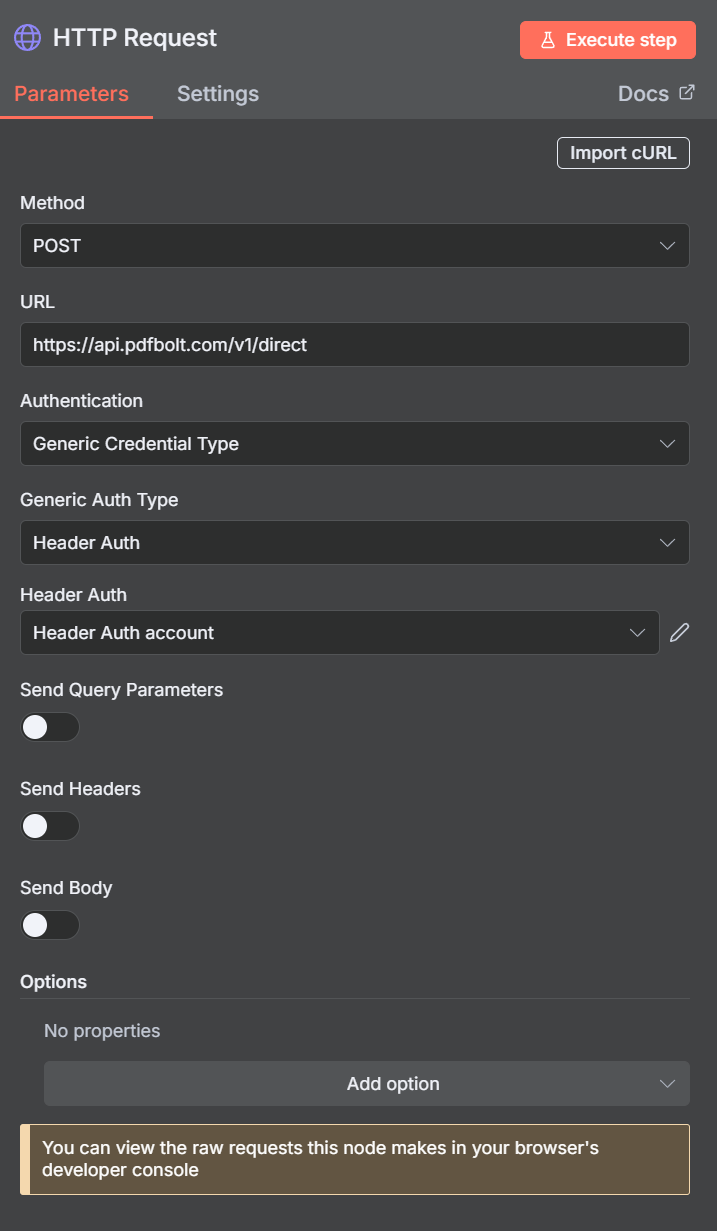
Configure the basic setup:
- Method:
POST - URL:
https://api.pdfbolt.com/v1/direct - Authentication:
Generic Credential Type - Generic Auth Type:
Header Auth - Create New Credential:
- Name:
API-KEY - Value:
YOUR-API-KEY
- Name:
- Method:
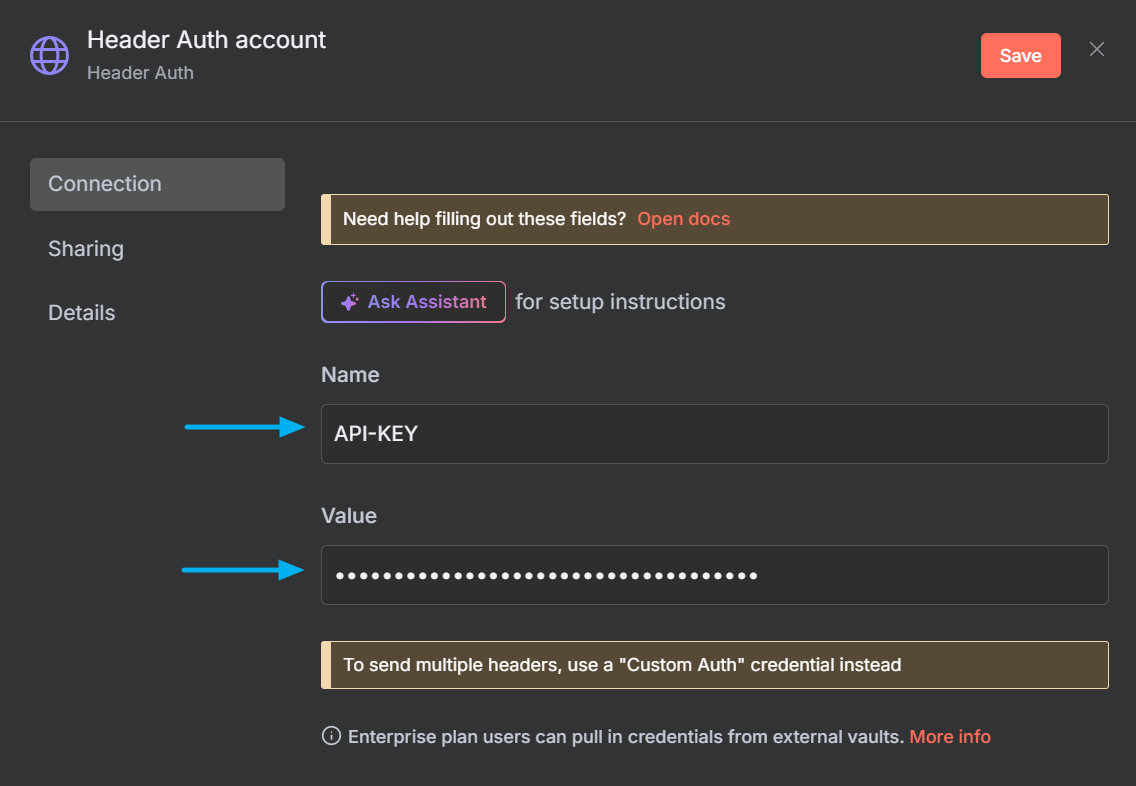
- Save your configuration and you're ready to start building your PDF generation workflow.
Invoice PDF Generation Workflow in n8n
Direct Invoice PDF Generation
This example shows how to build a complete invoice generation workflow using PDFBolt with n8n. The workflow receives structured invoice data via webhook and generates a PDF using a template.
Workflow Overview
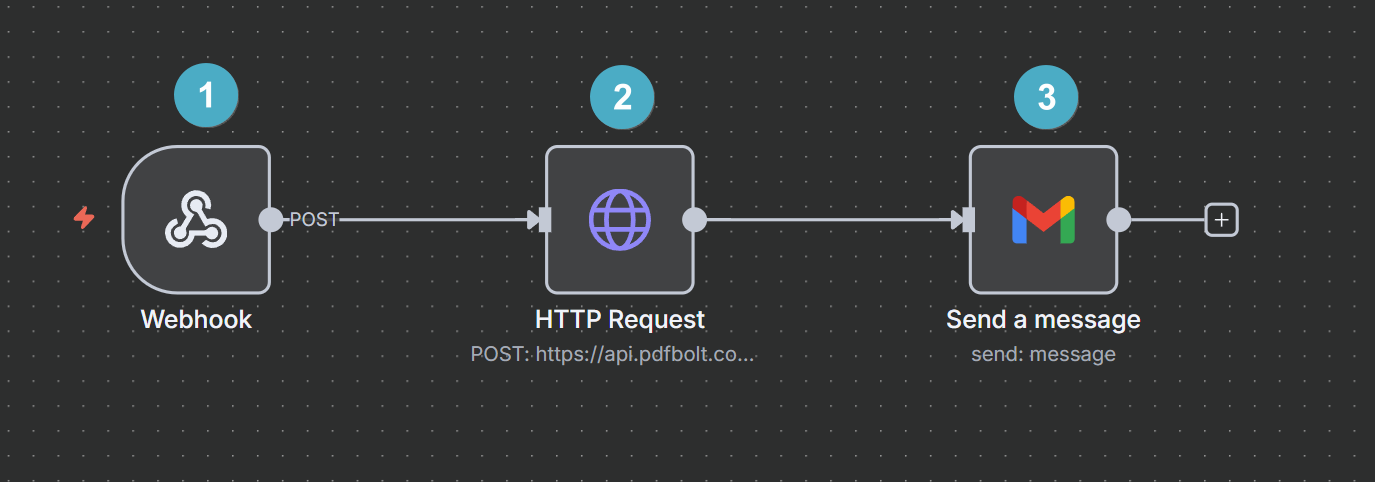
Components:
-
Webhook Trigger – Receives invoice data.
-
HTTP Request – Calls PDFBolt API.
-
Send Message – Delivers PDF via email.
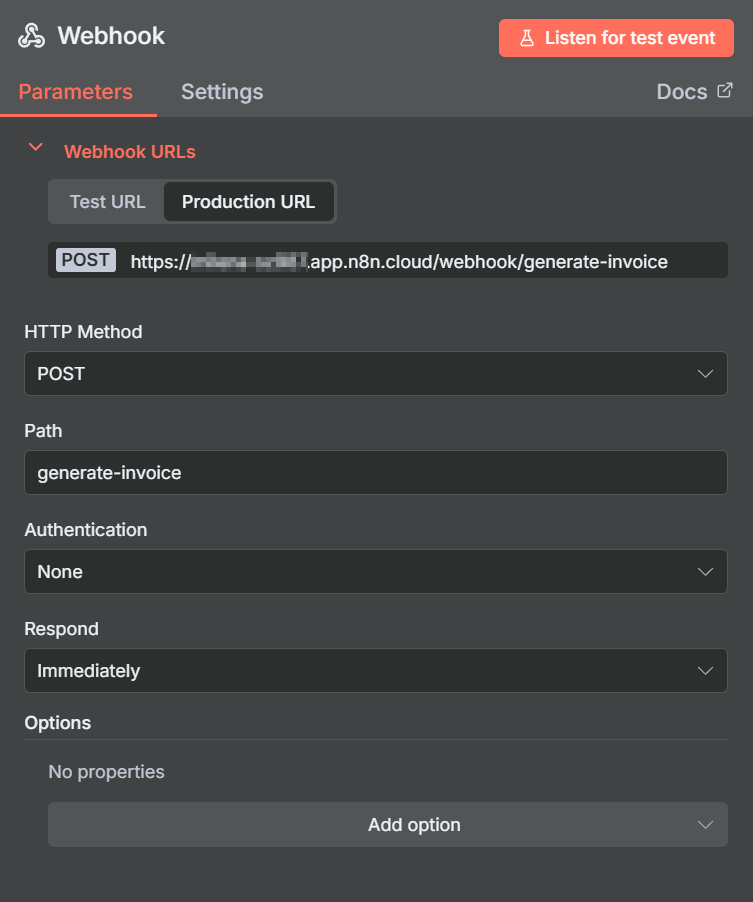
Node 1: Webhook Trigger
Purpose: Receives invoice data from your application or external system.
Configuration:
- HTTP Method:
POST - Path:
generate-invoice(or your preferred path) - Respond:
Immediately
Example Payload
{
  "templateId": "c5fbe4b2-1e49-484f-ae4d-842ccc984c66",
  "templateData": {
    "invoice_number": "INV-2025-0404",
    "issue_date": "June 15, 2025",
    "due_date": "July 15, 2025",
    "company_name": "TechOrange Solutions",
    "company_email": "hello@techorange.dev",
    "company_phone": "+1 (555) 123-4567",
    "client_name": "John Doe",
    "client_email": "john.doe@example.com",
    "line_items": [
      {
        "quantity": "5",
        "tax_rate": "9",
        "unit_price": "89.00",
        "description": "Code Review by AI Intern",
        "total_amount": "445.00"
      },
      {
        "quantity": "1",
        "tax_rate": "9",
        "unit_price": "1199.00",
        "description": "Legacy Code Translator",
        "total_amount": "1199.00"
      }
    ],
    "subtotal_amount": "1644.00",
    "tax_amount": "147.96",
    "total_amount": "1791.96",
    "currency_symbol": "$",
    "payment_info": {
      "bank_name": "Binary National Bank",
      "payment_terms": "Net 30 days",
      "account_number": "404 404 404 404",
      "routing_number": "001100110"
    }
  }
}
This example assumes your webhook receives data already formatted for PDFBolt templates with templateId and templateData structure. If your incoming data structure differs, add a Code Node or Edit Fields Node between the webhook and HTTP Request to transform the data into the required PDFBolt and your template format.
Node 2: HTTP Request (PDFBolt API)
Purpose: Converts the invoice data into a PDF using PDFBolt's template.
Configuration: Use the same HTTP Request configuration we set up earlier in the Basic HTTP Request Configuration section.
Body Configuration:
- Send Body:
Enabled - Body Content Type:
JSON - Specify Body:
Using JSON - Switch to Expression mode (click the Expression toggle)
- JSON Body:
{{ $json.body.toJsonString() }}
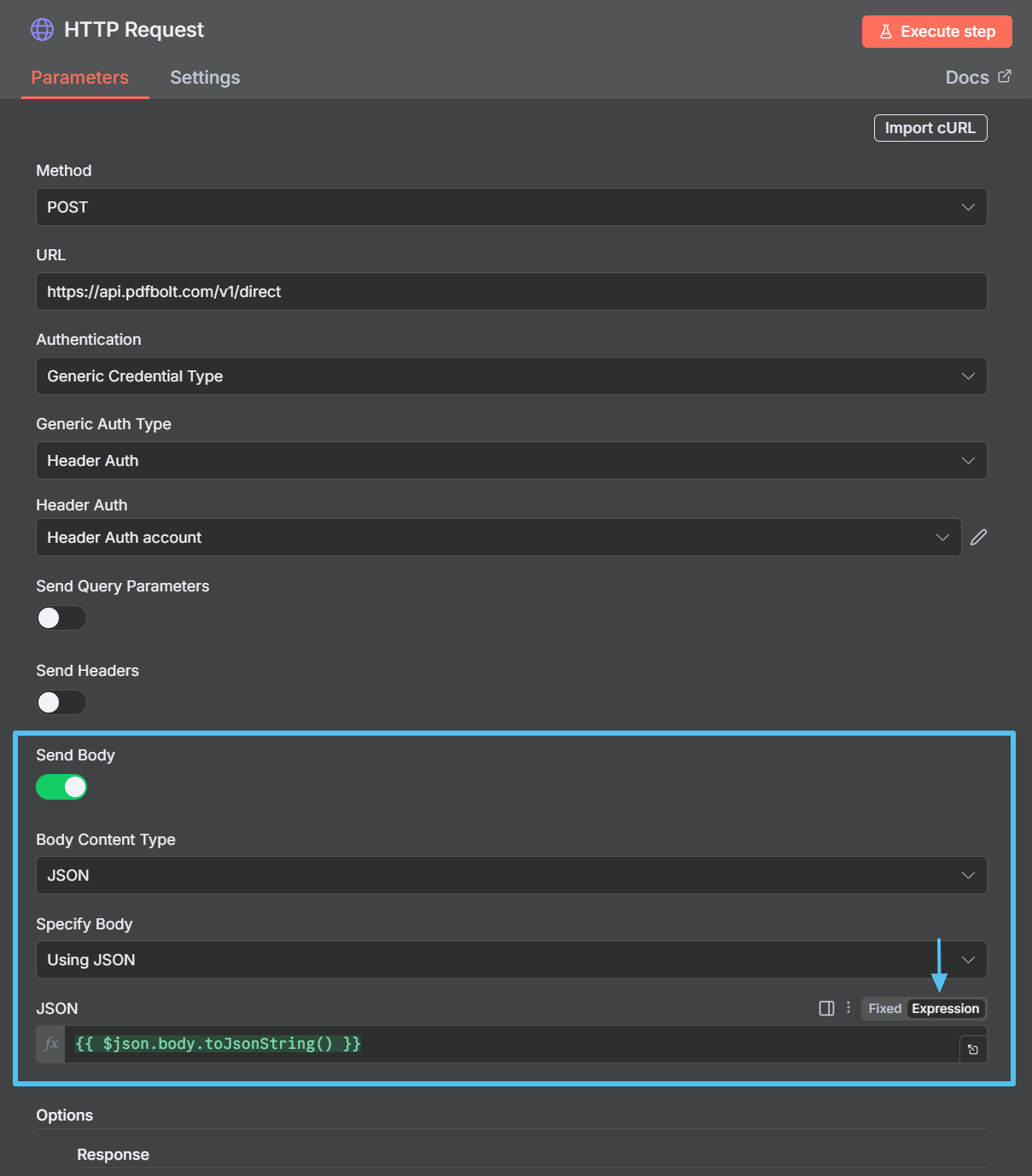
$json.bodycontains the webhook payload.toJsonString()converts the JavaScript object to JSON string format.- PDFBolt receives properly formatted template data.
Node 3: Send a Message
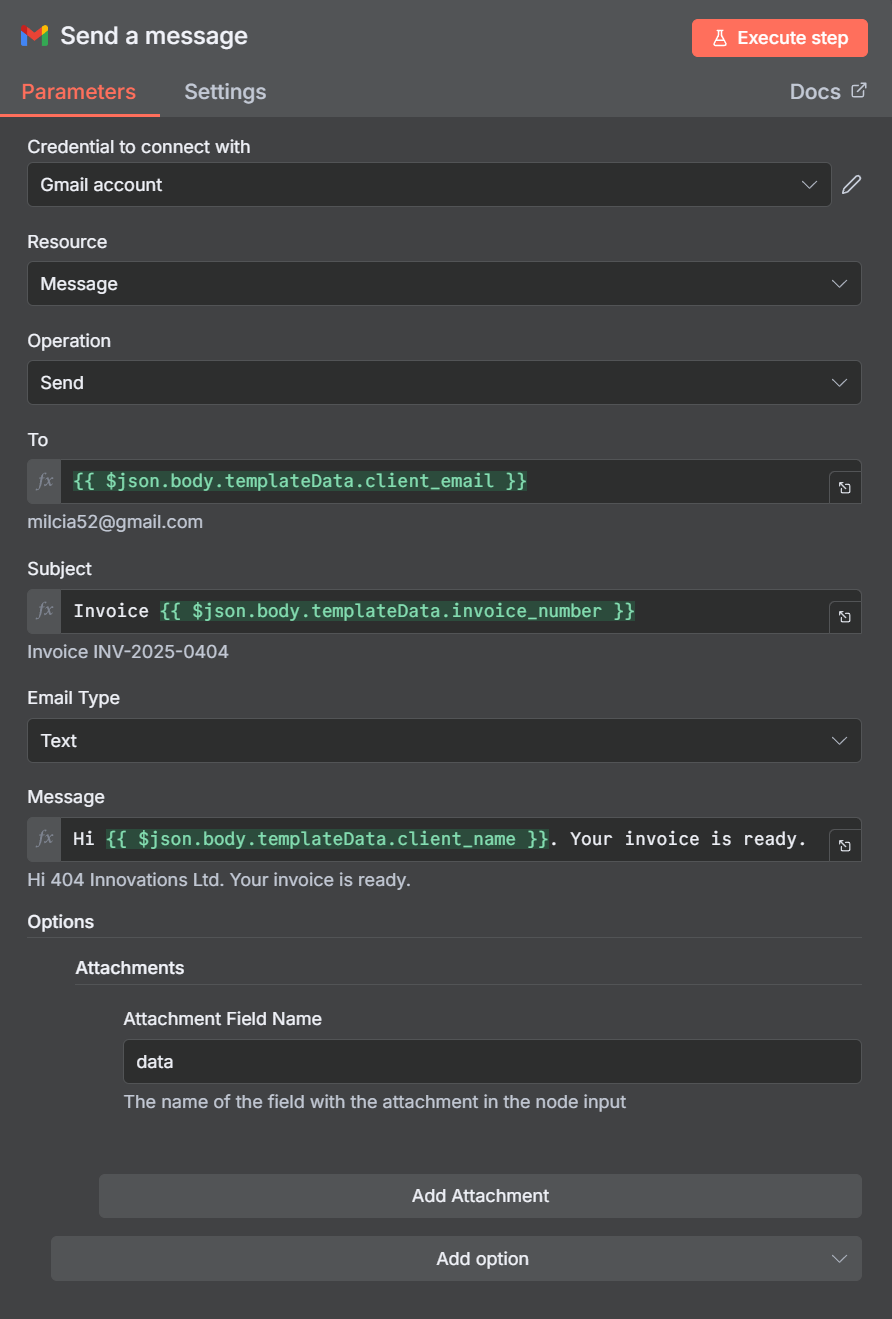
Purpose: Delivers the generated PDF to the client via email with the invoice attached.
Email Configuration Example:
- To:
{{ $json.body.templateData.client_email }} - Subject: Invoice
{{ $json.body.templateData.invoice_number }} - Email Type:
Text(orHTMLfor better formatting) - Message: Hi
{{ $json.body.templateData.client_name }}. Your invoice is ready. - Attachments Configuration:
- Add Option → Attachments → Add Attachment
Testing Your Workflow
Test your workflow before production:
- Execute the workflow using n8n's test button.
- Send sample data to your webhook URL.
- Verify the PDF generation and email delivery.
- Check the generated PDF for correct formatting and data.
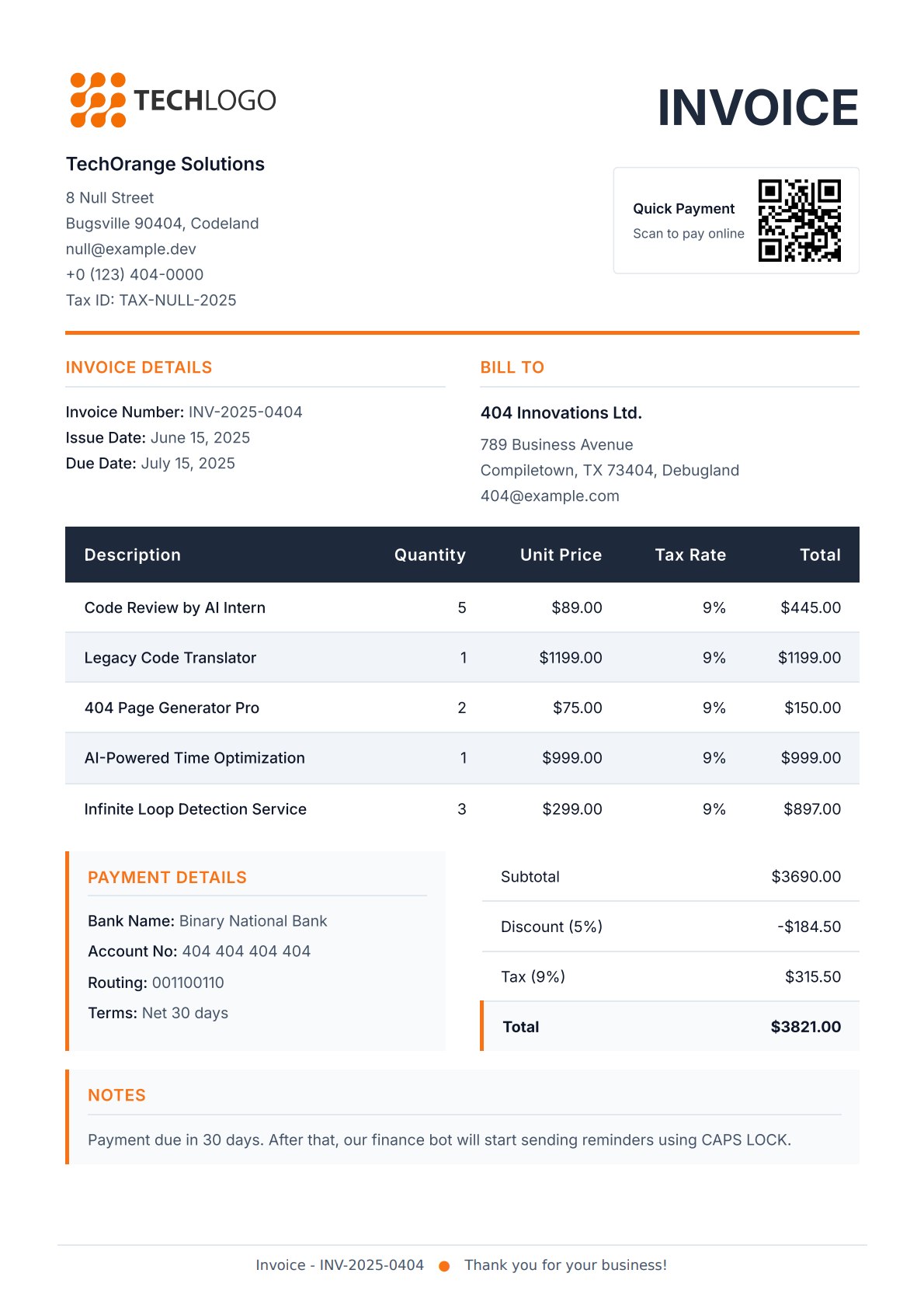
If everything works correctly, you should receive an email with the generated invoice as an attachment:
PDF Automation Use Cases with n8n and PDFBolt
These real-world examples show how different n8n triggers can create professional documents and distribute them across your workflow.
| Use Case | Trigger | Generated PDF | Next Action |
|---|---|---|---|
| E-commerce Invoices | Shopify Trigger New order created | PDFBolt HTTP Request Professional invoice | Gmail + Google Drive Email customer and archive |
| Course Certificates | Typeform Trigger Course completion quiz submitted | PDFBolt HTTP Request Branded certificate | Gmail + Airtable Email student and update records |
| Sales Reports | Schedule Trigger Daily/weekly | PDFBolt HTTP Request Performance dashboard | Slack + Dropbox Share with team and archive |
| Employee Welcome | Google Sheets Trigger New employee added to HR sheet | PDFBolt HTTP Request Welcome packet and handbook | Gmail + Google Drive Email employee and archive |
| Event Tickets | Webhook Event registration completed | PDFBolt HTTP Request Digital ticket | Gmail + Google Sheets Email attendee and track registrations |
| Purchase Orders | Google Sheets Trigger Inventory level updated | PDFBolt HTTP Request Purchase order document | Gmail + Google Drive Email supplier and archive |
FAQ
Should I use the PDFBolt community node or the HTTP Request node?
The PDFBolt community node is the easier option – it provides a visual interface for all API parameters, handles Base64 encoding automatically, and requires no JSON body configuration. Use the HTTP Request node when you need full control over the raw API call or want to avoid installing community nodes.
How do I send the generated PDF as an email attachment in n8n?
When the HTTP Request node receives a PDF from PDFBolt's /v1/direct endpoint, n8n automatically stores it as binary data. In your email node (Gmail, Outlook, etc.), go to Add Option → Attachments → Add Attachment and set Attachment Field Name to data. The PDF is ready to attach – no additional conversion needed. If you're using the PDFBolt community node, the process is the same.
How do I generate a PDF in n8n?
Add an HTTP Request node to your workflow, set it to POST, and point it at https://api.pdfbolt.com/v1/direct. Pass your HTML content (base64-encoded) or a templateId with templateData in the JSON body. Authenticate with the API-KEY header. The response contains the raw PDF file, which you can save, email, or upload to cloud storage in the next node.
Can n8n create PDF files from HTML?
Yes. Encode your HTML string in base64 and send it in the html field of the request body to PDFBolt's API. You can control page size, margins, headers, and footers through conversion parameters. For reusable layouts, consider using PDFBolt templates with Handlebars syntax instead of raw HTML.
How do I automate invoice PDF generation with n8n?
Create a three-node workflow: a Webhook Trigger that receives invoice data, an HTTP Request node that sends the data to PDFBolt, and a Send Message node (Gmail, Outlook, etc.) that emails the PDF to the client. The invoice workflow example in this guide walks through each node's configuration.
Which PDFBolt API endpoint should I use in n8n?
Use /v1/direct when you need the PDF immediately in the workflow (e.g., email it right away). Use /v1/sync when you need a download URL or want to upload to your own S3 bucket. Use /v1/async for batch processing where results arrive via webhook. See API Endpoints for full details.
Why are some fields empty in my generated PDF?
The keys in your templateData must exactly match the variable names in your PDFBolt template. If your template uses {{invoice_number}}, the JSON must include "invoice_number" – not "invoiceNumber" or "Invoice_Number". Check the template data docs.
Conclusion
PDFBolt + n8n covers most document automation needs – invoices, reports, certificates, shipping labels. Pick the endpoint that fits your workflow: Direct for immediate PDF delivery, Sync when you need a download URL or S3 storage, Async for high-volume batch processing.
Make sure your templateData keys match the variables in your PDFBolt template, and test with sample data before going live. The workflow patterns in this guide scale from a few documents per day to hundreds in batch.
Start by creating a template in PDFBolt, explore the HTML to PDF API and URL to PDF API options, then build a simple workflow in n8n. Once you have the basic integration working, you can expand it with additional nodes for storage, notifications, and business logic. PDFBolt also integrates with other automation platforms like Zapier and Make.
Now go automate something. Your future self will thank you – probably via webhook. 🔔