PDF Templates: Reusable Layouts for PDF Generation

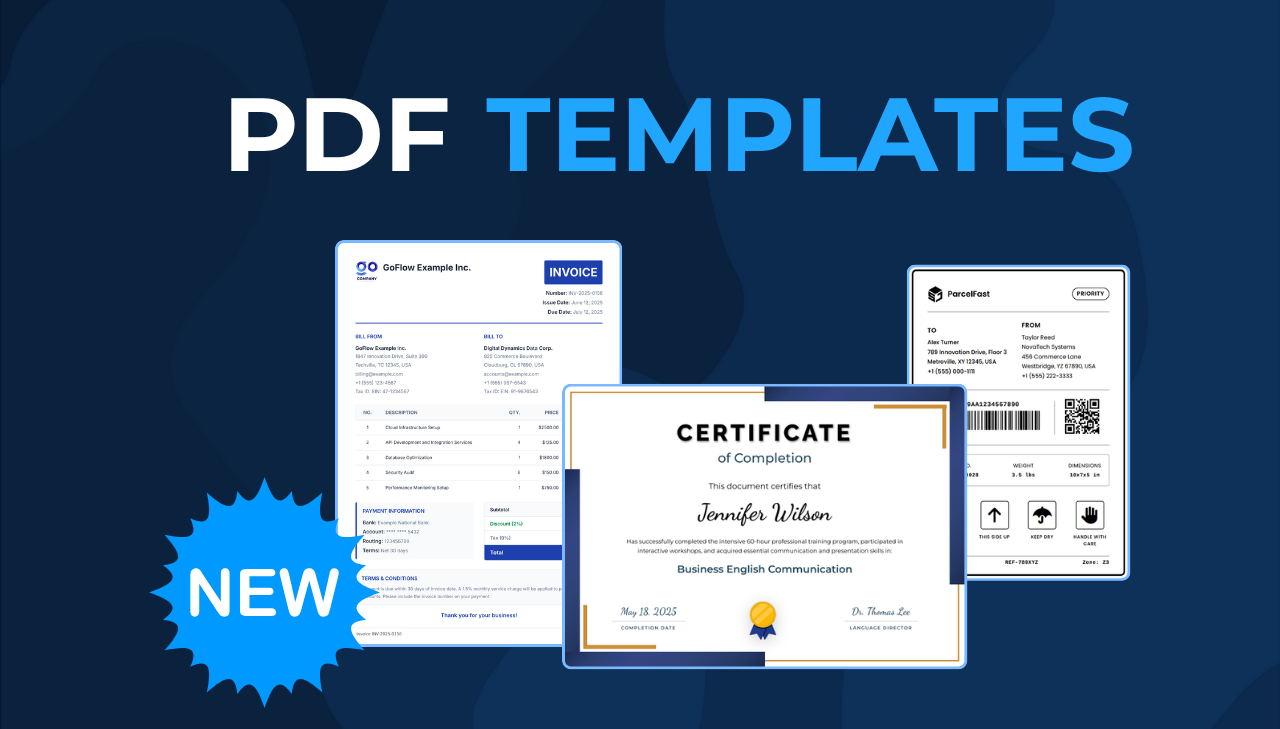
PDFBolt Templates is a new feature that separates design from data in PDF generation. Instead of rebuilding HTML for every document, create reusable layouts once and populate them with dynamic data. Invoices, certificates, reports – Templates make your workflow faster and easier to maintain.
See Templates in Action
The Challenge with Traditional HTML to PDF Generation
If you've been generating PDFs programmatically – through an HTML to PDF API or a local library – you know this workflow: craft HTML content, embed your data directly into the markup, send everything to the renderer, and hope the formatting stays consistent across documents. Even when you follow best practices for optimizing HTML for PDF output, this approach has limits.
While this approach works, it comes with some inherent challenges:
- Code Duplication: Similar HTML structures are recreated across all documents.
- Maintenance Overhead: Design changes require updates in multiple code locations.
- Separation of Concerns: Business logic becomes mixed with presentation markup.
- Complex Data Handling: Managing loops, conditionals, and nested data in string templates becomes error-prone.
- Inconsistency Risks: Slight variations in data structure can break your layouts.
What Are PDF Templates?
Templates solve these challenges by separating your PDF design from your data. Instead of sending complete HTML to our API, you create reusable layouts once and then populate them with different data for each PDF generation.
How to Use Templates
1. Design Your Dynamic Template
Templates use Handlebars, a templating engine that turns static HTML into dynamic documents. Write {{customerName}}, use {{#each items}} for loops, and {{#if condition}} for conditional content. Handlebars merges your JSON data with the template at render time, so you focus on document design rather than data manipulation. For a comparison with other engines, see our HTML template engines comparison.
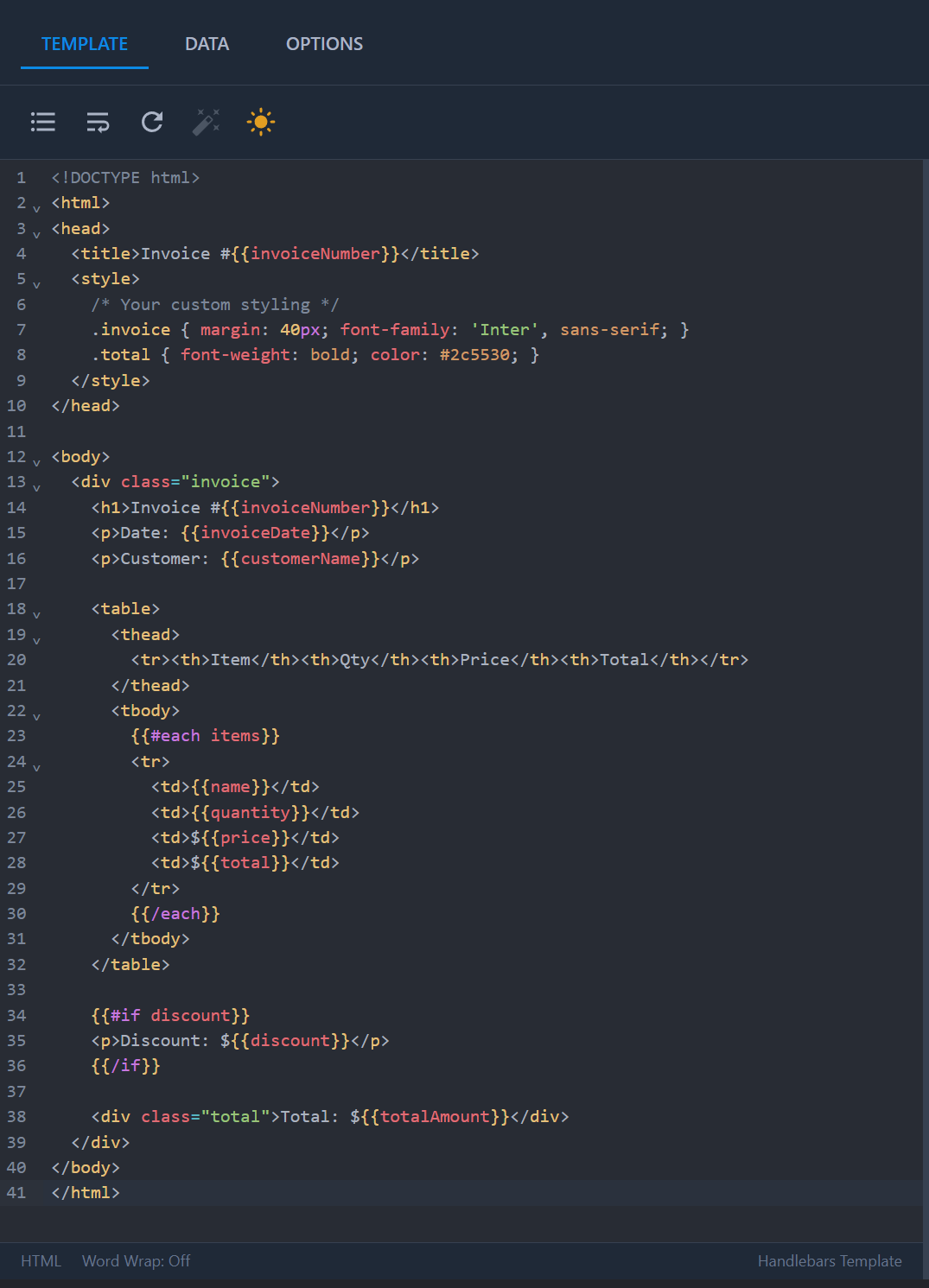
Looking for a different templating engine? Contact us at contact@pdfbolt.com and we'll consider adding engines based on your needs.
2. Visual Designer That Actually Works
Creating templates isn't just about writing code. PDFBolt's visual designer includes:
- Split View: Code on the left, preview on the right.
- Quick HTML Preview: See changes instantly as you type.
- Real PDF Preview: Generate actual PDFs to see the final result.
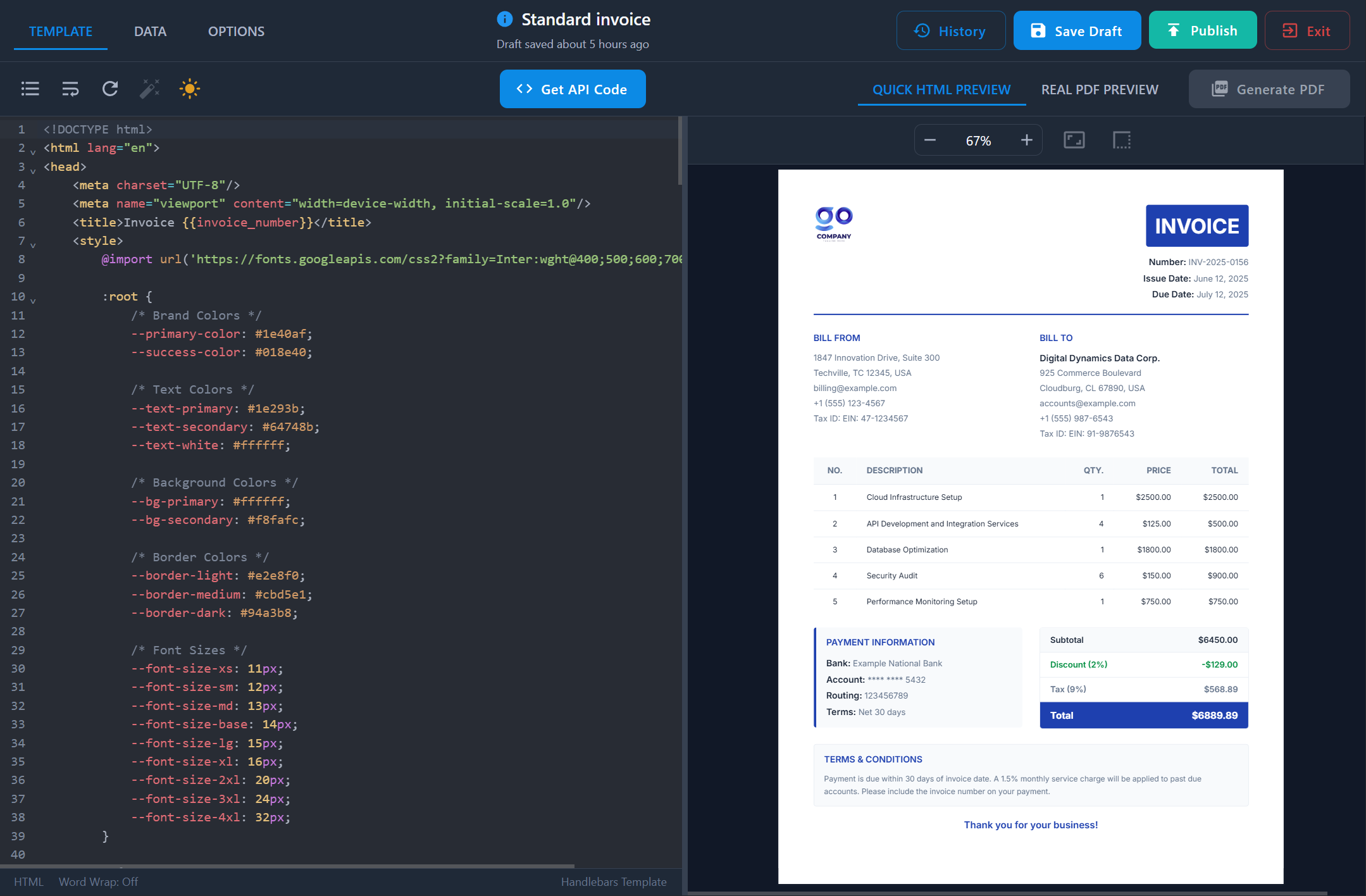
- Sample Data Testing: Test your template with real JSON data.
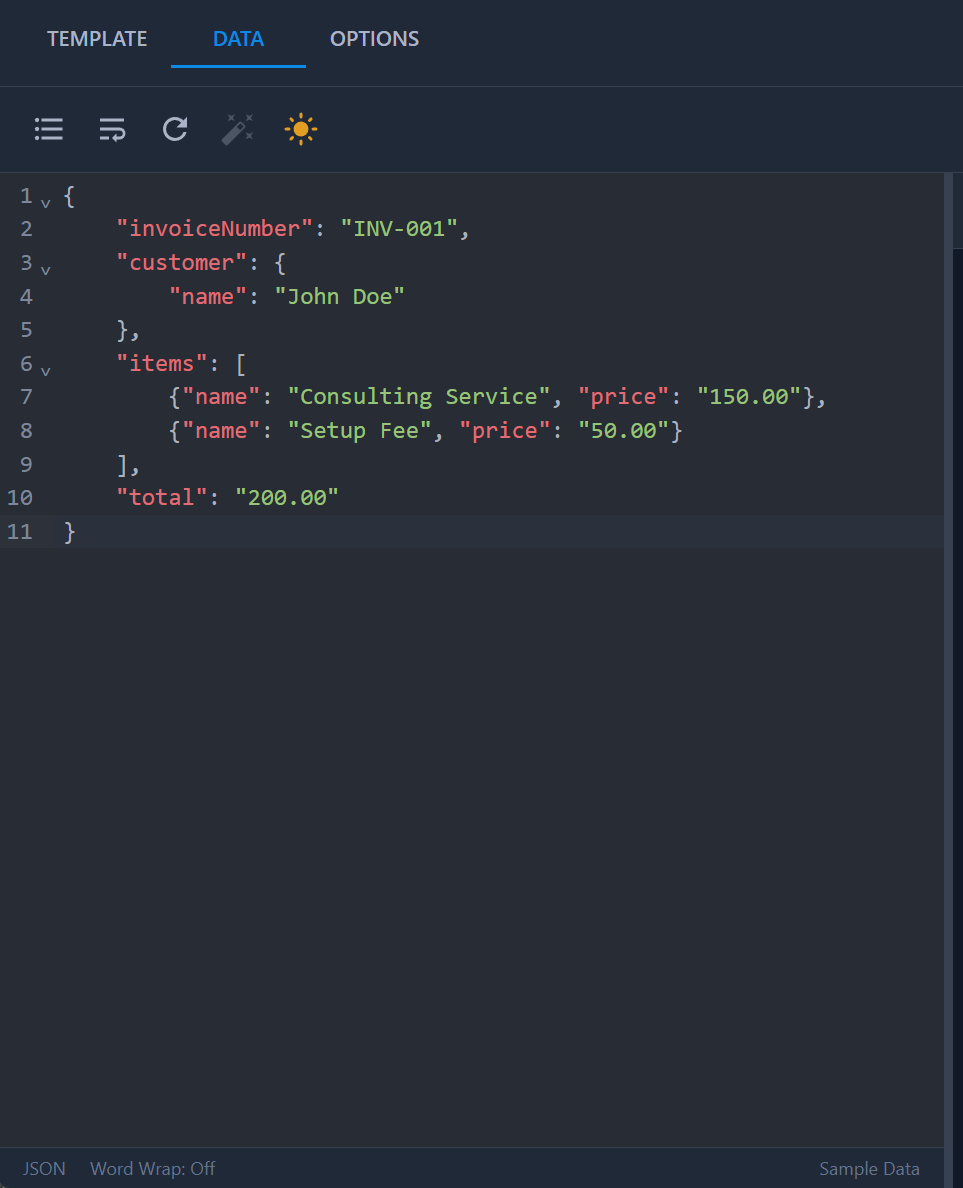
- Syntax Highlighting: For HTML, CSS, and Handlebars.
- Error Detection: Catch syntax issues before publishing.
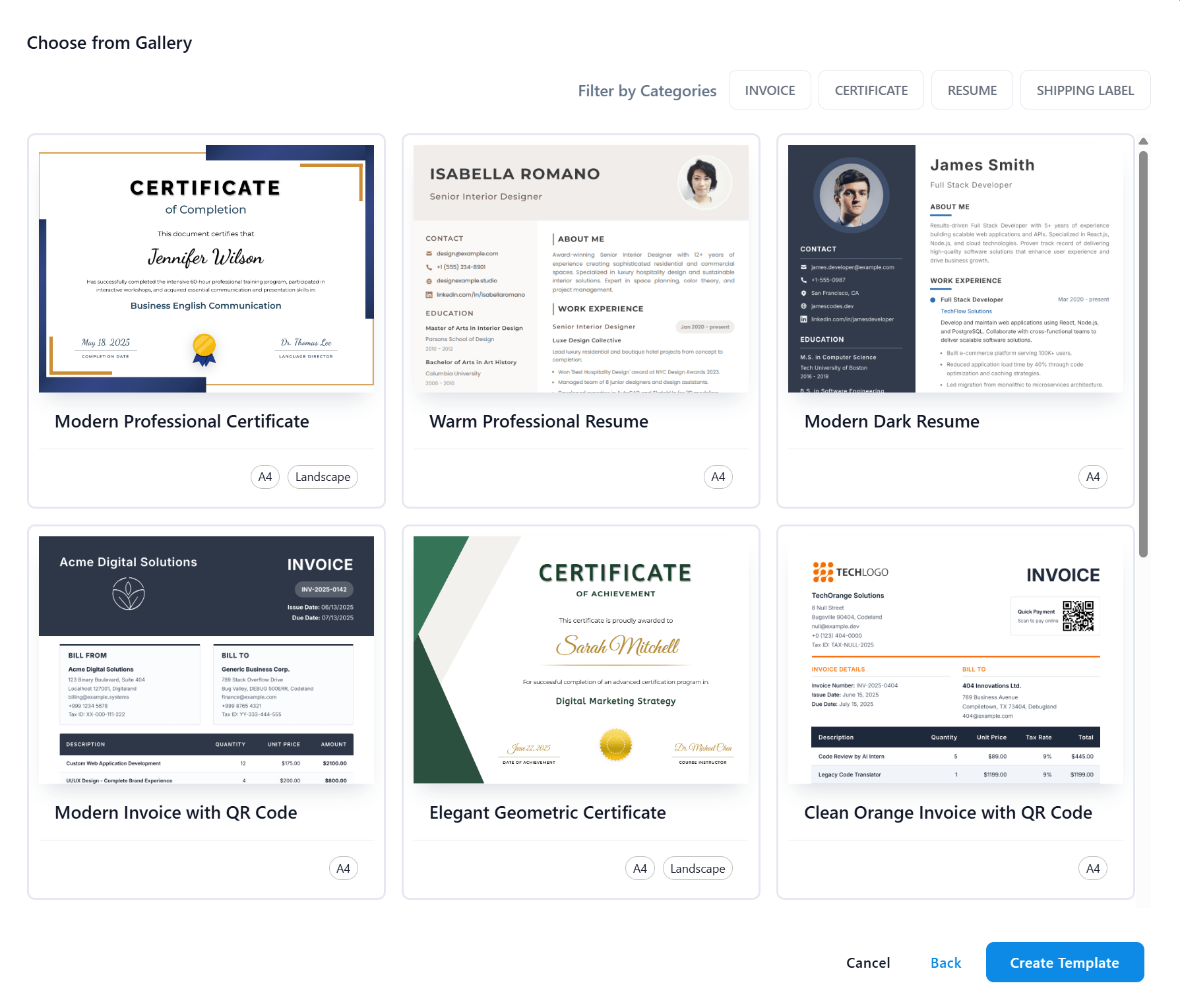
3. Professional Gallery or Custom Creation
Choose your starting point:
Start with professionally designed templates for invoices, certificates, shipping labels, resumes, and more.
Build from scratch with full design control for unique requirements.
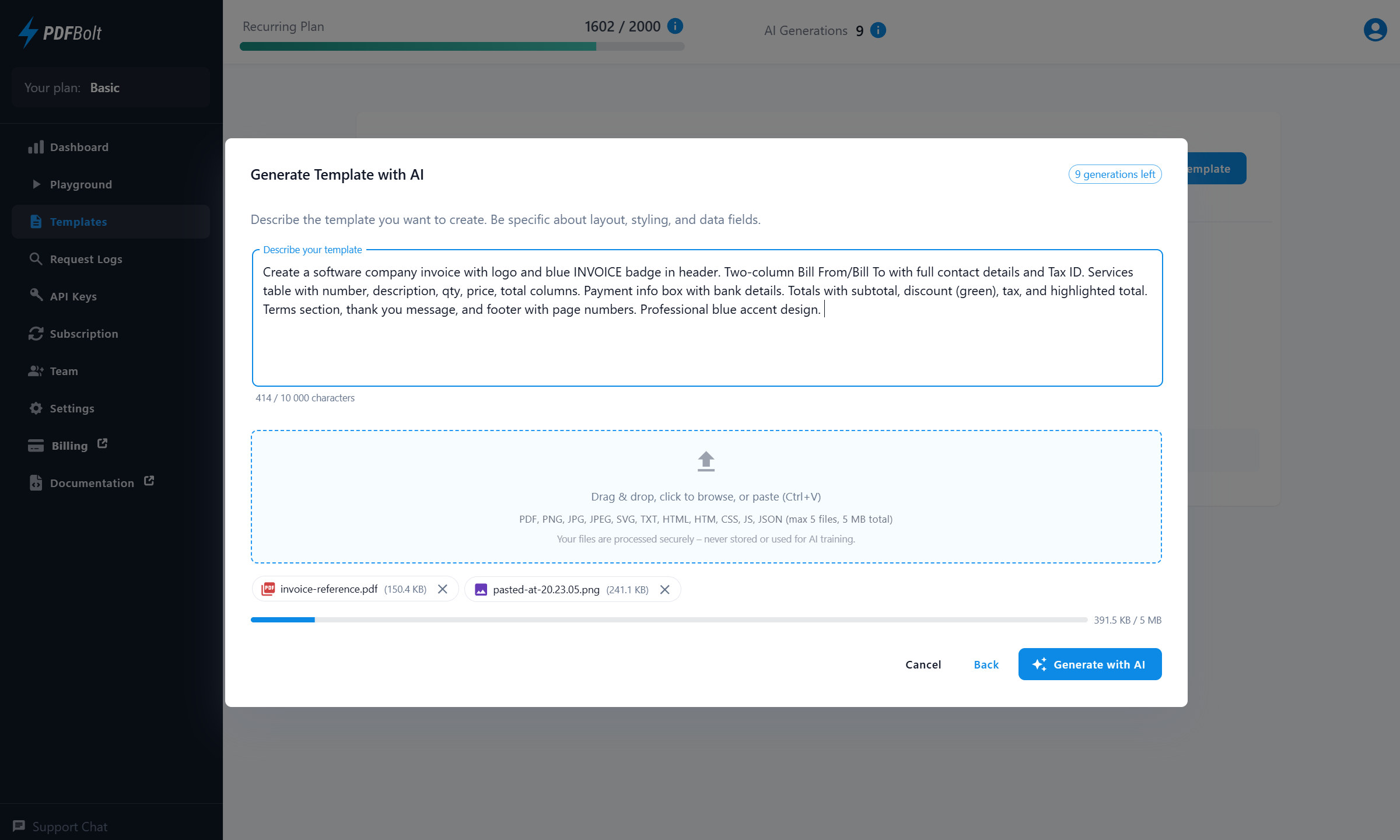
Describe what you need or attach reference files, and AI builds the template for you. Edit the result in the visual designer or refine it with follow-up prompts. Try the AI PDF generator and see the step-by-step guide.
You can also create, validate, preview, and publish templates programmatically through the Template API.
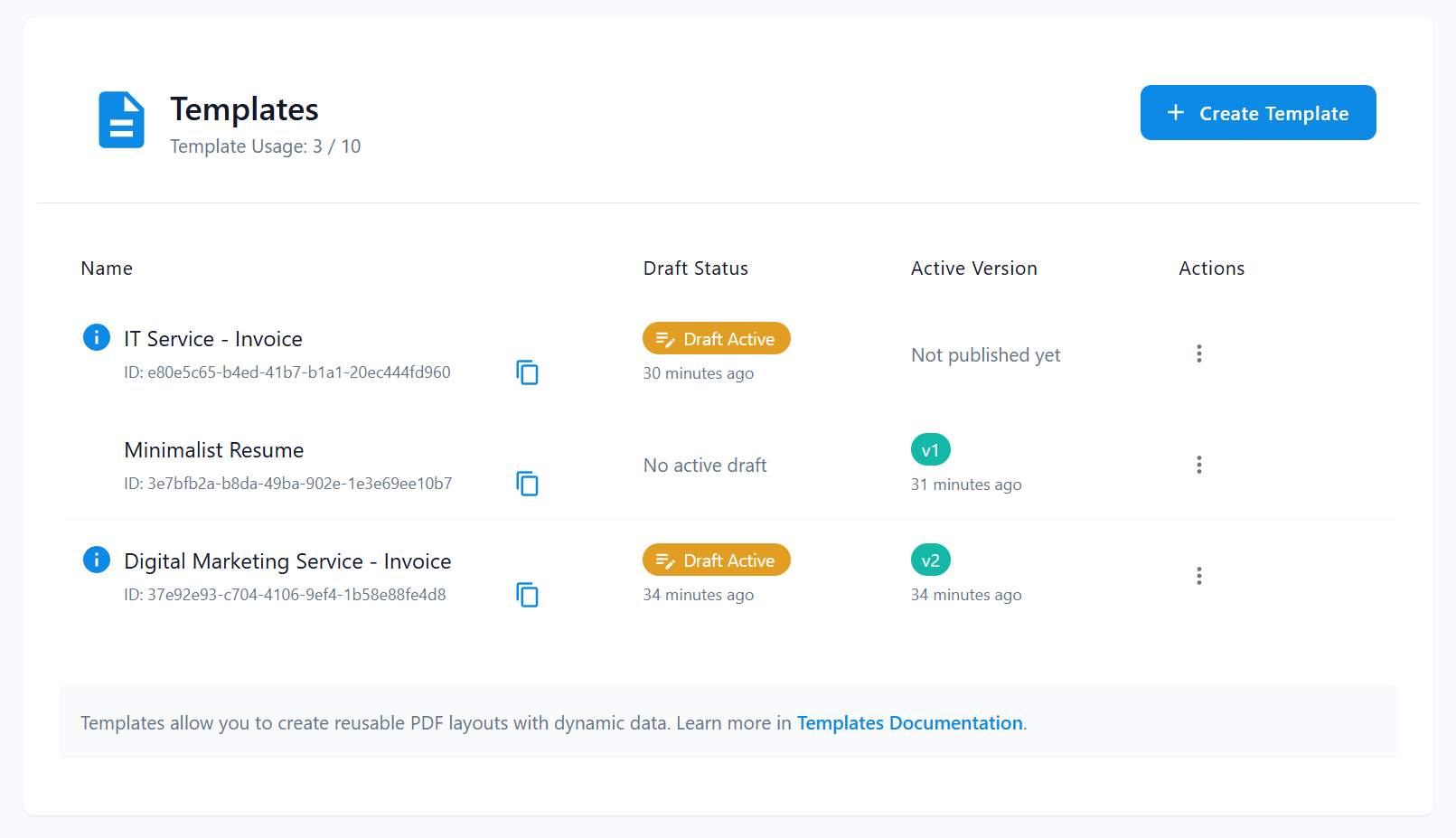
4. Version Control and Team Collaboration
Templates include built-in version management:
- Drafts: Work on changes without affecting live templates.
- Auto-Save Draft: Automatically saves your work to prevent data loss.
- Version Control: Publish versions when ready (v1, v2, v3, etc.).
- Rollback Capability: Restore previous versions if needed.
- Team Access: Team members can collaborate on template designs.
- Change History: Document what changed, who made updates, and when.
Real-World Example
1. Create Your Template
- Log into your PDFBolt account or sign up for free.
- Navigate to the Templates section in the sidebar.
- Click Create Template button.
- Choose from gallery or start from scratch.
- Use the visual designer to customize.
Order Confirmation Template Code
<!DOCTYPE html>
<html lang="en">
<head>
  <meta charset="UTF-8">
  <meta name="viewport" content="width=device-width, initial-scale=1.0">
  <title>Order Confirmation</title>
  <style>
    * {
      margin:0;
      padding:0;
    }

    body {
      font-family: 'Arial', sans-serif;
      line-height: 1.6;
      max-width: 600px;
      margin: 0 auto;
      padding: 20px;
    }

    .order-confirmation {
      padding: 30px;
      border-radius: 8px;
      box-shadow: 0 2px 10px rgba(0,0,0,0.1);
    }

    h1 {
      color: #2c5530;
      margin-bottom: 10px;
      font-size: 24px;
    }

    .shipping-address {
      background: #f8f9fa;
      padding: 10px 15px;
      border-radius: 8px;
      margin: 20px 0;
      border: 1px solid #eee;
    }

    .item {
      display: flex;
      justify-content: space-between;
      padding: 10px 0;
      border-bottom: 1px solid #eee;
    }

    .item:last-child {
      border-bottom: none;
    }

    .total {
      font-size: 18px;
      font-weight: bold;
      color: #2c5530;
      text-align: right;
      padding-top: 10px;
      border-top: 2px solid #2c5530;
    }

    p {
      margin: 10px 0;
    }

  </style>
</head>
<body>
  <div class="order-confirmation">
    <h1>Order #{{orderNumber}} Confirmed</h1>
    <p>Thank you, {{customer.firstName}}!</p>
    {{#if hasTracking}}
    <p><strong>Tracking Number:</strong> {{trackingNumber}}</p>
    {{/if}}

    <div class="shipping-address">
      <h4>Shipping Address</h4>
      <p>{{shippingAddress.street}}</p>
      <p>{{shippingAddress.city}}, {{shippingAddress.state}} {{shippingAddress.zip}}</p>
    </div>

    <div class="items">
      <h4>Order Items</h4>
      {{#each items}}
      <div class="item">
        <span>{{name}}</span>
        <span>${{price}}</span>
      </div>
      {{/each}}
    </div>

    <div class="total">Total: ${{orderTotal}}</div>

  </div>
</body>
</html>
2. Test with Real Data
- Add sample JSON data in the DATA tab.
- Use Quick HTML Preview to see results.
- Generate actual PDFs to verify output.
Sample JSON Data
{
  "orderNumber": "2025-0156",
  "customer": {
    "firstName": "Sarah"
  },
  "shippingAddress": {
    "street": "123 Main Street, Apt 4B",
    "city": "San Francisco",
    "state": "CA",
    "zip": "94105"
  },
  "items": [
    {
      "name": "Wireless Bluetooth Headphones",
      "price": "99.99"
    },
    {
      "name": "Phone Case - Clear",
      "price": "24.99"
    },
    {
      "name": "USB-C Cable 6ft",
      "price": "19.99"
    }
  ],
  "orderTotal": "144.97",
  "hasTracking": true,
  "trackingNumber": "1Z999AA1234567890"
}
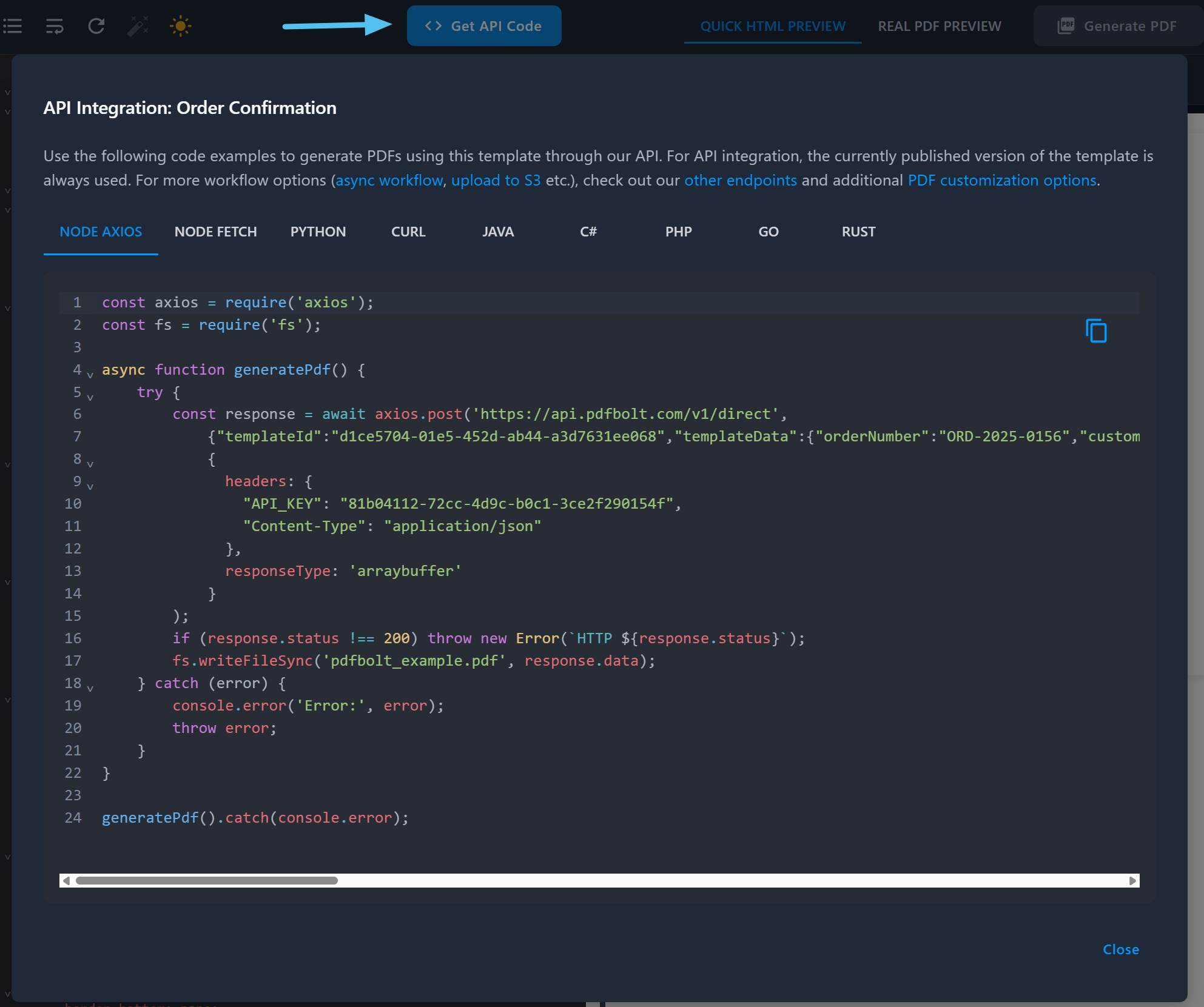
3. Publish and Integrate
- Click Publish to make template available via API.
- Get integration code for your preferred language.
- In your API request, use only
templateIdandtemplateData.
API Integration: Node.js Example
const axios = require('axios');
const fs = require('fs');

async function generatePdf() {
    const templateData = {
        orderNumber: "2025-0156",
        customer: {
            firstName: "Sarah"
        },
        shippingAddress: {
            street: "123 Main Street, Apt 4B",
            city: "San Francisco",
            state: "CA",
            zip: "94105"
        },
        items: [
            {
                name: "Wireless Bluetooth Headphones",
                price: "99.99"
            },
            {
                name: "Phone Case - Clear",
                price: "24.99"
            },
            {
                name: "USB-C Cable 6ft",
                price: "19.99"
            }
        ],
        orderTotal: "144.97",
        hasTracking: true,
        trackingNumber: "1Z999AA1234567890"
    };

    try {
        const response = await axios.post('https://api.pdfbolt.com/v1/direct', {
            templateId: "2f73cb39-5569-4941-8a47-9896ab27644c",
            templateData: templateData
        }, {
            headers: {
                "API-KEY": "XXXXXXXX-XXXX-XXXX-XXXX-XXXXXXXXXXXX",
                "Content-Type": "application/json"
            },
            responseType: 'arraybuffer'
        });

        if (response.status !== 200) {
            throw new Error(`HTTP ${response.status}`);
        }

        fs.writeFileSync('order_confirmation.pdf', response.data);
        console.log('PDF generated successfully: order_confirmation.pdf');

    } catch (error) {
        console.error('Error generating PDF:', error.message);
        throw error;
    }
}

generatePdf().catch(console.error);
4. Result: Professional PDF Generated
After running the integration code, you get the final PDF with all your data filled in:
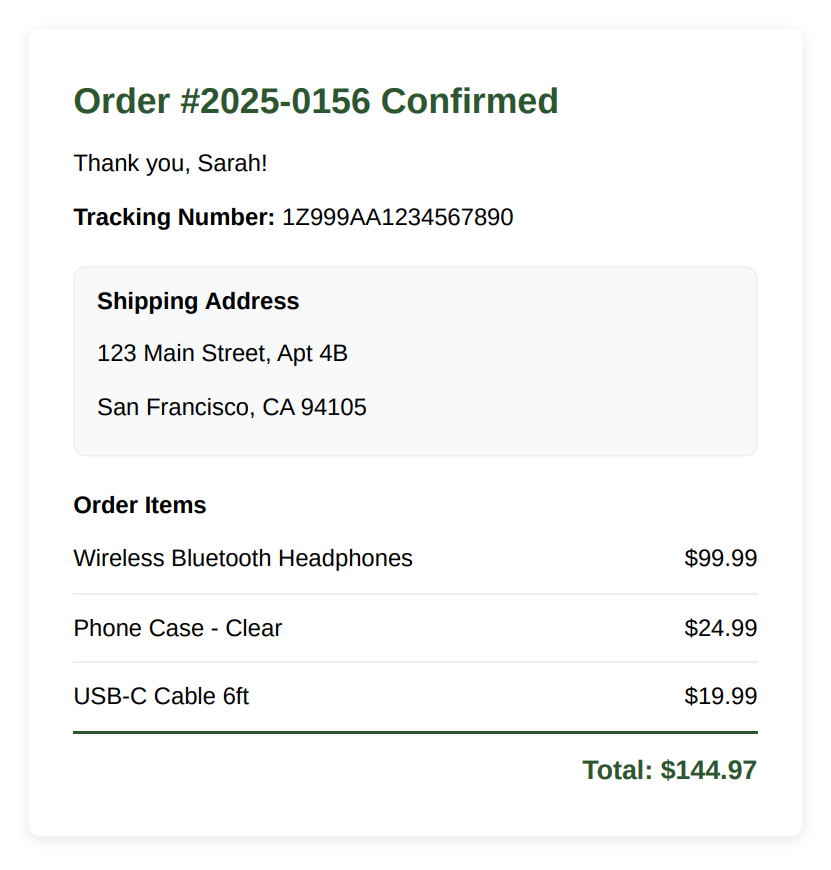
That's it! You can now generate professional PDFs with any data you send. The same template can create thousands of documents with different details.
Technical Details
Templates simplify PDF generation through an API with PDFBolt's developer-friendly endpoints:
- API endpoints – Use
/direct,/sync, or/asyncendpoints → See all API options. - All PDF options supported – Page size, orientation, margins, headers/footers, and all other PDF Conversion Parameters work with templates.
- Multiple programming languages – Ready-to-use code examples for Node.js, Python, PHP, Java, C#, Go, and Rust.
- High performance – Templates are stored server-side and ready to use, so no massive HTML sending or URL fetching required on each generation.
Templates are available now – log into your account or sign up for free and create your first template. You can also combine templates with automation platforms like n8n to build document workflows without writing code.
Questions or Need Help Getting Started?
Our documentation covers everything from basic setup to advanced template features, and our support team can help at contact@pdfbolt.com.
FAQ
How do I generate a PDF from a template in Node.js?
Send a POST request to https://api.pdfbolt.com/v1/direct with your templateId and templateData as JSON. The API returns the PDF as binary data. See the Node.js quick start for a working example.
Can I use PDF templates with Java or PHP?
What templating engine does PDFBolt use?
PDFBolt uses Handlebars. It supports variables ({{name}}), loops ({{#each items}}), conditionals ({{#if paid}}), and nested objects. If you need a different engine, contact contact@pdfbolt.com.
Do templates support page headers, footers, and custom margins?
Yes. All PDF conversion parameters – page size, orientation, margins, headers, footers, printBackground – work with template-based generation, same as with direct HTML or URL conversion.
Additional Resources
Explore these resources for detailed implementation:
→ Templates Documentation – Guide to template concepts, benefits, and use cases.
→ Template Workflow – Step-by-step walkthrough from template design to PDF generation via API.
→ Invoice Template Example – Ready-to-use invoice template with API integration code.
→ All Template Features – From basic creation to advanced features like versioning and rollback.
→ API Integration Code – Code snippets for Node.js, Python, PHP, Java, C#, Go, Rust, and cURL.
→ HTML to PDF API – Convert HTML to PDF with full control over page layout and styling.