Free HTML to PDF Converter
Convert HTML to PDF online – paste code or upload an HTML file, get a pixel-perfect PDF in seconds.
Same Chrome engine as our HTML to PDF API. No install, no signup, no watermarks.
GDPR Compliant
Privacy by design
Hosted in the EU
Protected by EU law
HTTPS Encrypted
All transfers secured
HTML never stored
Deleted after conversion
1. Paste or upload your HTML
2. Configure options
Margins
Top
Right
Bottom
Left
Header & Footer
Available classes: pageNumber, totalPages, title, date
Header template (HTML)
Footer template (HTML)
Output
Filename
Compression
Print Production
PDF Standard
Color Space
ICC Profile
Loading & Timing
Wait until
Timeout (ms)
Wait for function (JavaScript)
Wait for selector
Selector state
Page Behavior
Emulate media type
Viewport & Device
Viewport size
Device scale factor
Authentication & Network
HTTP Credentials
Extra HTTP Headers
Cookies
3. Generate PDF
How to Convert HTML to PDF
Convert HTML to PDF in three steps. Paste your code, or upload an HTML file.
Tweak the options if needed, then download a clean PDF in seconds – free, no signup.
1. Paste or Upload HTML
Paste HTML code into the editor, or click Upload to load an .html file. A live sample is pre-loaded for instant preview – just replace it with your own HTML.
2. Configure Options
Customize format, margins, orientation, page ranges, headers, footers, compression, and more – or skip ahead if the defaults already work for your case.
3. Download Your PDF
Click Convert to PDF and our headless Chrome renders your HTML server-side. Preview the generated PDF, then download or convert another file.
Why Use Our HTML to PDF Converter
The same Chrome rendering, the same conversion options, the same output as our HTML to PDF API – free, no watermarks.
Instant PDF preview
See the generated PDF instantly in your browser – no download needed to check the result. Adjust parameters or code and convert again.
Secure by design
HTTPS-encrypted upload, EU-hosted servers, no logs, no storage. Your HTML never touches our database – GDPR-compliant by default.
Full HTML5 & CSS3 support
Modern HTML5, CSS Grid, Flexbox, web fonts, SVG, and JavaScript – rendered with headless Chrome, the same engine as your browser.
Paste or upload HTML
Paste HTML code or upload an .html file. The editor loads your content for quick edits before converting – or convert right away.
All customization options
Every REST API conversion option works here – page format, margins, compression, headers and footers, plus PDF/X, CMYK, and tagged accessibility.
Free access, no credit card
Start converting immediately – no account or email required. Need to generate more? Sign up for 50 free PDFs per month – no credit card required.
Common HTML to PDF Use Cases
Use our free HTML to PDF converter, or automate the same output at scale through our REST API.
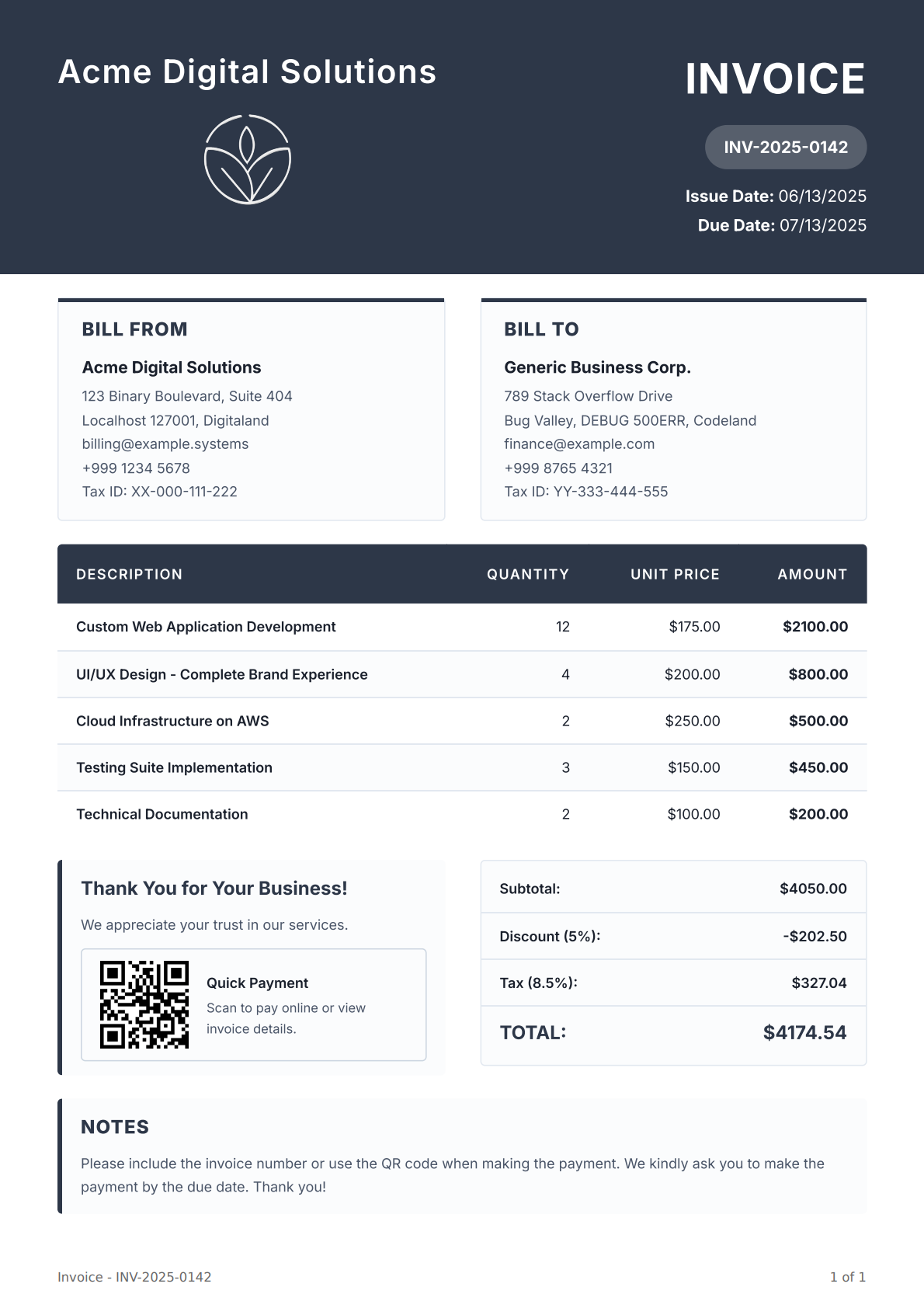
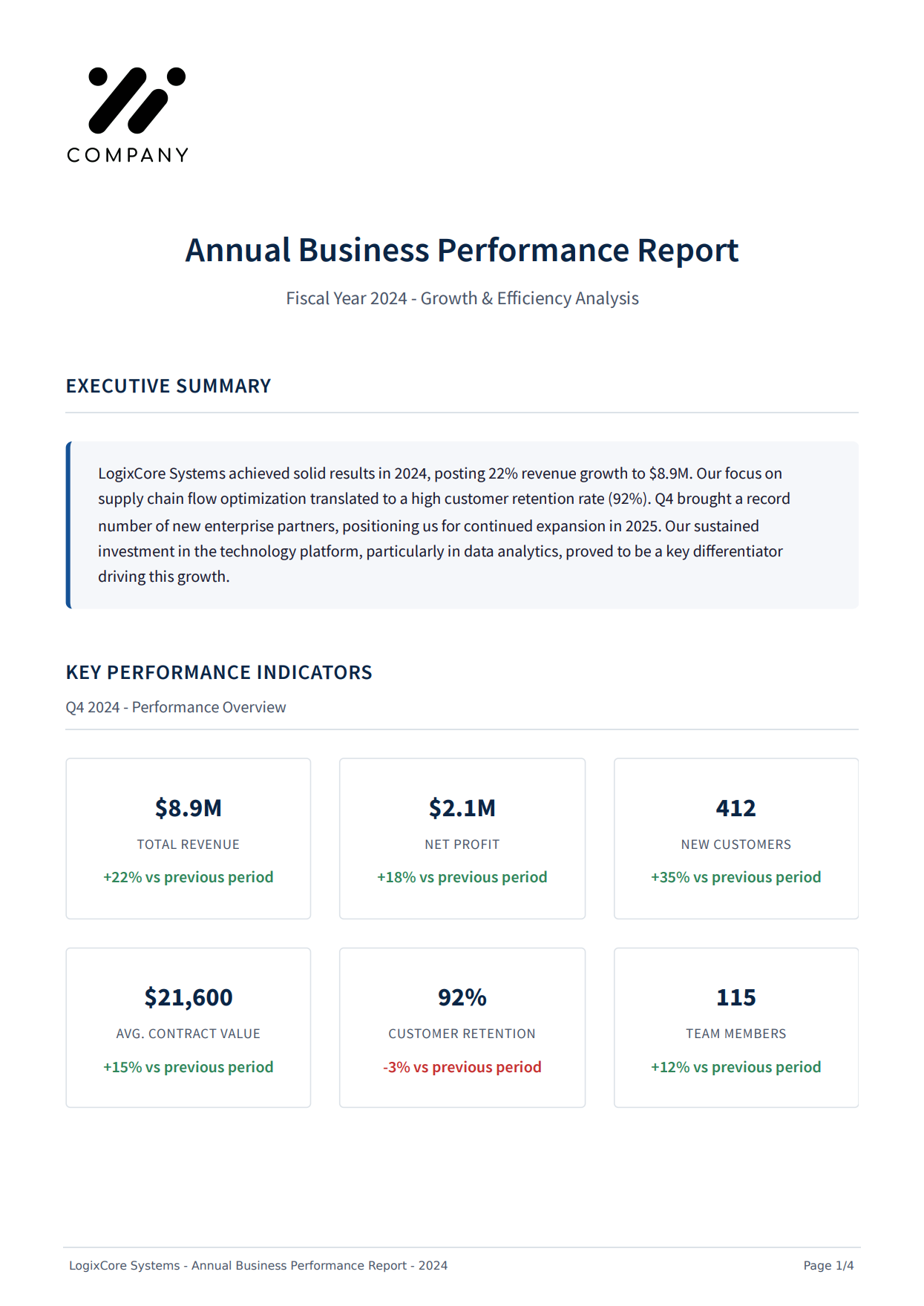
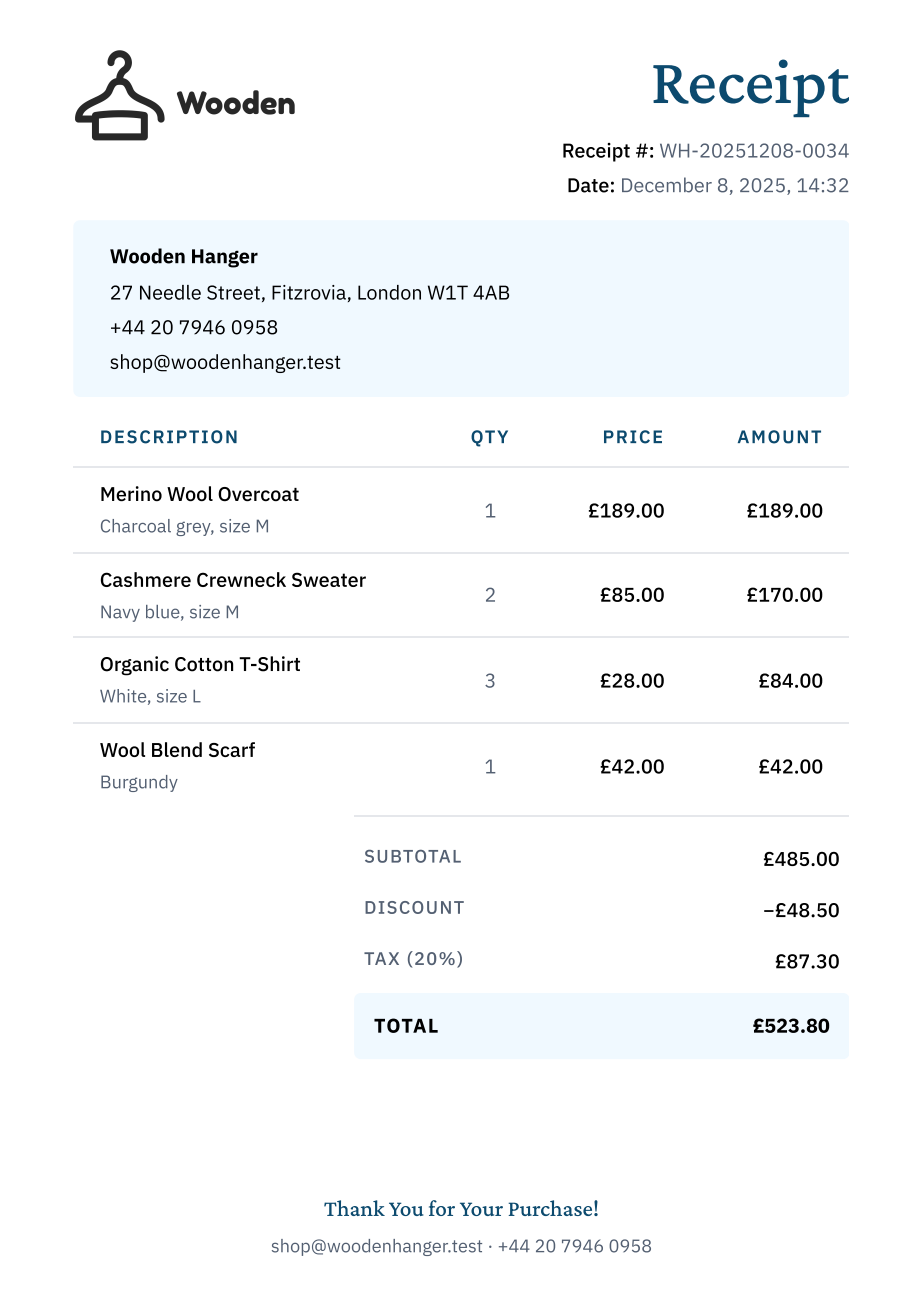

Generating the same layout over and over? Save your HTML once as a reusable template, then send only the JSON data that changes.
Learn about PDF templatesHow to Fix Common HTML to PDF Issues
Headless Chrome renders most HTML perfectly – but a few patterns need extra care.
Here's how to handle page breaks, web fonts, print CSS, and JavaScript timing.
Page breaks in the wrong place
Long tables split mid-row, headings orphan from their section, and images get sliced in half at page edges.
Add page-break-inside: avoid to <tr> and important blocks, plus page-break-after: avoid to headings. Both legacy page-break-* and modern break-* properties are supported.
Custom fonts don't load (system fonts shown instead)
Custom typography falls back to system defaults because the font imports aren't reachable during server-side rendering.
Make sure font imports use absolute HTTPS URLs. Google Fonts via @import or <link> in your <head> work out of the box. For self-hosted fonts, point @font-face src at a public HTTPS URL.
CSS doesn't render as expected
Common causes: viewport units (vw, vh) reference the browser viewport, not your PDF page size – so layouts shift unexpectedly. Or styles are wrapped in @media screen, which print emulation skips.
Use absolute units (pt, cm, in, mm) for layout dimensions, and either remove @media screen wrappers or switch Emulate media type to Screen in the Page Behavior panel.
JavaScript content renders blank
SPAs, charts, and lazy-loaded components show up empty because the PDF snapshot fires before JavaScript finishes rendering – common with client-rendered React, Vue, or Angular apps and dashboards with dynamic data.
Set Wait until to networkidle, add a Wait for selector rule, or use Wait for function for custom JavaScript conditions – all in the Loading & Timing panel. Increase Timeout for slow loads.
Frequently Asked Questions
Common questions about pricing, security, features, customization, and HTML to PDF automation.
How do I convert HTML to PDF?
Is this HTML to PDF converter really free?
Is my HTML code secure?
Why not just use a PDF generation library like Puppeteer or jsPDF?
Does it support modern CSS (Grid, Flexbox), JavaScript, and web fonts?
Will HTML links and anchors stay clickable in the PDF?
Can I customize page size, margins, headers, and footers?
Can I automate HTML to PDF conversion?
How do I convert a webpage URL to PDF?