Templates
Use Templates in the Dashboard to create, preview, and publish reusable PDF layouts. Templates are HTML/CSS documents with Handlebars placeholders. The Data tab stores sample data for previews, while Conversion API requests provide document data through templateData.
To manage templates programmatically, use the Template API.
Create Your First Template
When you first open Templates from the Dashboard sidebar, you will see the getting started view:
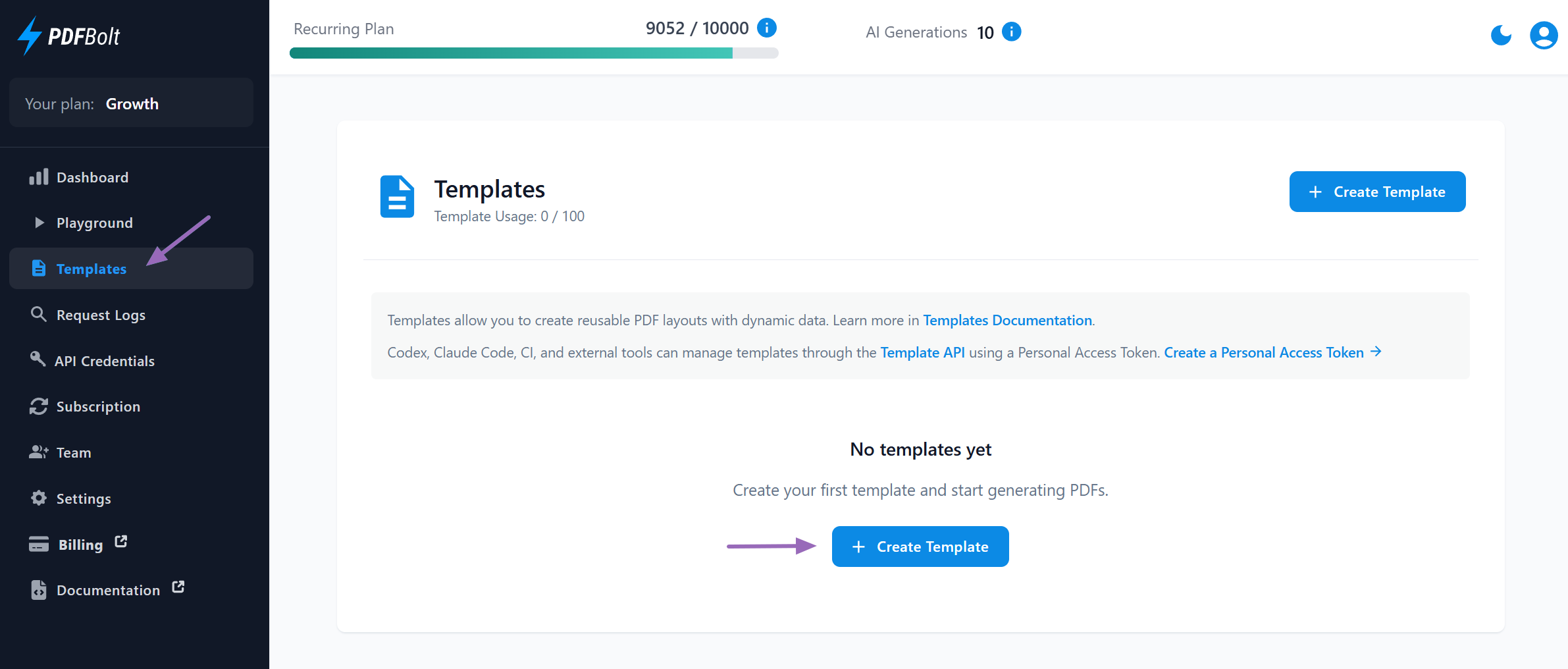
The page shows:
- Template usage: The number of templates in use and the maximum allowed by the current plan.
- Create Template: Opens the template creation flow.
- Documentation links: Opens the templates documentation or Template API reference.
Step 1: Create a Template
Click Create Template:
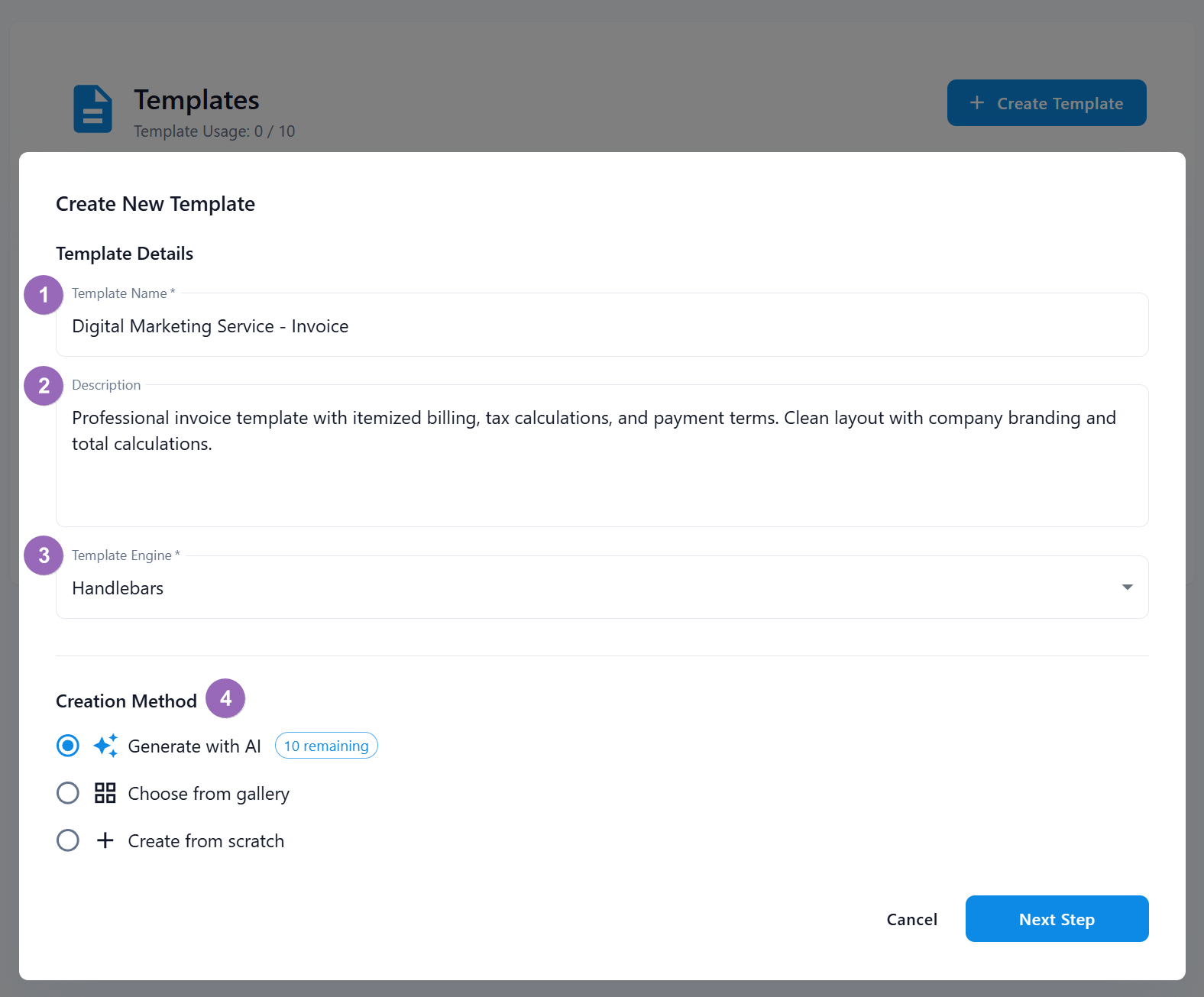
Provide the template details:
- Template Name: Give your template a descriptive name.
- Template Engine: Handlebars is currently supported.
- Creation Method: Choose how to start the template.
Option 1: Generate with AI:
- Describe the template in a prompt.
- Attach reference files such as PDFs, images, or code.
- PDFBolt generates the HTML/CSS template, Handlebars placeholders, sample data, and PDF settings.
Learn more in the AI Template Generation guide.
Option 2: Choose from Gallery:
- Start from an existing template design.
- Customize the layout, sample data, and PDF options.
- The gallery includes invoices, certificates, resumes, shipping labels, and other common layouts.
Explore available designs in the PDF Templates Gallery.
Option 3: Create from Scratch:
- Start with a blank template.
- Define your own data structure and Handlebars variables.
- Use this method when a gallery template does not fit your document.
Step 2: Choose a Gallery Template
If you select Choose from gallery, you will see the template gallery:
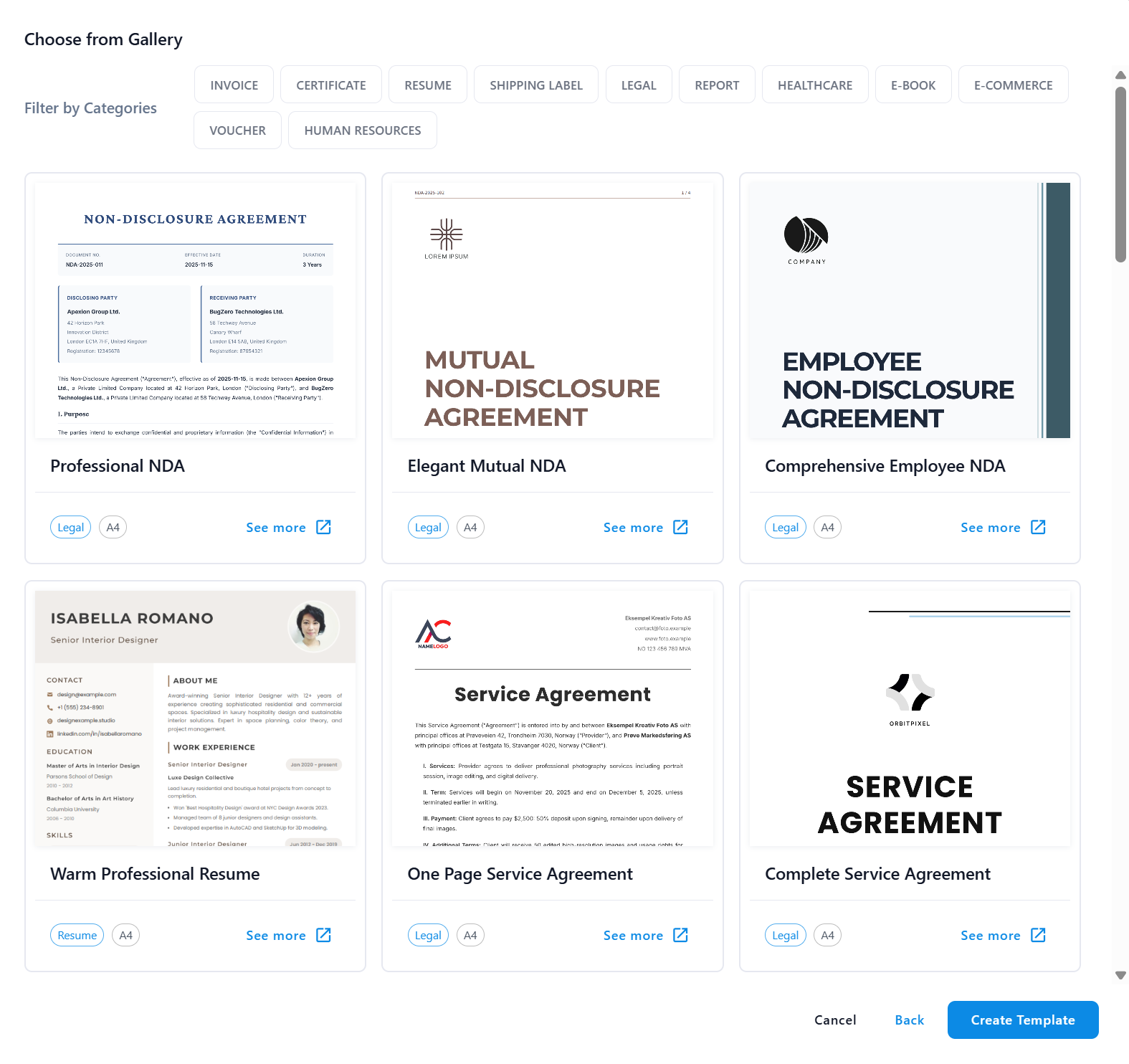
- Browse available templates by category.
- Select a design.
- Click Create Template to open it in the Template Designer.
Step 3: Use the Template Designer
After selecting a template or creating one from scratch, you will enter the Template Designer:
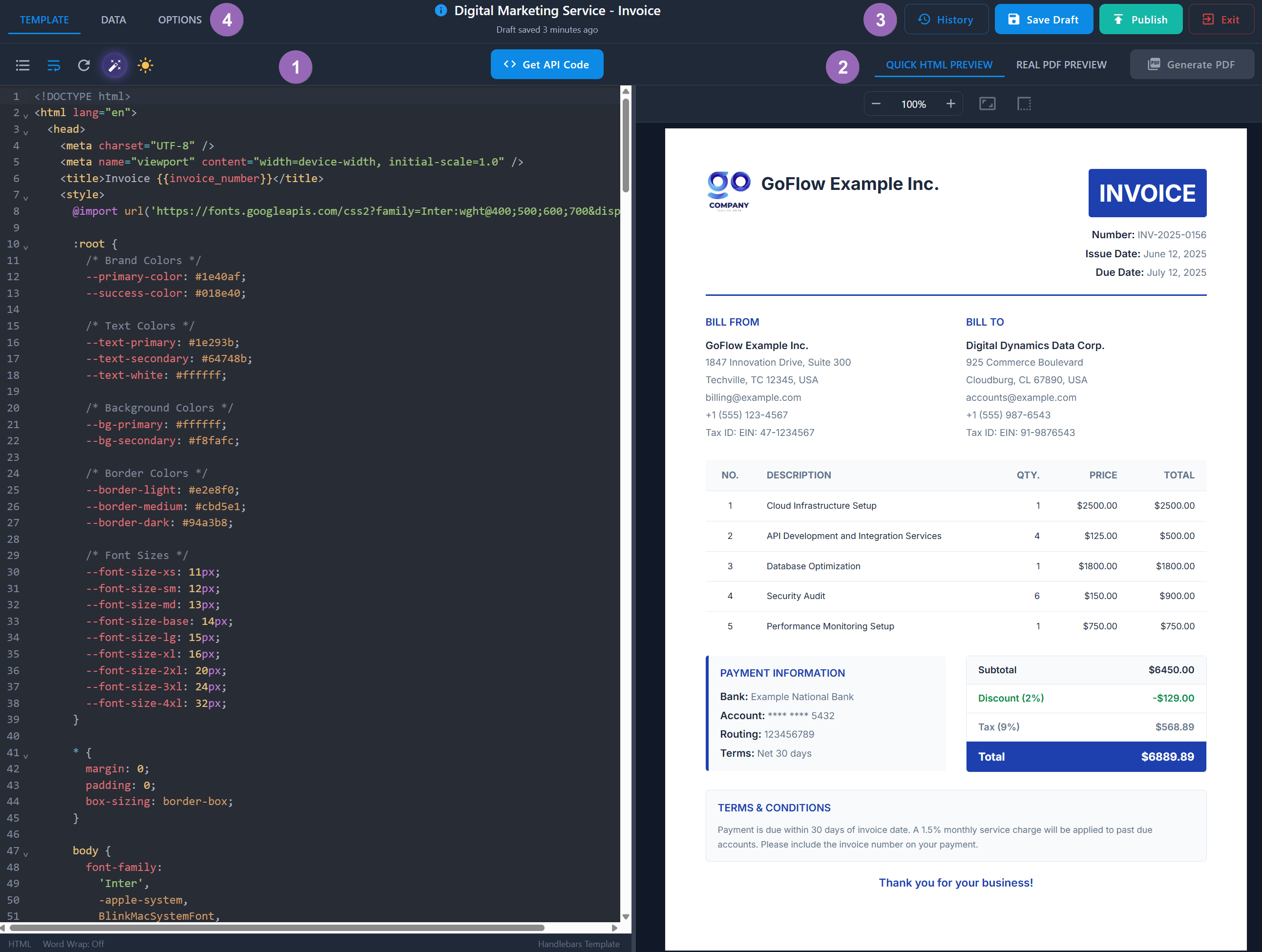
The Designer toolbar contains:
- Editor tabs: Template, Data, and Options.
- Template actions: History, Save Draft, Publish, and Exit.
- API integration: Get API Code.
- Preview controls: Quick HTML Preview, Real PDF Preview, and Generate PDF.
Step 4: Edit the Template, Data, and Options
Template Tab
Write the HTML/CSS document and add Handlebars placeholders:
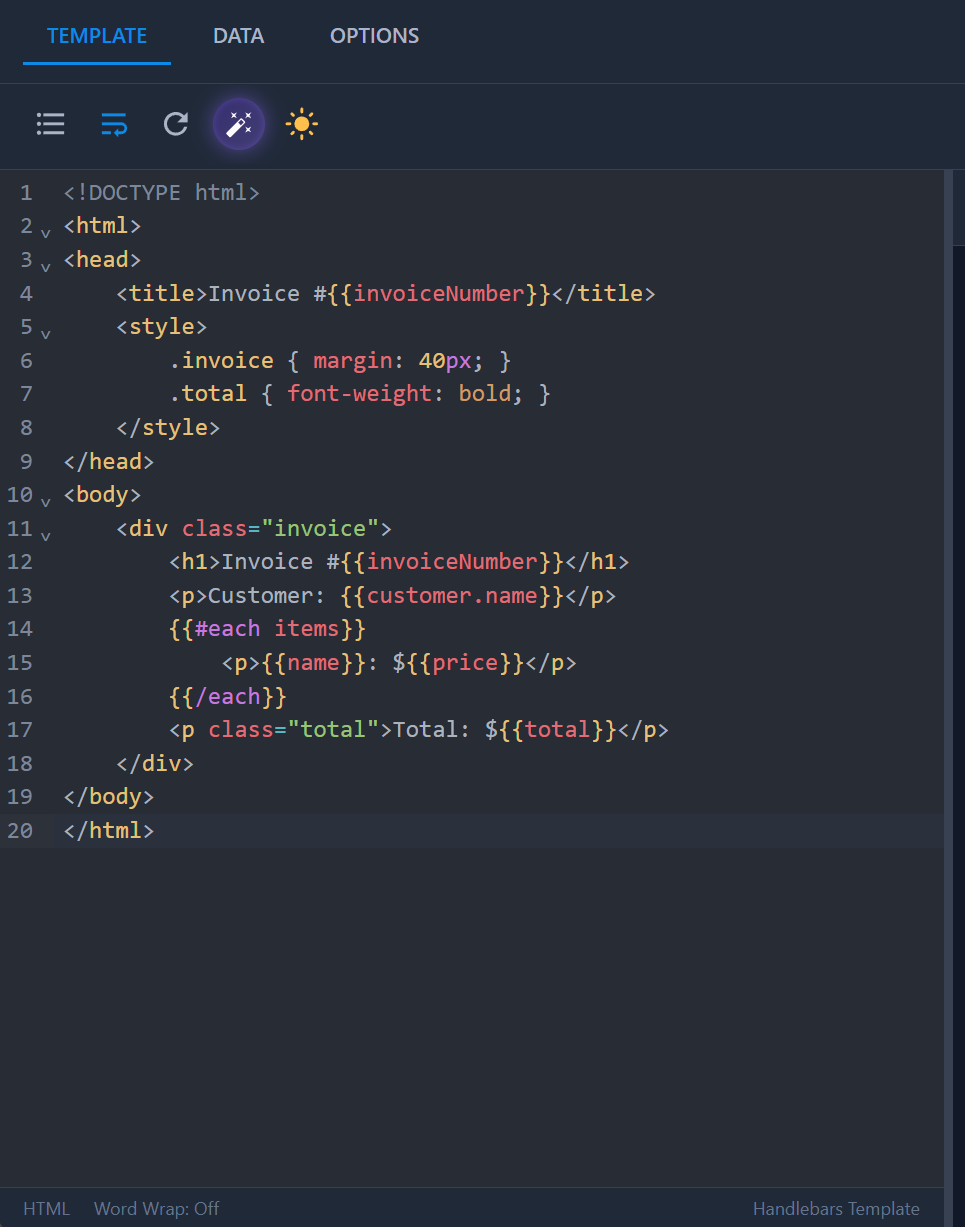
The editor provides:
- Syntax highlighting for HTML, CSS, and Handlebars.
- Error detection with real-time validation and highlighting.
- Code editor options:
- Prettier: Format code with Prettier.
- Word Wrap: Toggle line wrapping.
- Refresh: Refresh the preview manually.
- AI Assist: Describe changes, attach reference files, and review proposed edits in a diff view before accepting or rejecting them.
- Theme: Switch between dark and light mode.

- Find and replace (
Ctrl+ForCmd+F): Search and replace text in the template.

Data Tab
Use the Data tab to provide sample JSON data:
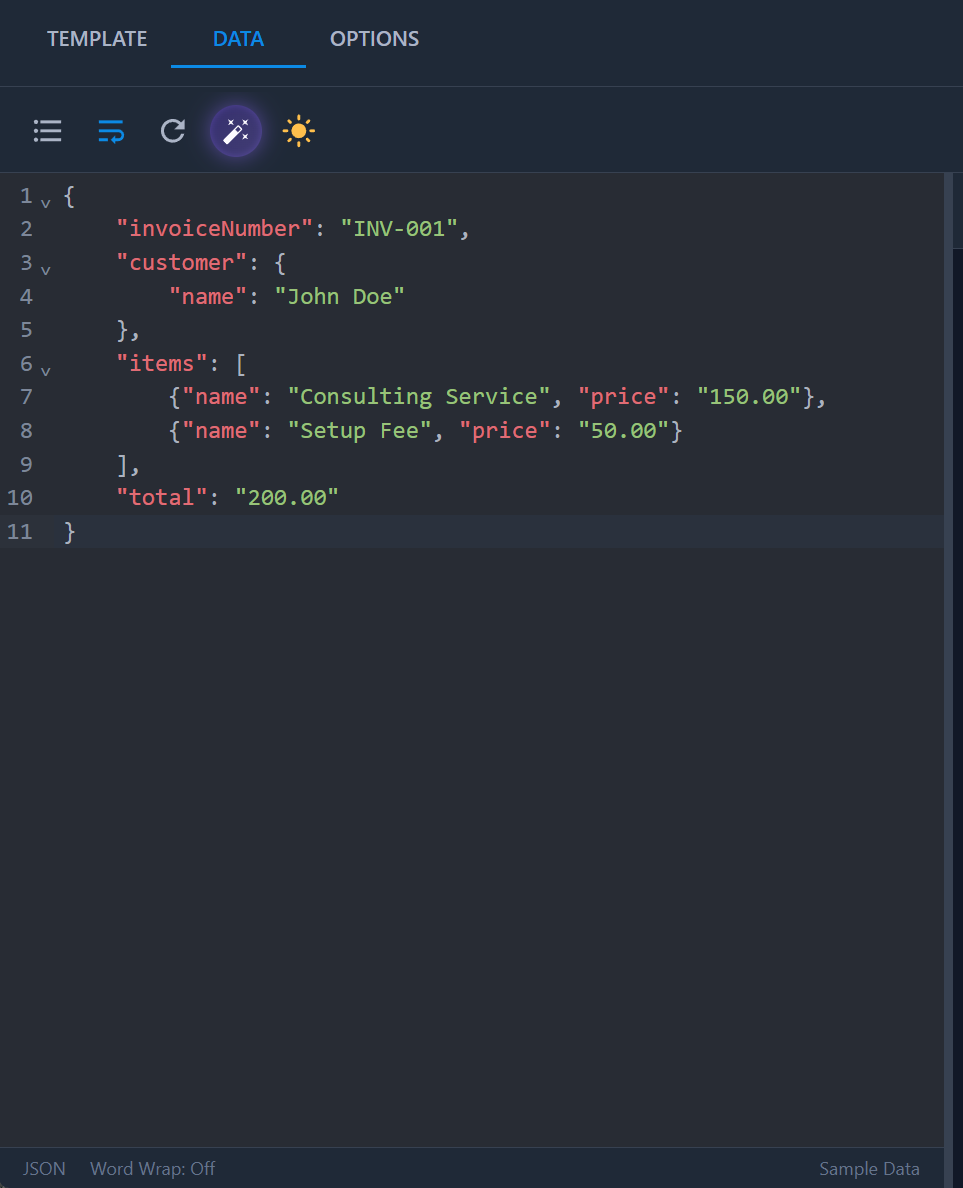
The saved sample data populates Handlebars placeholders in Quick HTML Preview and Real PDF Preview. Generated API examples use it to prefill templateData, which you should replace with data for each document.
Options Tab
Configure PDF options for this template:
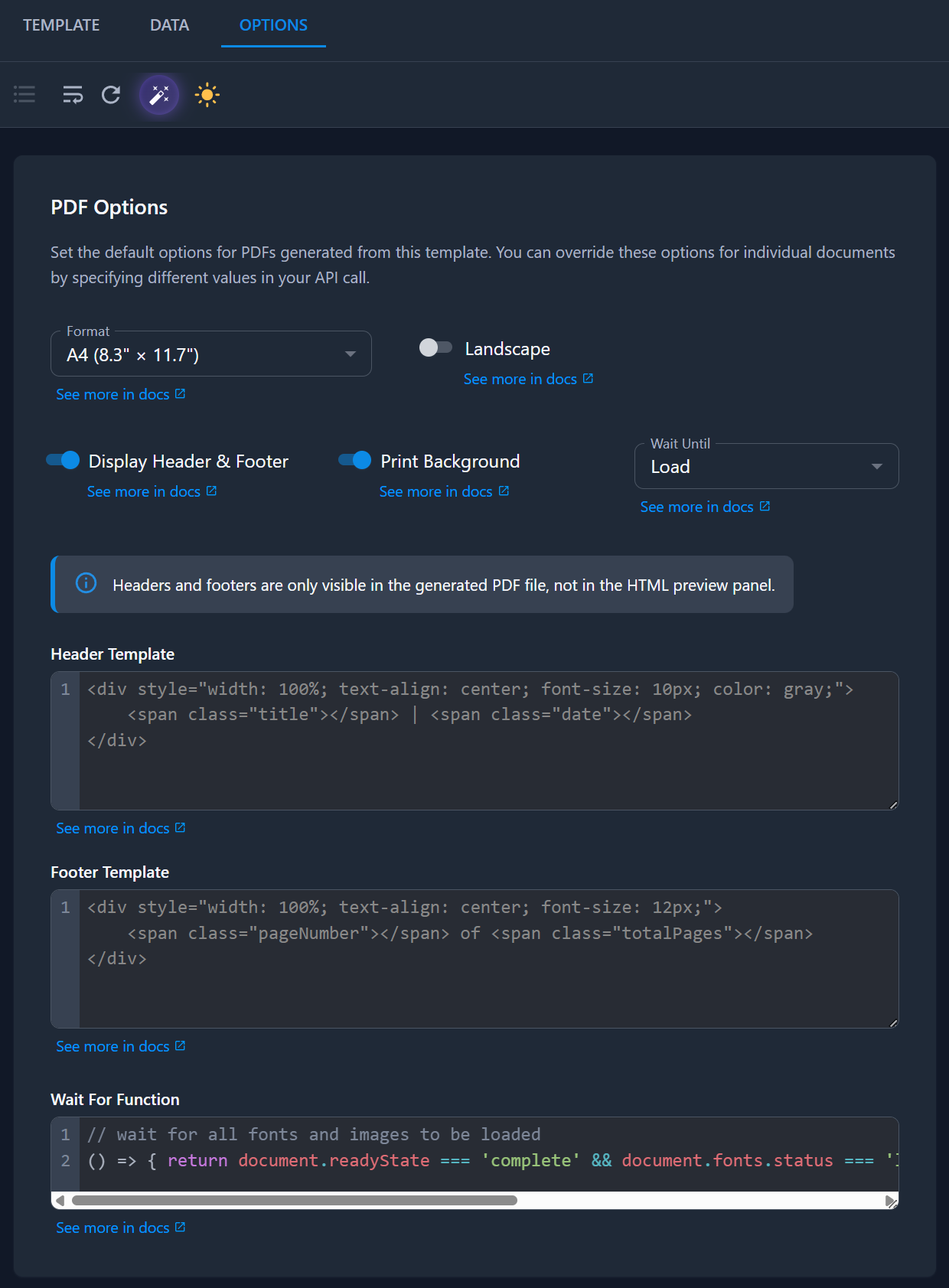
The saved PDF options are:
- Format: Choose a page format such as A4, Letter, or Legal. See the
formatparameter for the full list. - Landscape: Render pages in landscape orientation.
- Wait Until: Choose the page readiness event (
domcontentloaded,load,networkidle, orcommit). - Print Background: Include background colors and images.
- Display Header & Footer: Display saved header and footer templates.
- Header Template: Define Chromium header template HTML.
- Footer Template: Define Chromium footer template HTML.
- Wait For Function: Run a JavaScript function before rendering the template.
These template parameters are saved with the template version. When a Conversion API request includes a matching parameter, its value takes priority for that conversion without changing the template.
Designer Options
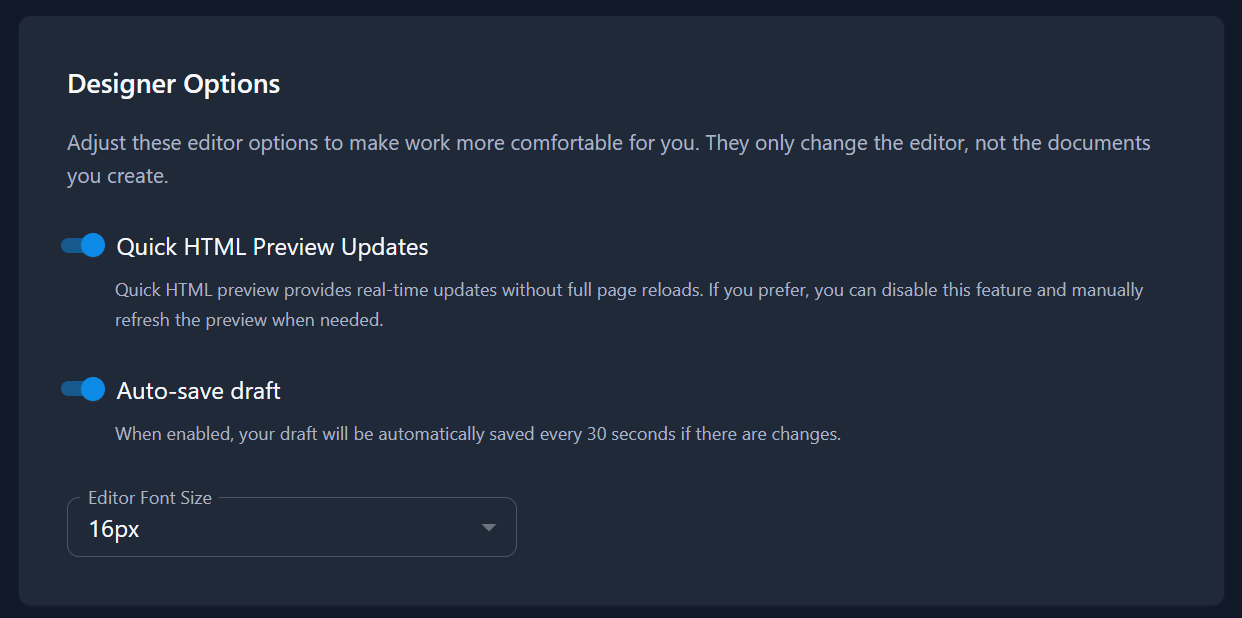
- Quick HTML Preview Updates: Toggle real-time preview refresh without full page reloads (can be disabled for manual refresh).
- Auto-save draft: Automatically save your template every 30 seconds when changes are detected.
- Editor Font Size: Customize code editor font size for better readability.
Step 5: Preview the Template
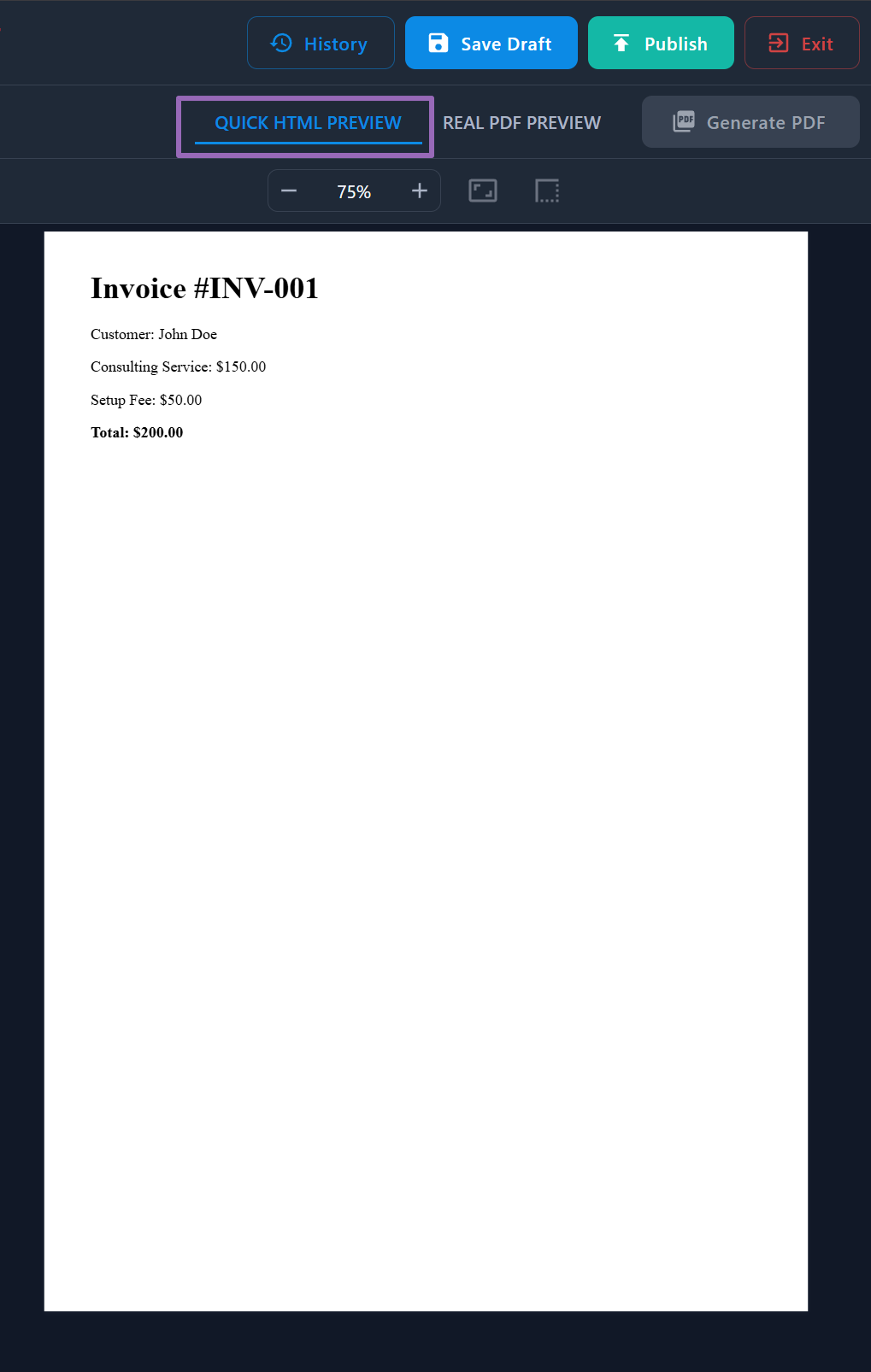
Quick HTML Preview
The default preview mode provides instant visual feedback during template development without full PDF generation:
- Real-time updates as you edit (when enabled).
- Zoom controls: +/- buttons, fit to width, fit to page.
- Page breaks: Toggle to see print layout divisions.
Real PDF Preview
- Select the Real PDF Preview tab.
- Click Generate PDF.
- Wait for the PDF to render.
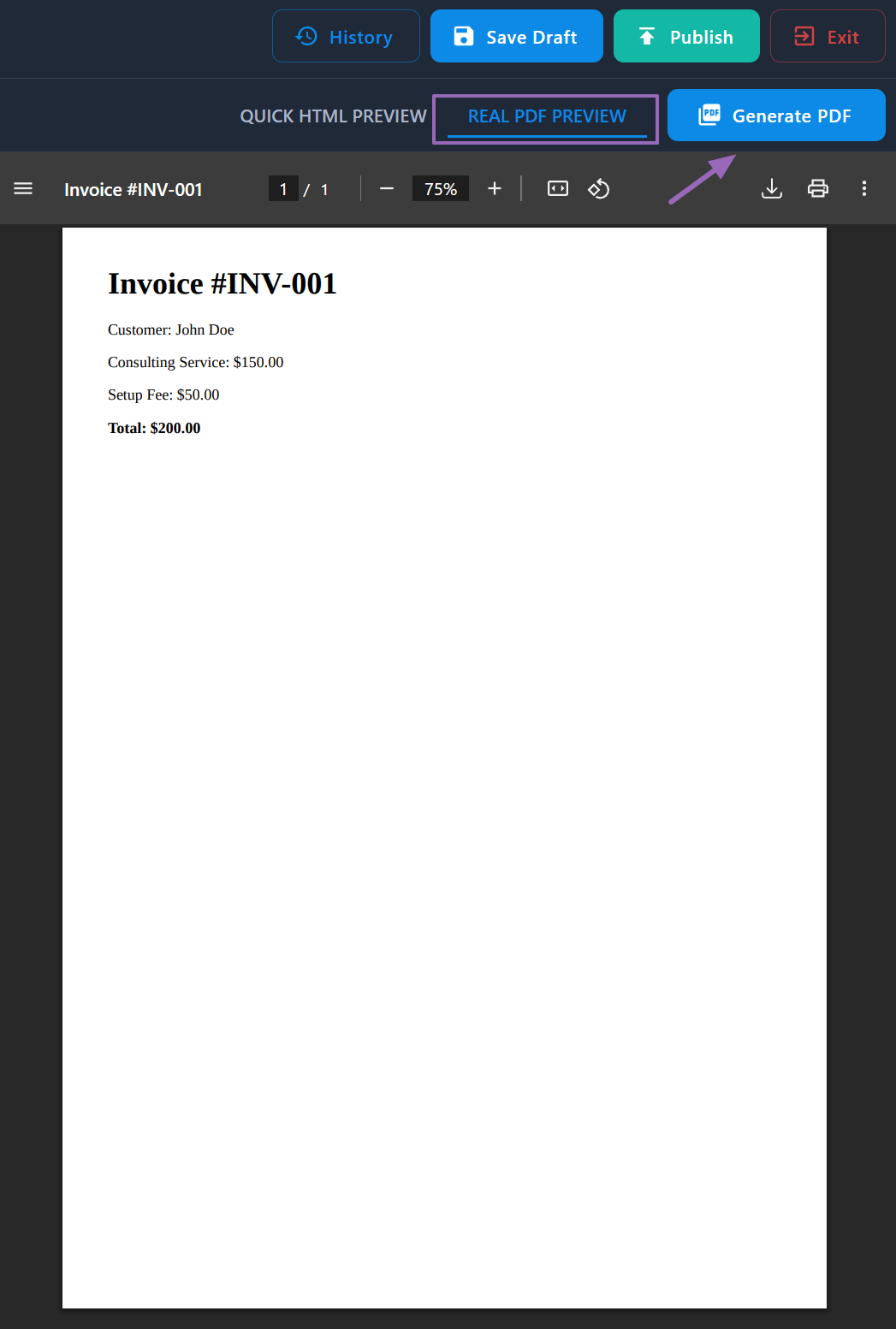
Use Real PDF Preview to:
- See exactly what the API will generate.
- Test complex layouts and styling.
- Verify page breaks and formatting.
- Ensure all fonts and images load correctly.
- Preview print-specific styles such as
@media printCSS rules. - Check configured headers and footers.
Successful Real PDF Preview generations count as document conversions.
Step 6: Save the Draft
When Auto-save draft is enabled, the Designer saves changes every 30 seconds. You can also click Save Draft at any time. If an active draft exists, it is updated. Otherwise, PDFBolt creates the next draft version.

Step 7: Publish the Template
When the template is ready, publish it to make it available for Conversion API requests:
- Click the Publish button.
- Add an optional version comment.
- Click Publish to confirm.
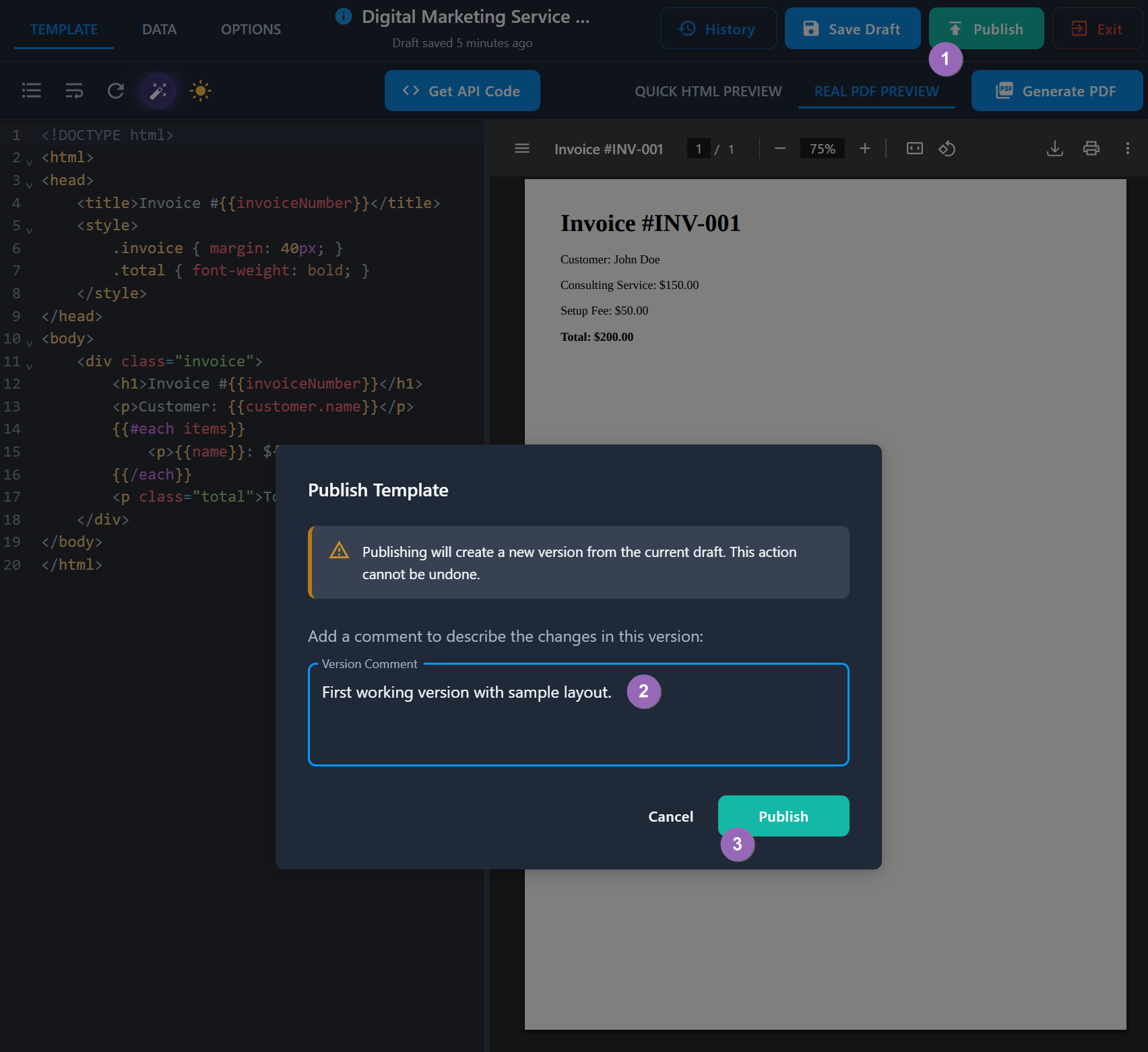
Publishing:
- Creates the first published version as v1. Later publications create v2, v3, and so on.
- The template becomes available to the Conversion API immediately.
- Use the template ID in Conversion API requests.
- Further saved edits create a draft for the next version.
Publish the template before using it in a Conversion API request. Drafts can be previewed in the Designer, but the Conversion API uses the published version.
Step 8: Get API Integration Code
Click Get API Code to view integration examples for the current template:
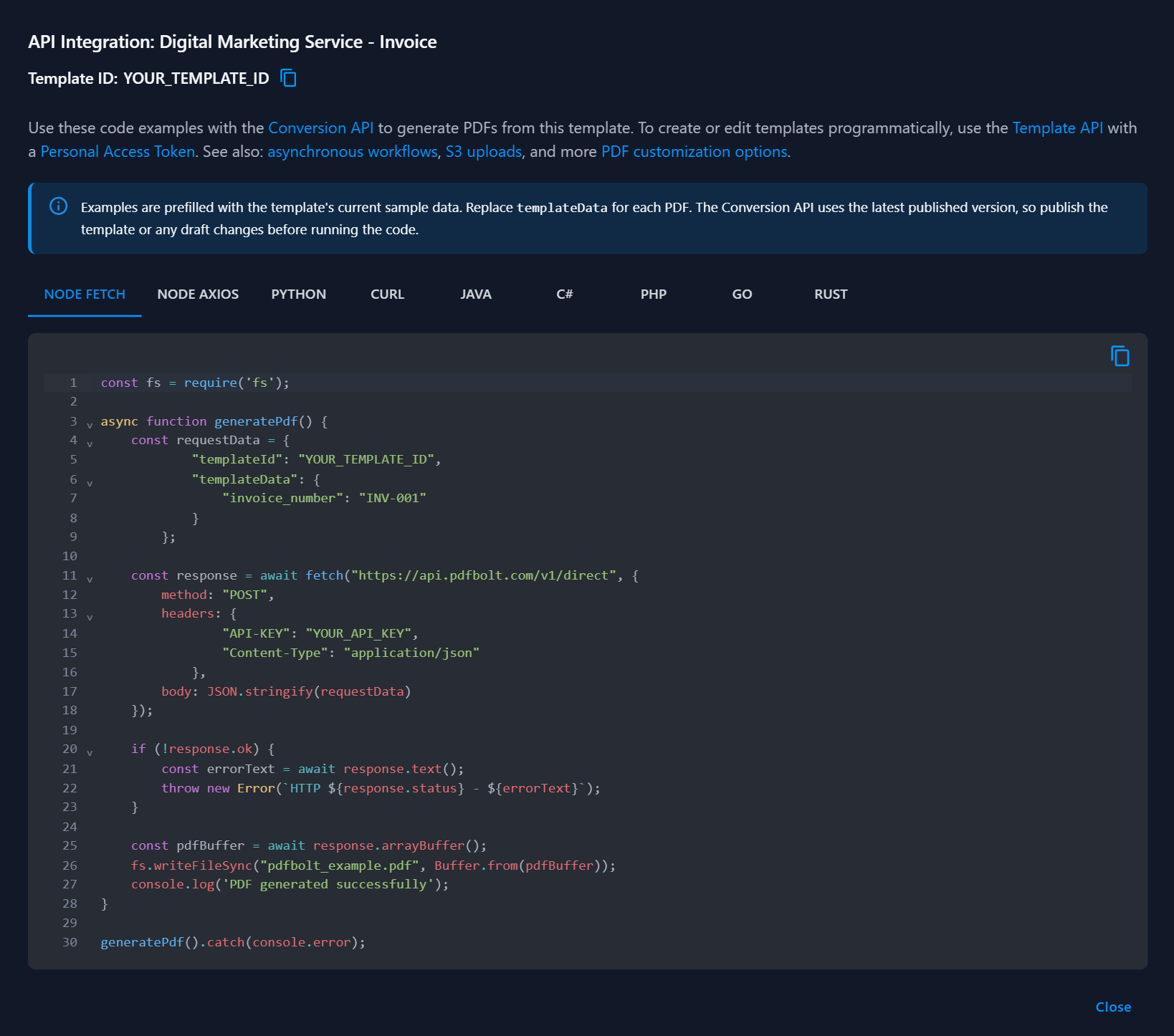
Examples are available for:
- Node.js (Fetch and Axios)
- Python
- cURL
- Java
- C#
- PHP
- Go
- Rust
The examples call /v1/direct with the template ID and saved sample data as templateData. Replace templateData for each PDF. The Conversion API uses the latest published version.
Copy a code example and test it in your application.
Generated snippets include your API key. Do not expose it in client-side code or commit it to source control.
Manage Templates
The Templates page lists your templates:
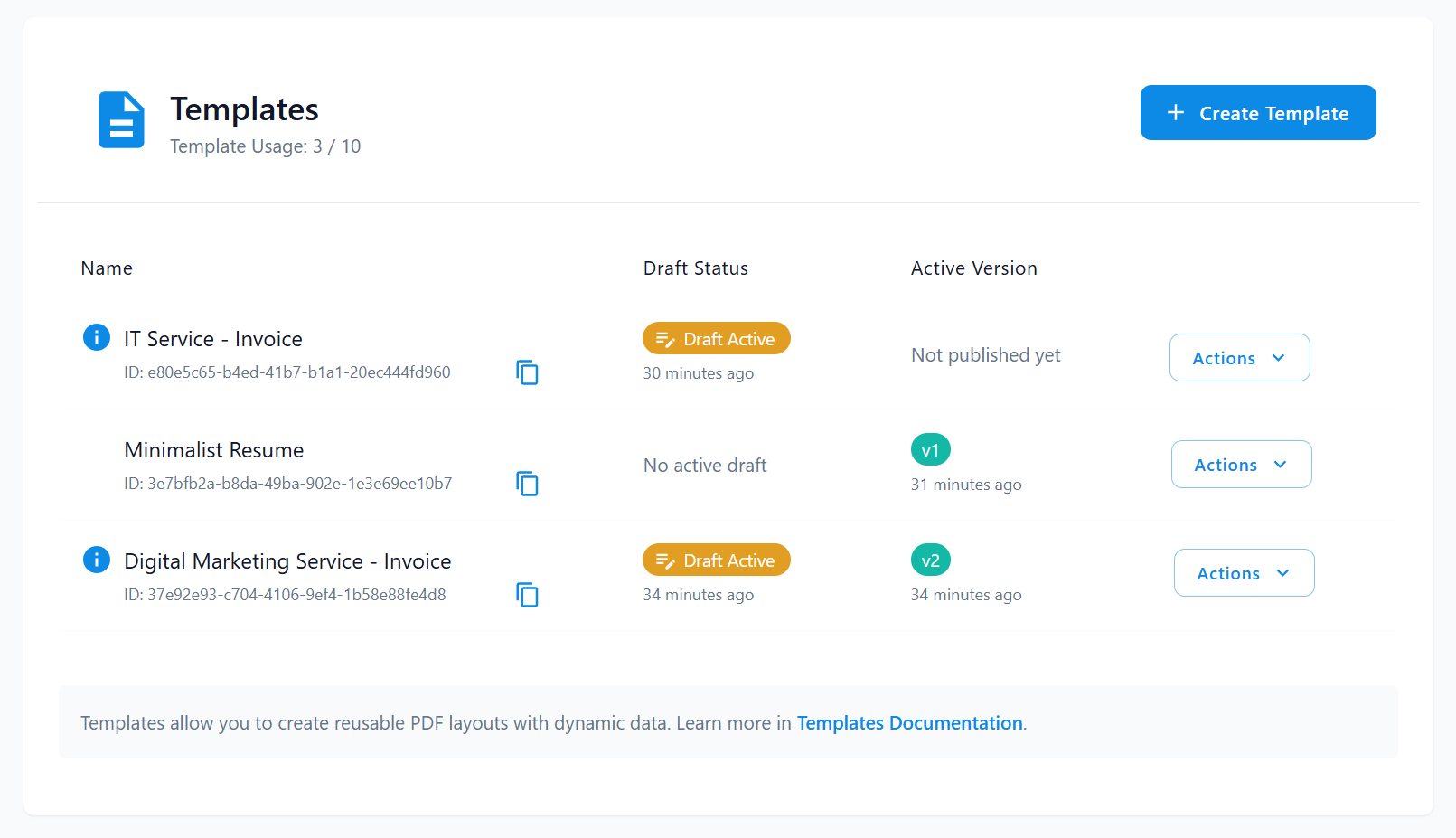
Template List
Each template shows:
| No. | Column | Description |
|---|---|---|
| 1 | Name | Template name and unique ID |
| 2 | Draft Status | Active draft status and last modification |
| 3 | Active Version | Published version available through the Conversion API |
| 4 | Actions | Button that opens the template management menu |
Template Statuses
- Draft Active: The template has unpublished changes.
- Version badge: Shows the latest published version, such as v1 or v2.
- Not published yet: The template has never been published.
- No active draft: The template has no pending changes.
Template Actions
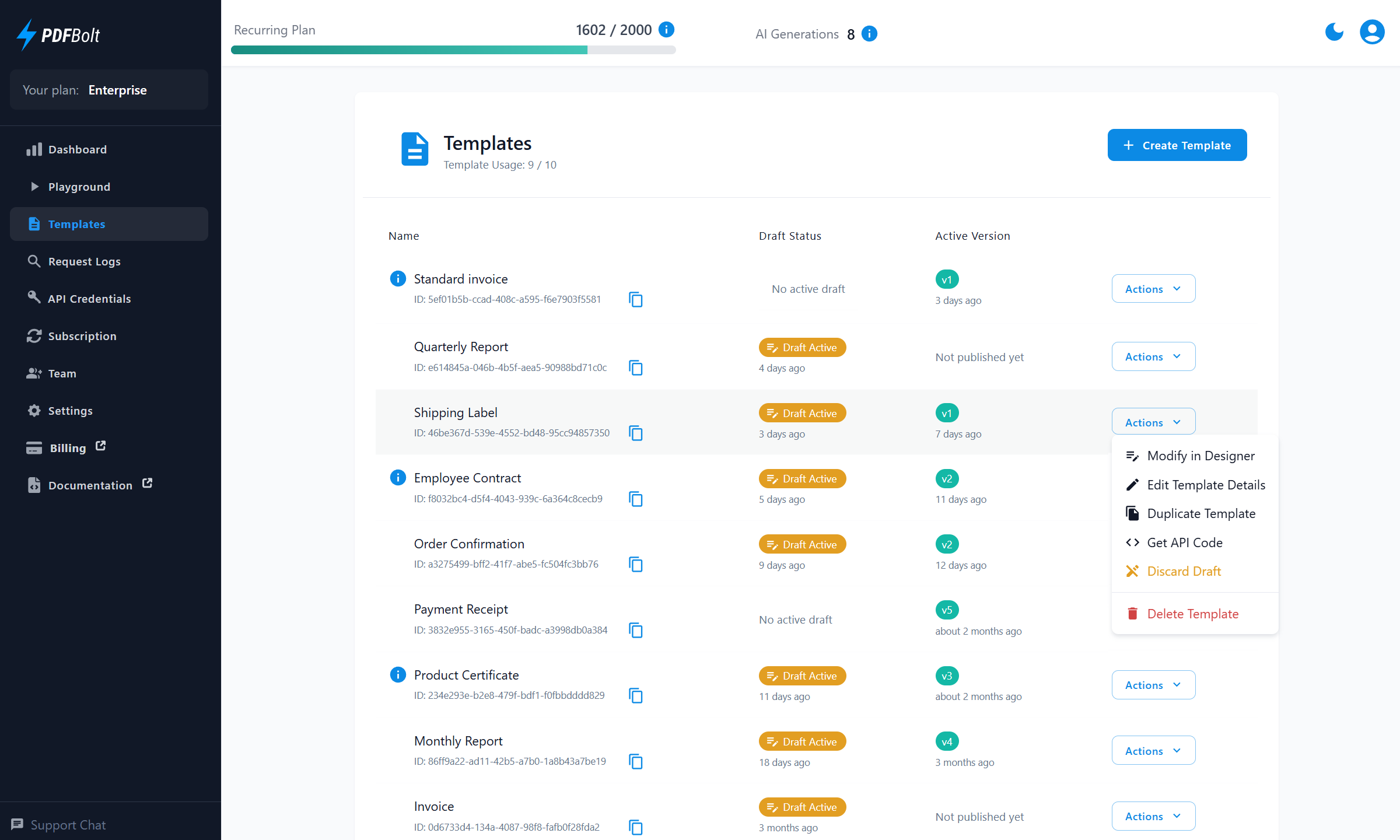
Click the Actions button next to any template for these options:
- Modify in Designer: Open the template in the code editor.
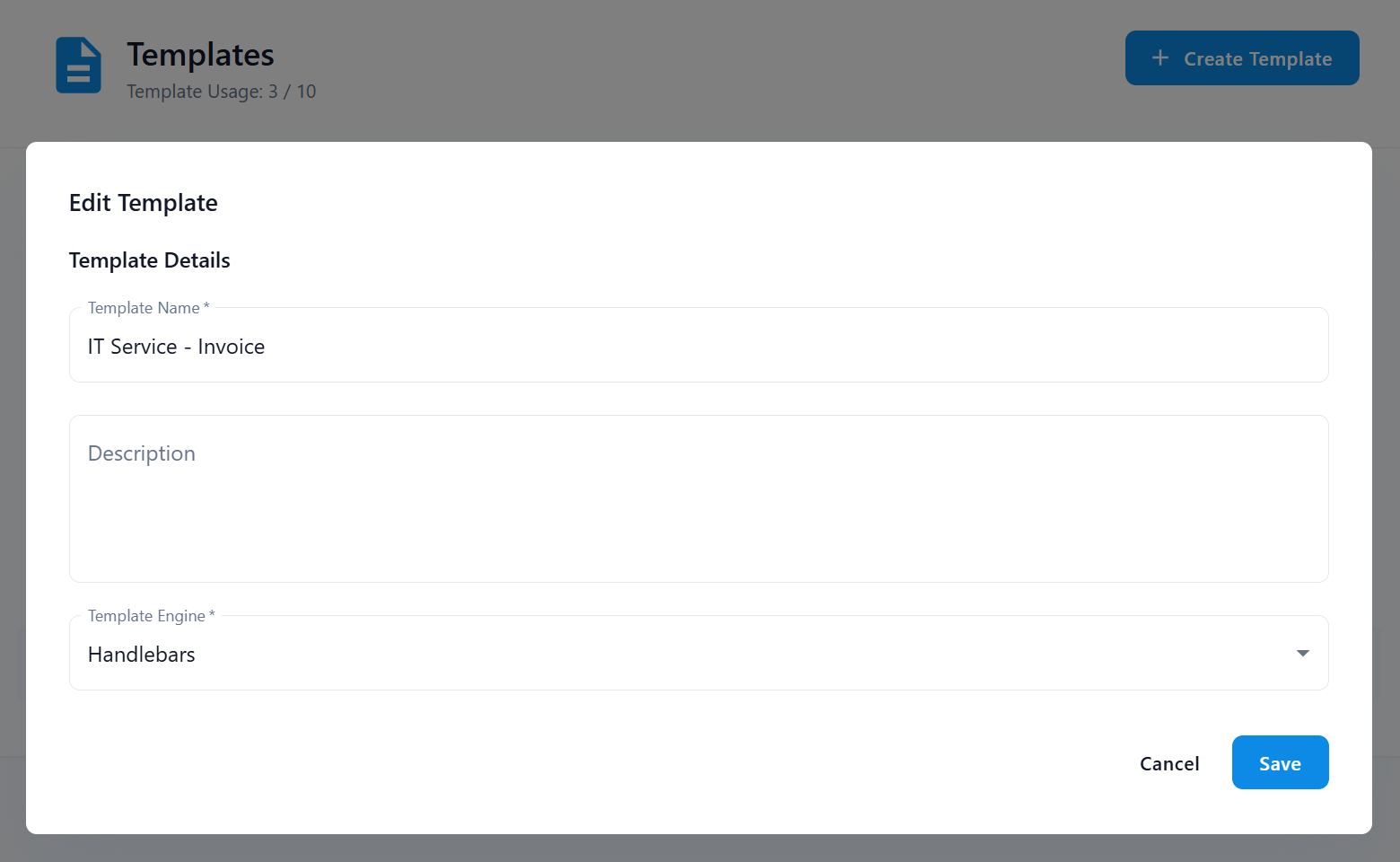
- Edit Template Details: Change name or description.
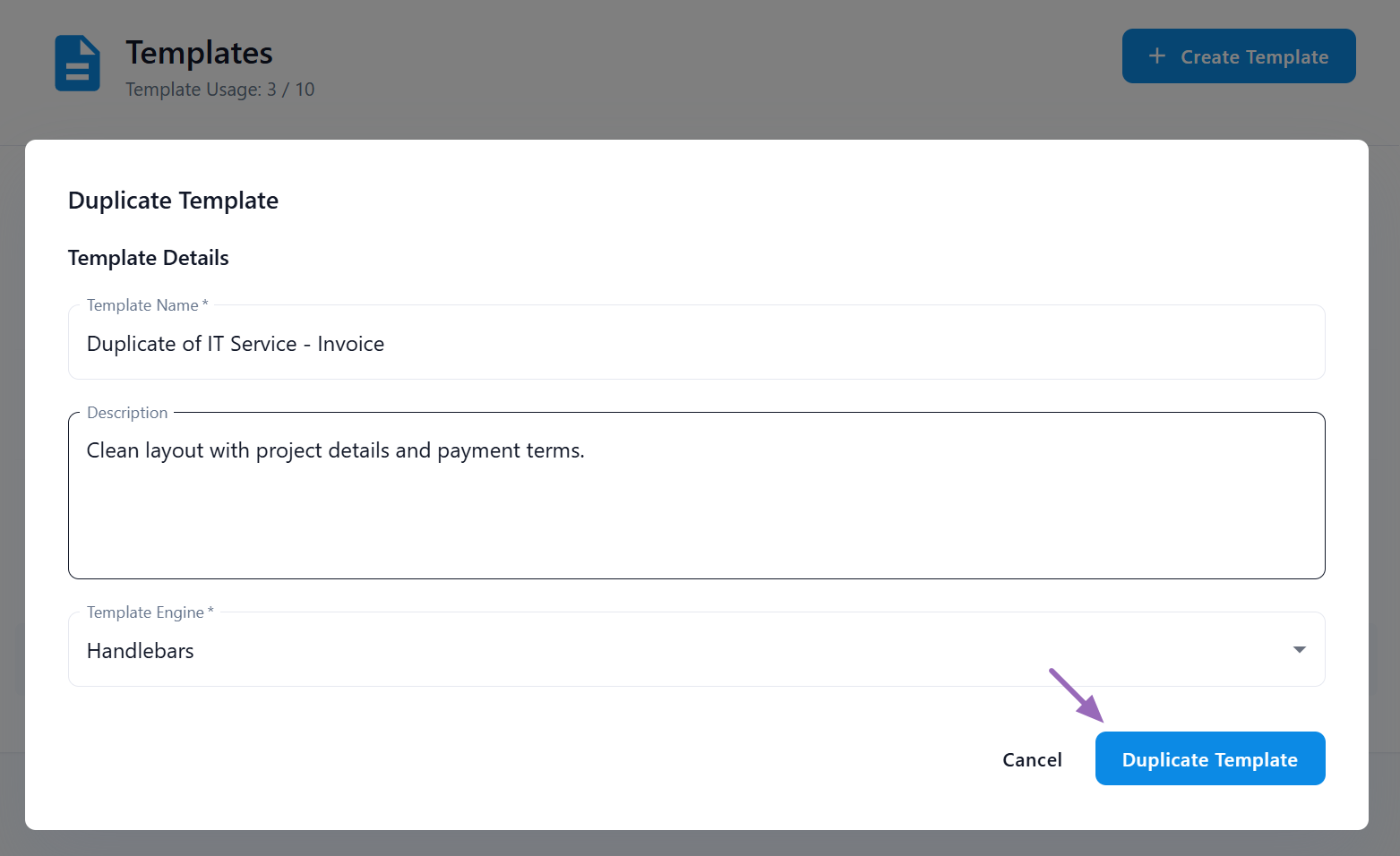
- Duplicate Template: Create a copy for variations.
-
Get API Code: View
/v1/directintegration examples for the published template version. -
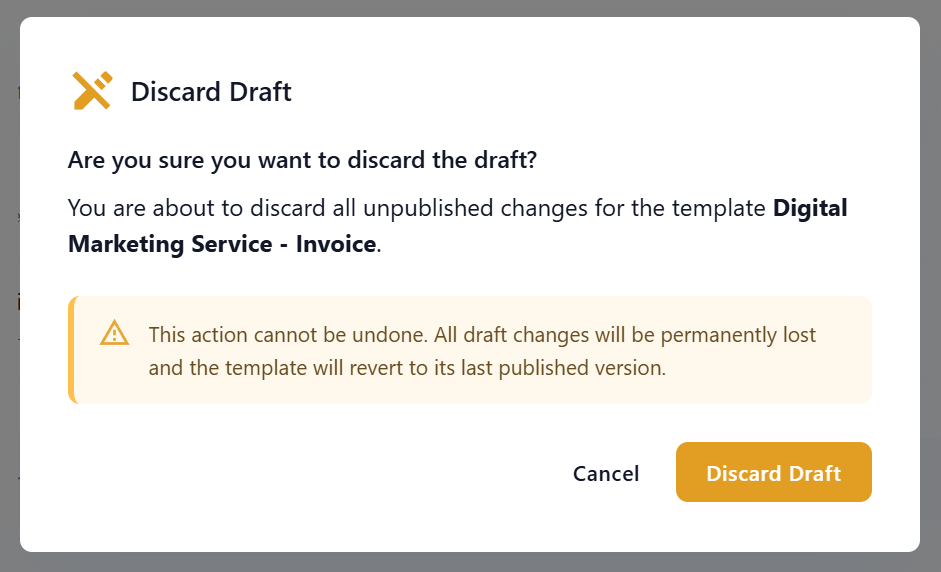
Discard Draft: Remove unpublished changes and return to the latest published version. This action is available when the template has both a published version and an active draft.
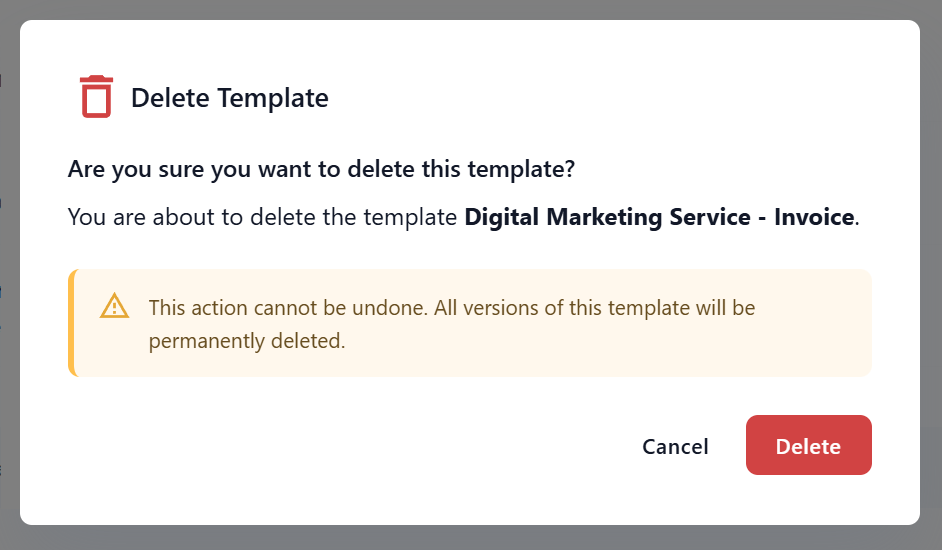
- Delete Template: Permanently remove the template and all its versions.
Work with Template Versions
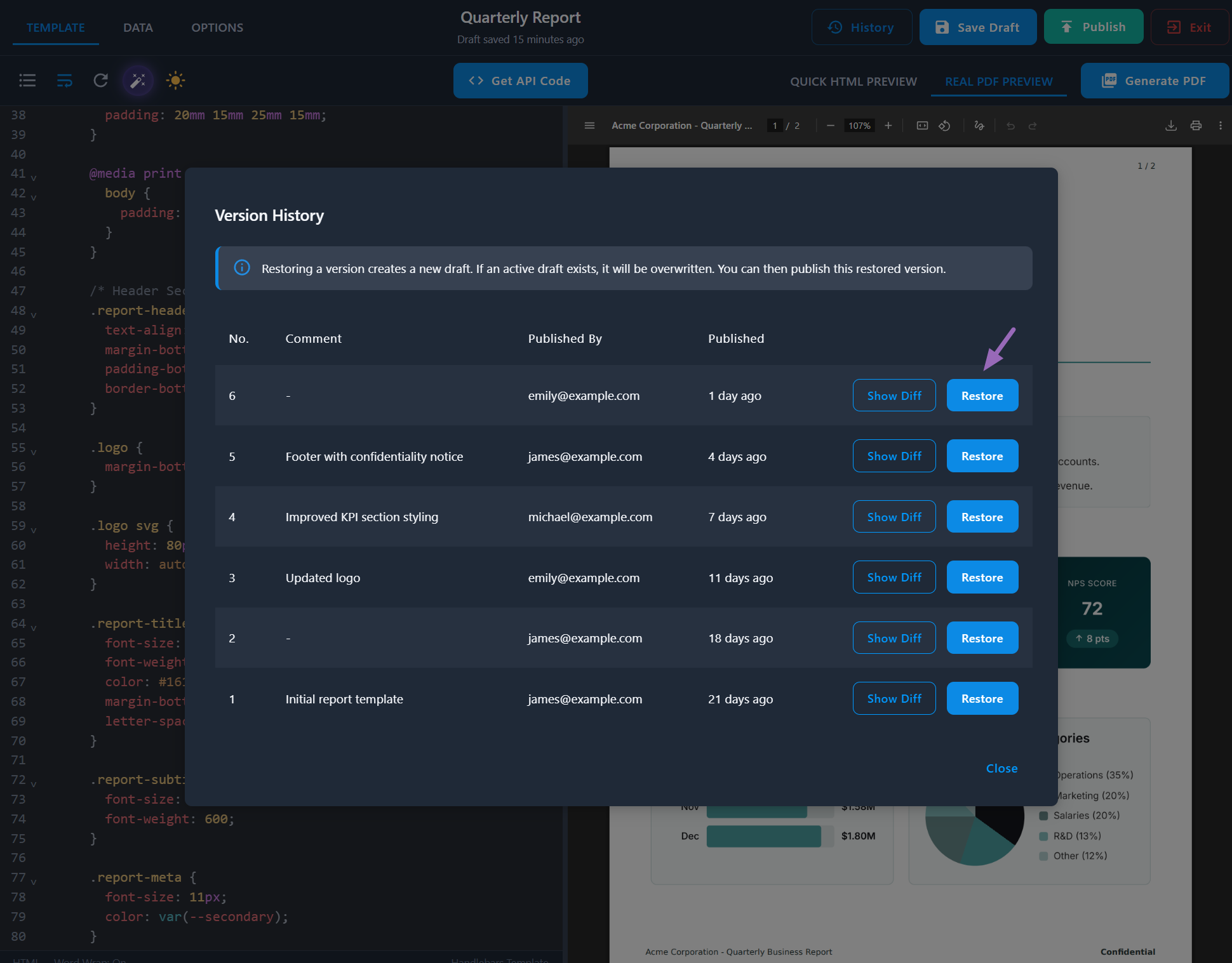
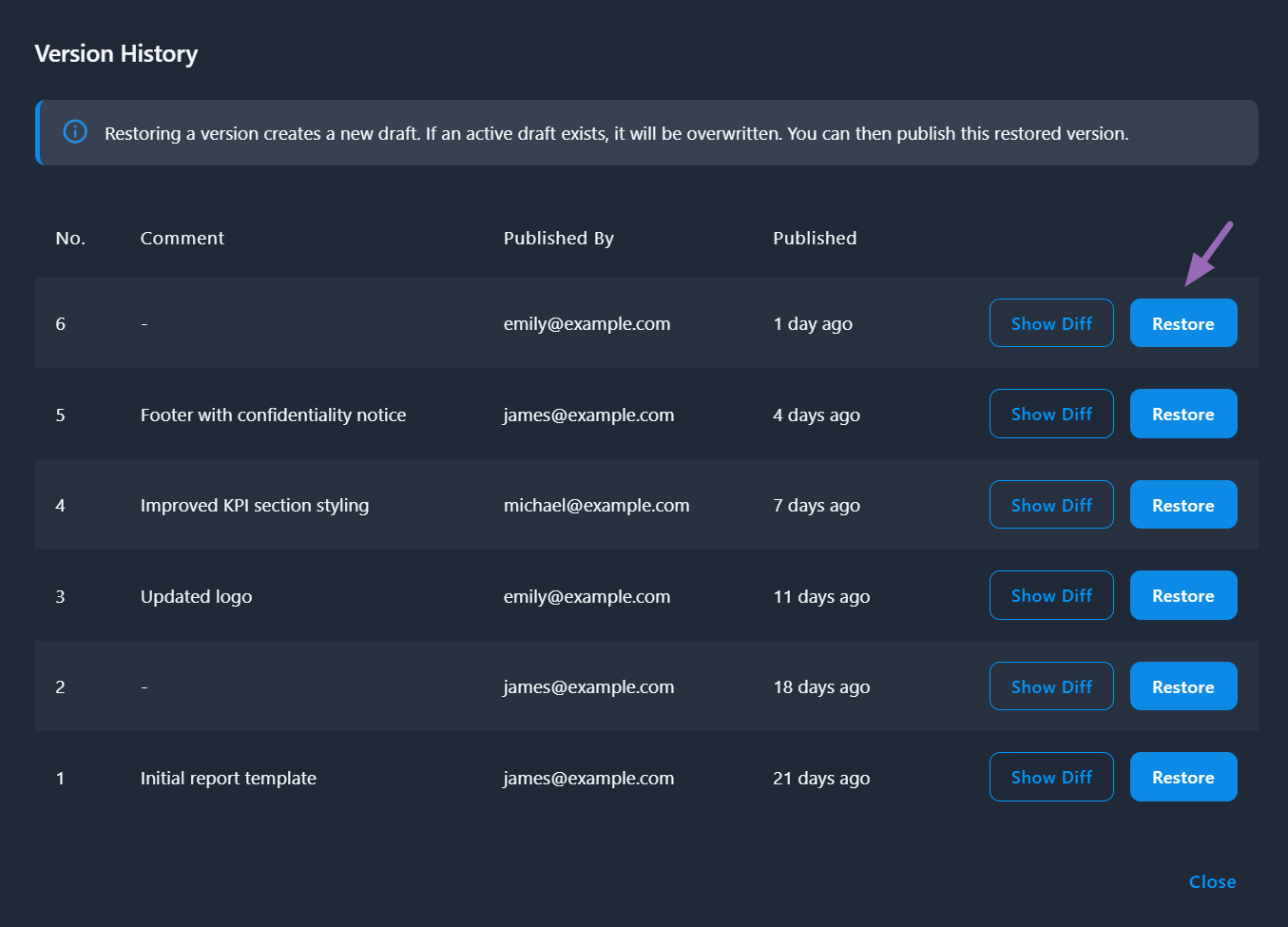
To open version history:
- Click History in the Template Designer.
- See who published each version and when.
- Read any comments saved with published versions.
Compare Versions
Click Show Diff next to a version to compare it with the current editor state.
Code Tab: Compare template code side-by-side:
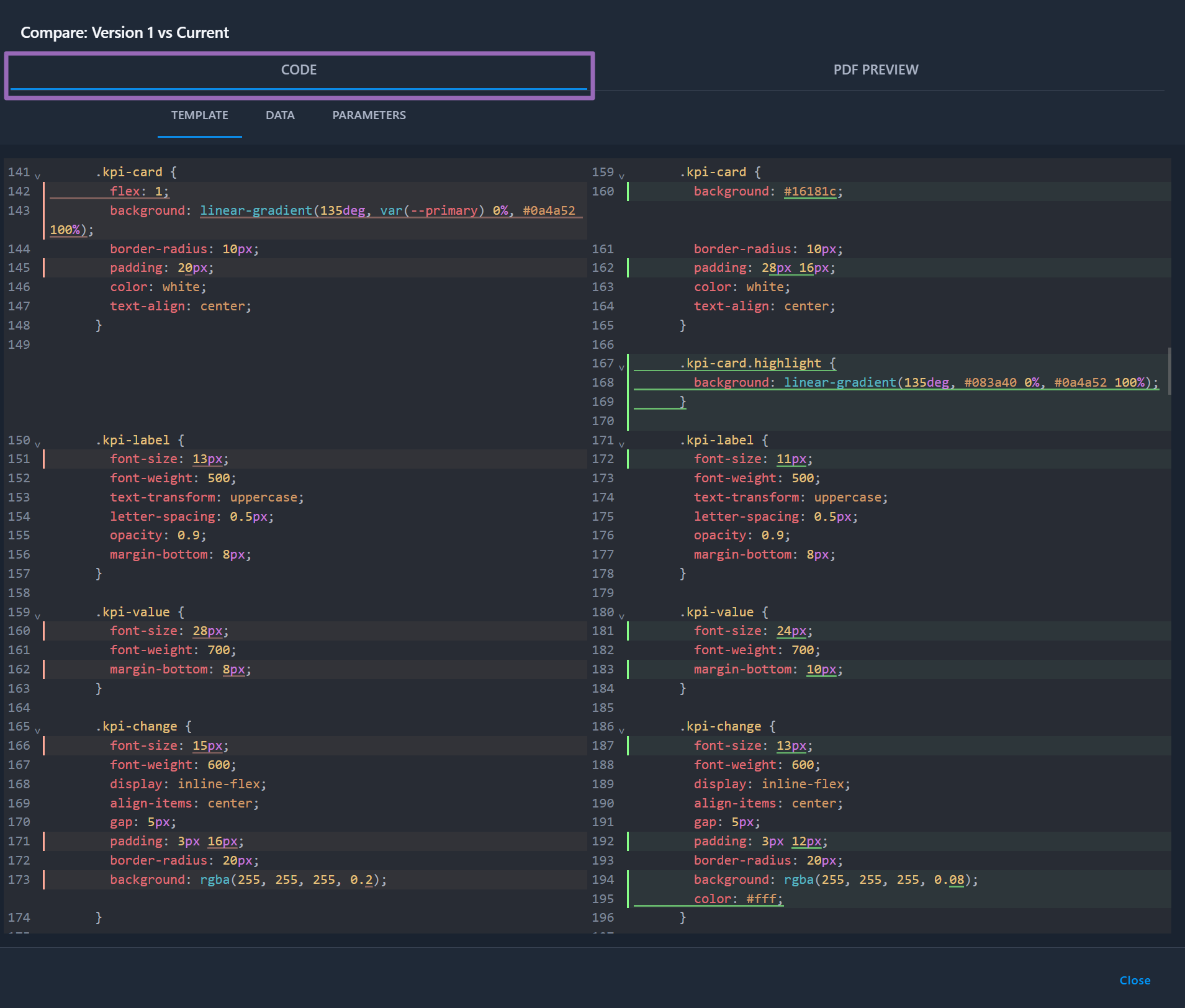
- Template: HTML/CSS and Handlebars differences.
- Data: Sample JSON data differences.
- Parameters: Saved PDF parameter differences.
Changes are highlighted for easy identification.
PDF Preview Tab: Compare rendered PDF output:
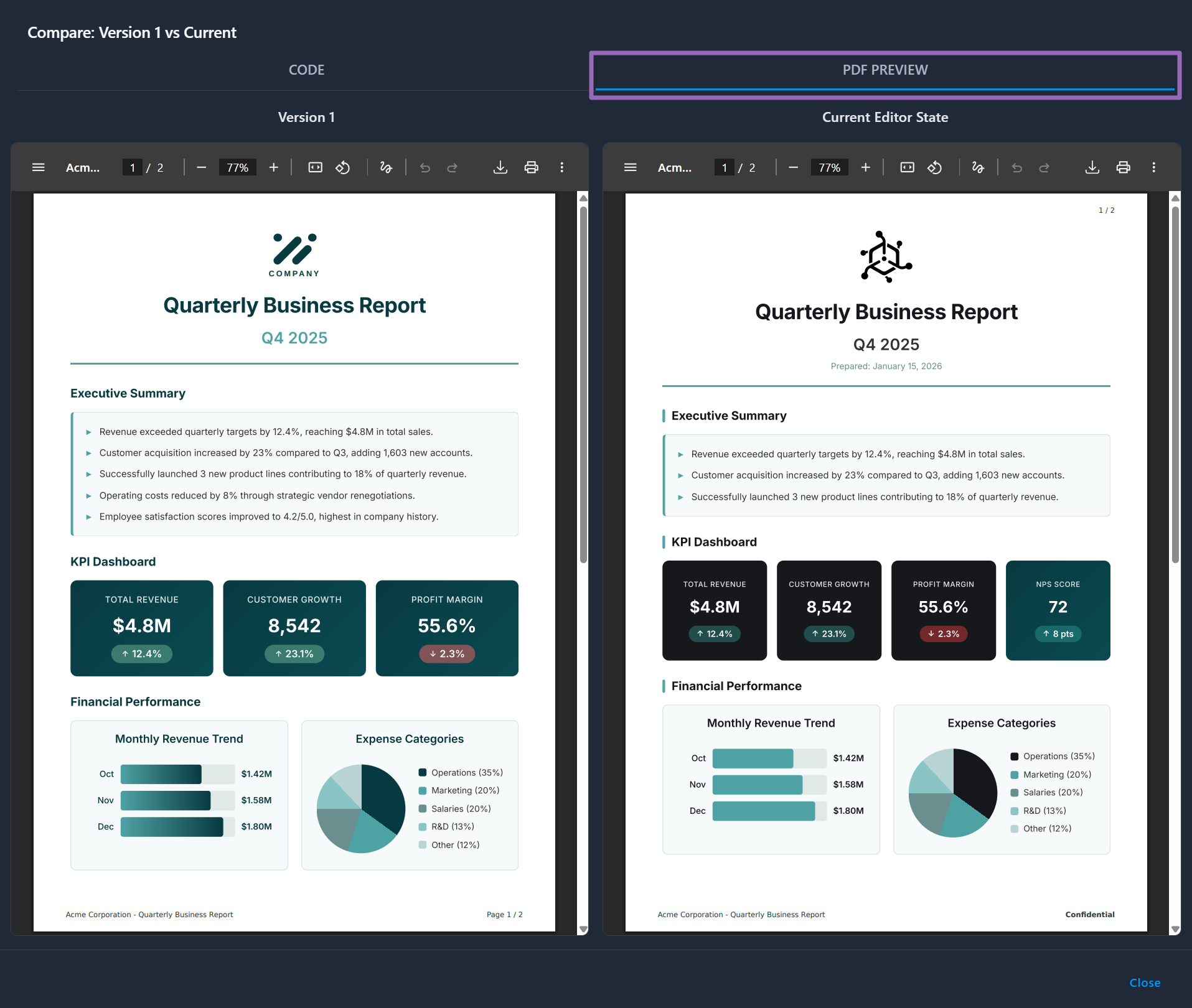
- Left side: PDF generated from historical version.
- Right side: PDF generated from current editor state.
Use this to verify visual changes before restoring or publishing.
The PDF Preview tab renders both sides. Each successful render counts as a separate document conversion.
Restore a Previous Version
- Click Restore next to a version.
- PDFBolt creates a draft from that version. If an active draft exists, restoring replaces it.
- Make any additional changes needed.
- Publish the draft as the next version.
Helpful Links
📄️ AI Template Generation
Create and edit templates with AI using prompts
📄️ PDF Templates Gallery
Browse template designs for common documents
📄️ Templates Overview
Learn about template concepts, benefits, and use cases
📄️ Template API
Manage templates programmatically through REST
📄️ Conversion Parameters
Use templateId, templateData, and request-level PDF options
📄️ Quick Start
Integration examples and code snippets
📄️ API Endpoints
All available endpoints
🔗 Handlebars Docs
Official templating syntax guide