n8n: PDFBolt via HTTP Request Node
Learn how to use n8n's built-in HTTP Request node to call the PDFBolt API directly. This method works without installing any community nodes.
For a simpler setup, use the PDFBolt Community Node – no manual header configuration, no Base64 encoding, and a visual UI for all parameters.
Prerequisites
Before starting, ensure you have:
- PDFBolt API Key
- Sign up or log in to your PDFBolt account.
- Navigate to the API Credentials section.
- Copy your API key for authentication.
- n8n Access
- Active n8n cloud account or running self-hosted instance.
Basic Setup
Configure HTTP Request Node
Use n8n's HTTP Request node to call the PDFBolt API:
-
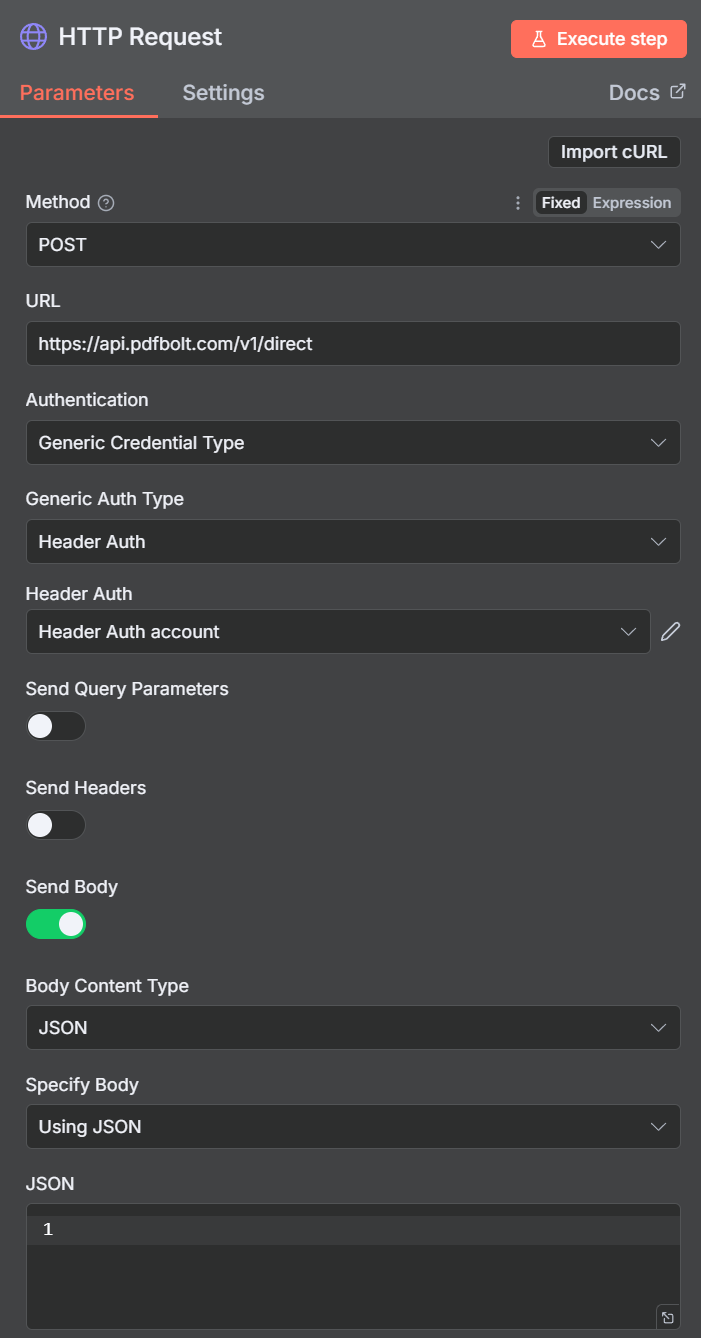
Add an HTTP Request node to your workflow.
-
Configure authentication:
- Method:
POST - URL:
https://api.pdfbolt.com/v1/direct - Authentication:
Generic Credential Type - Generic Auth Type:
Header Auth
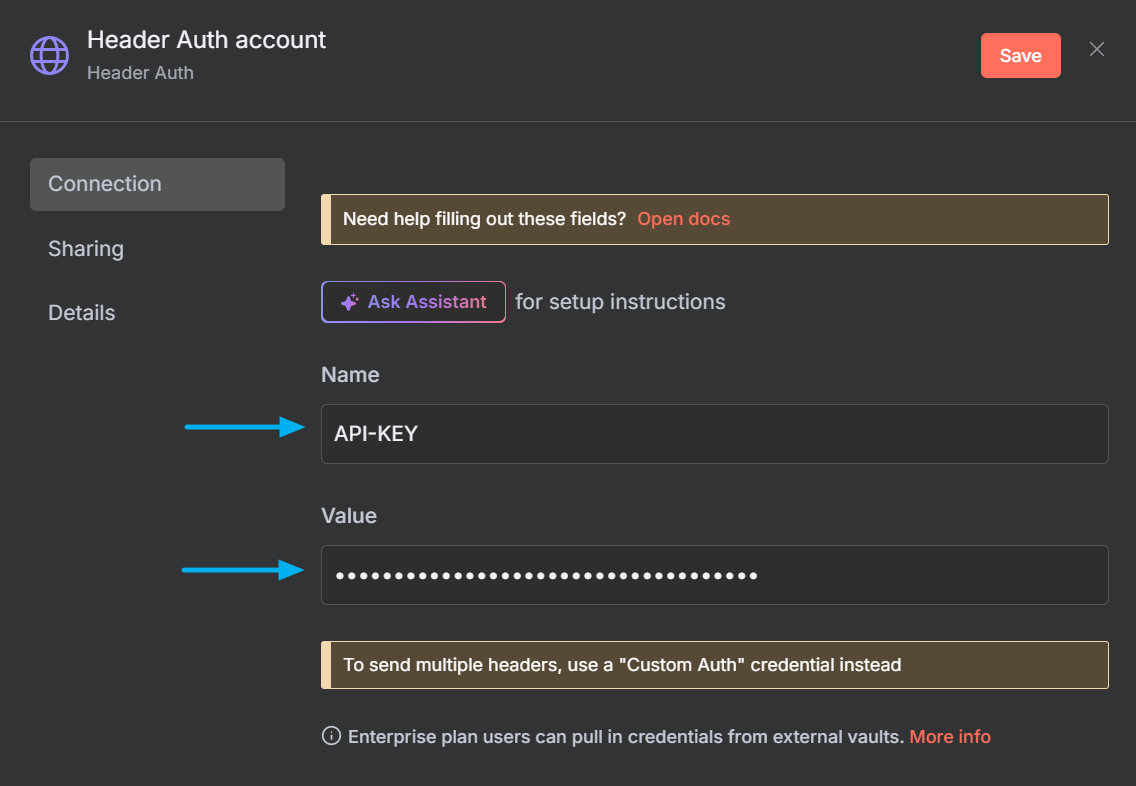
- Create authentication credential:
- Name:
API-KEY - Value:
XXXXXXXX-XXXX-XXXX-XXXX-XXXXXXXXXXXX
- Configure request body:
- Send Body:
Enabled - Body Content Type:
JSON - Specify Body:
Using JSON
Choose Your Endpoint
Select the PDFBolt endpoint based on your workflow needs:
| Endpoint | Best For | Returns |
|---|---|---|
/v1/direct | Immediate PDF delivery | Raw PDF data in response |
/v1/sync | URL-based access | JSON with download URL (valid for 24 hours) |
/v1/async | Background processing | Webhook callback with results (paid plans only) |
See API Endpoints for detailed specifications.
Choose Your Source
Select the content source that best fits your use case:
| Source | Best For | When to Use |
|---|---|---|
| Templates | Recurring documents with consistent layouts | Invoices, contracts, certificates – any document you generate repeatedly with different data |
| HTML | Custom documents | When you need full control over a unique layout |
| URL | Existing web pages | Archiving documentation, reports, capturing dashboards, saving public web pages |
Learn more about source parameters in the API Documentation.
Source 1: Templates
Templates provide the most efficient way to generate consistent, branded PDFs by separating design from data.
How It Works
-
Create your template using one of these options:
- Build a custom layout with HTML, CSS, and Handlebars variables in the Dashboard Template Designer.
- Start from a ready-made design in the template gallery.
- Generate a draft with AI from a description or reference file.
- Create and manage the template programmatically through the Template API.
-
Publish the template to make it available via API and get your unique
templateId. -
Send API request with only
templateIdandtemplateData. -
Receive your PDF – PDFBolt merges the data with your template and returns the generated PDF.
Example: Invoice Generation
Real-world scenario: A customer places an order in your e-commerce system. Automatically generate a professional invoice PDF and send it to the customer.
n8n HTTP Request Configuration:
- From Webhook
- Manual Data
If your workflow is triggered by a webhook, paste this expression into the JSON body field of the HTTP Request node:
{{ $json.body.toJsonString() }}
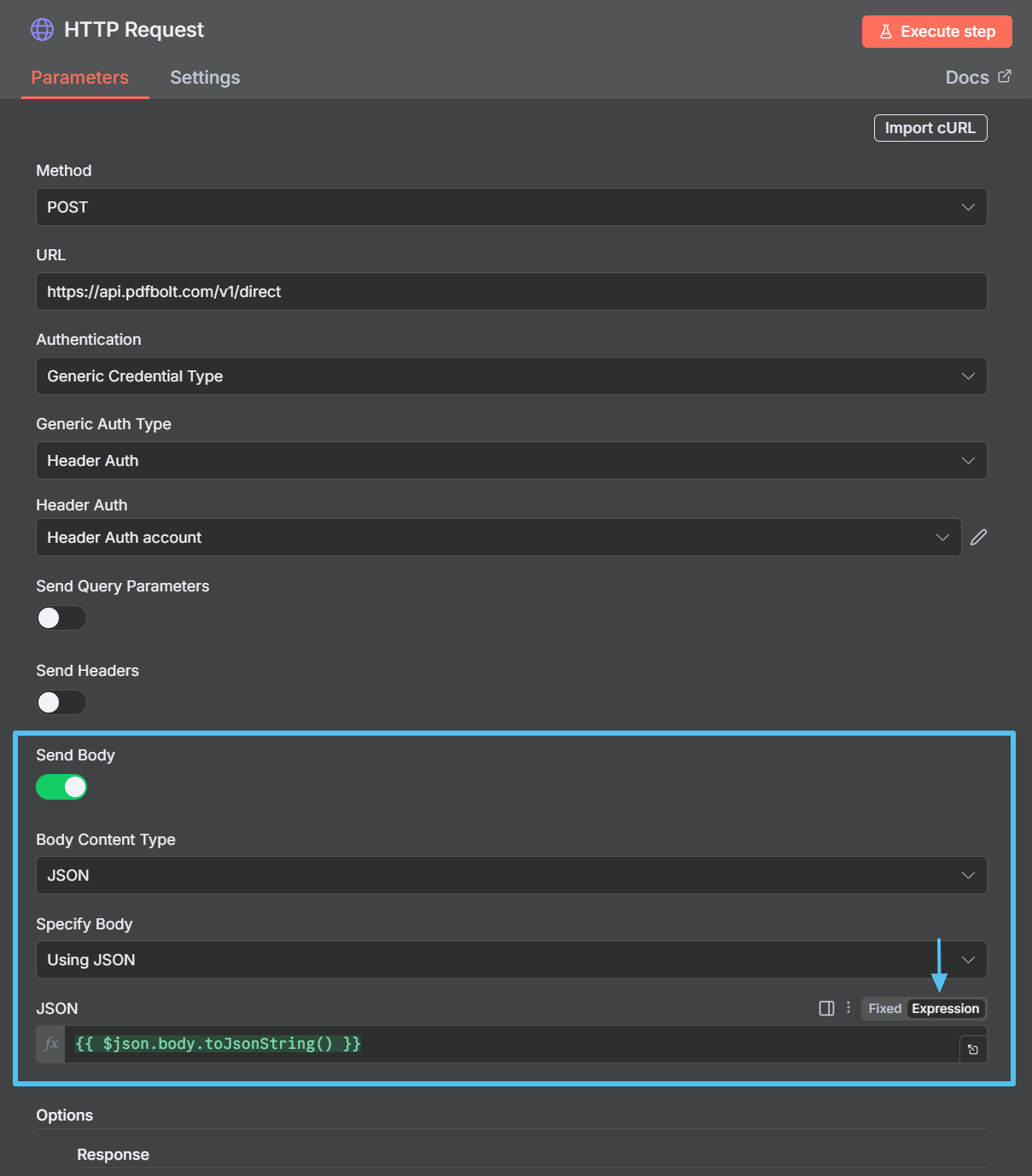
$json.body– Accesses the data received from the webhook.toJsonString()– Converts the object into JSON string format.- Result: PDFBolt receives the data in the correct structure for template processing.
Expected example webhook payload:
{
  "templateId": "your-template-id",
  "templateData": {
    "invoice_number": "INV-2025-001",
    "client_name": "John Doe",
    "line_items": [
      {
        "quantity": 1,
        "tax_rate": 10,
        "unit_price": "1200.00",
        "description": "Website Design",
        "total_amount": "1200.00"
      },
      {
        "quantity": 2,
        "tax_rate": 10,
        "unit_price": "250.00",
        "description": "Logo Design Package",
        "total_amount": "500.00"
      }
    ],
    "total_amount": "1700.00"
  }
}
When your data comes from previous workflow nodes (like databases, forms, or APIs), map the fields manually using n8n expressions:
{
  "templateId": "your-template-id",
  "templateData": {
    "invoice_number": "{{ $json.invoice_number }}",
    "client_name": "{{ $json.client_name }}",
    "line_items": {{ $json.line_items.toJsonString() }},
    "total_amount": "{{ $json.total_amount }}"
  }
}
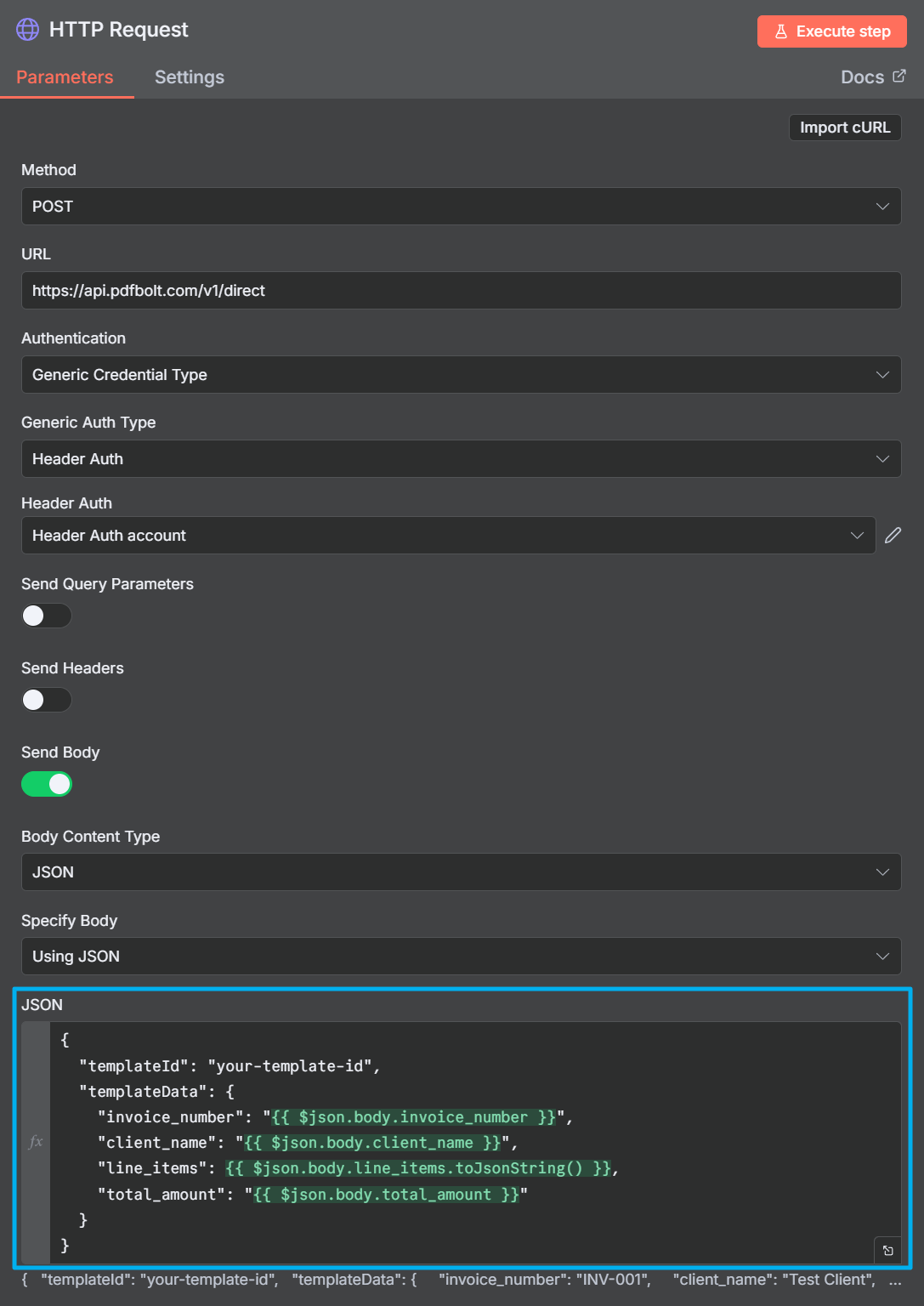
- Use
{{ $json.fieldName }}to reference simple fields from the previous node. - Use
.toJsonString()for arrays and objects to maintain proper JSON structure. - All field names must match your template's Handlebars variables.
Template Workflow Example
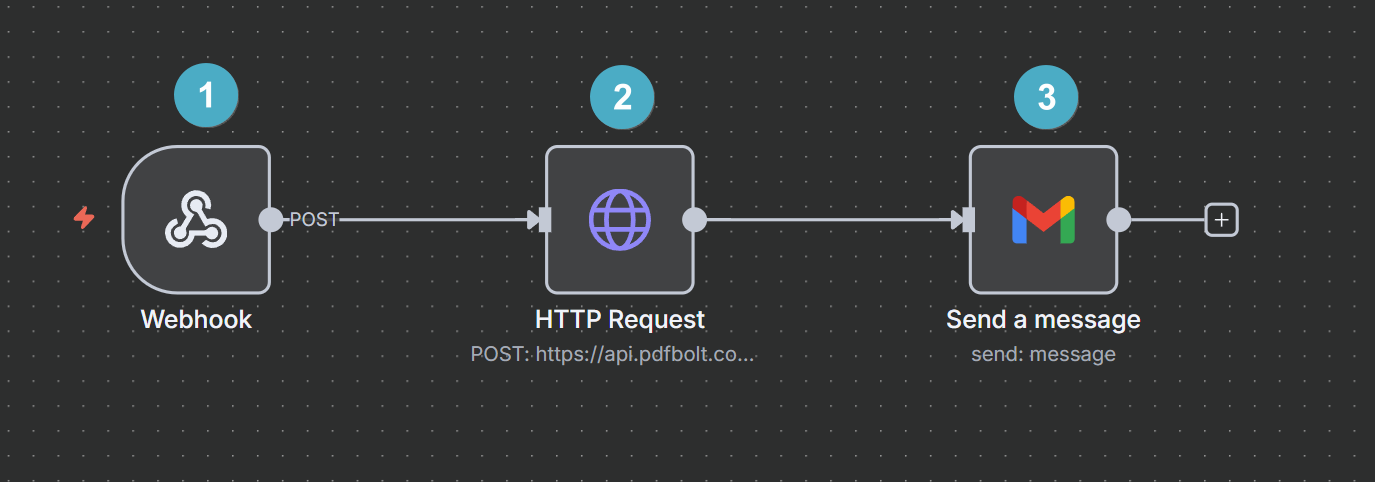
Complete workflow:
- Webhook – Receives order data from your system.
- HTTP Request (PDFBolt) – Generates invoice PDF.
- Send Message – Sends PDF to customer.
Field names in templateData must exactly match Handlebars variables in your template. Mismatched names result in empty values.
Source 2: HTML
Convert HTML directly into PDFs – useful for custom documents, event programs, announcements, or guides.
How It Works
- Prepare HTML content in your workflow.
- Base64 encode the HTML.
- Send encoded HTML to PDFBolt.
- Receive generated PDF.
Example: Event Program
Real-world scenario: You're organizing a webinar or conference and want attendees to download a PDF program with schedule, speakers, and session details.
- Add a Code node after your event registration trigger:
View Complete Code Example
// Static event program HTML – same for all attendees
const htmlContent = `
<!DOCTYPE html>
<html>
<head>
    <style>
        * {
            margin: 0;
            padding: 0;
            box-sizing: border-box;
        }

        body {
            font-family: Arial;
            color: #333;
            line-height: 1.7;
            margin: 10px;
        }

        .header {
            background: linear-gradient(135deg, #1e293b 0%, #334155 100%);
            color: white;
            padding: 20px;
            text-align: center;
        }

        h1 {
            font-size: 28px;
        }

        .event-info {
            background: #f8fafc;
            padding: 12px 20px;
            border-radius: 8px;
            margin: 20px 0 10px;
        }

        h2 {
            color: #1e293b;
            margin-bottom: 5px;
        }

        .session {
            border-left: 4px solid #f59e0b;
            padding: 10px 20px;
            margin: 15px 0;
            background: #fff;
            border-radius: 4px;
            box-shadow: 1px 1px 10px rgba(0, 0, 0, 0.1);
            page-break-inside: avoid;
        }

        .time {
            color: #b45309;
            font-weight: bold;
            font-size: 14px;
        }

        .speaker {
            color: #64748b;
            font-style: italic;
            margin-top: 5px;
        }

        .break {
            background: #fef3c7;
            padding: 10px;
            text-align: center;
            margin: 15px 0;
            border-radius: 4px;
        }

        .footer {
            margin-top: 20px;
            padding-top: 10px;
            border-top: 2px solid #e2e8f0;
            text-align: center;
            color: #64748b;
        }
    </style>
</head>
<body>
    <div class="header">
        <h1>Tech Summit 2026</h1>
        <p>Building the Future Together</p>
        <p class="date">September 18, 2026 | Virtual Event</p>
    </div>

    <div class="event-info">
        <strong>Event Details:</strong><br/>
        Date: September 18, 2026<br/>
        Time: 9:00 AM - 5:00 PM EST<br/>
        Platform: Zoom (link will be sent via email)
    </div>

    <h2>Event Schedule</h2>

    <div class="session">
        <div class="time">9:00 AM - 10:30 AM</div>
        <strong>Opening Keynote: The Future of AI</strong>
        <div class="speaker">Speaker: Dr. Sarah Johnson, AI Research Director</div>
        <p>Exploring emerging trends in artificial intelligence and their impact on business.</p>
    </div>

    <div class="session">
        <div class="time">10:45 AM - 12:30 PM</div>
        <strong>Workshop: Building Scalable APIs</strong>
        <div class="speaker">Speaker: Mike Chen, Senior Engineer</div>
        <p>Hands-on session covering best practices for API design and implementation.</p>
    </div>

    <div class="break">Lunch Break (12:30 PM - 1:00 PM)</div>

    <div class="session">
        <div class="time">1:00 PM - 2:45 PM</div>
        <strong>Panel Discussion: Cloud Architecture</strong>
        <div class="speaker">Panelists: Various industry experts</div>
        <p>Interactive discussion about modern cloud infrastructure and DevOps practices.</p>
    </div>

    <div class="session">
        <div class="time">3:00 PM - 5:00 PM</div>
        <strong>Security in Production: Lessons Learned</strong>
        <div class="speaker">Speaker: Anna Torres, Head of Security Engineering</div>
        <p>Real-world case studies on securing applications at scale and incident response.</p>
    </div>

    <div class="footer">
        <p><strong>Questions?</strong> Contact us at events@example.com</p>
    </div>
</body>
</html>
`;

// Encode to base64
const base64Html = Buffer.from(htmlContent).toString('base64');

return [{ json: { html: base64Html } }];
HTML must be Base64 encoded before sending to PDFBolt. Use Buffer.from(html).toString('base64') in Code nodes.
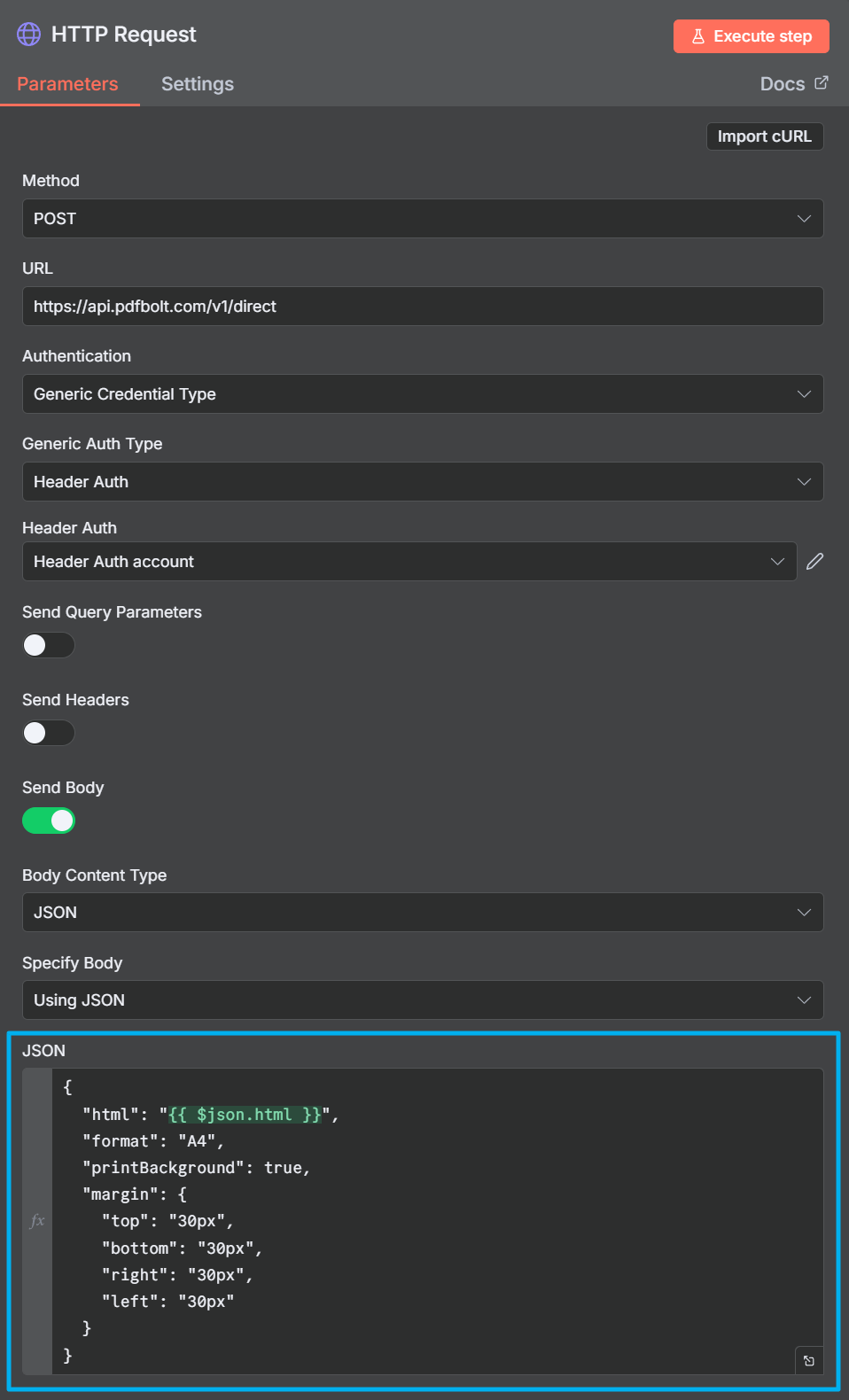
- In the HTTP Request node body, configure PDF settings:
{
  "html": "{{ $json.html }}",
  "format": "A4",
  "printBackground": true,
  "margin": {
    "top": "30px",
    "bottom": "30px",
    "right": "30px",
    "left": "30px"
  }
}
HTML Workflow Example
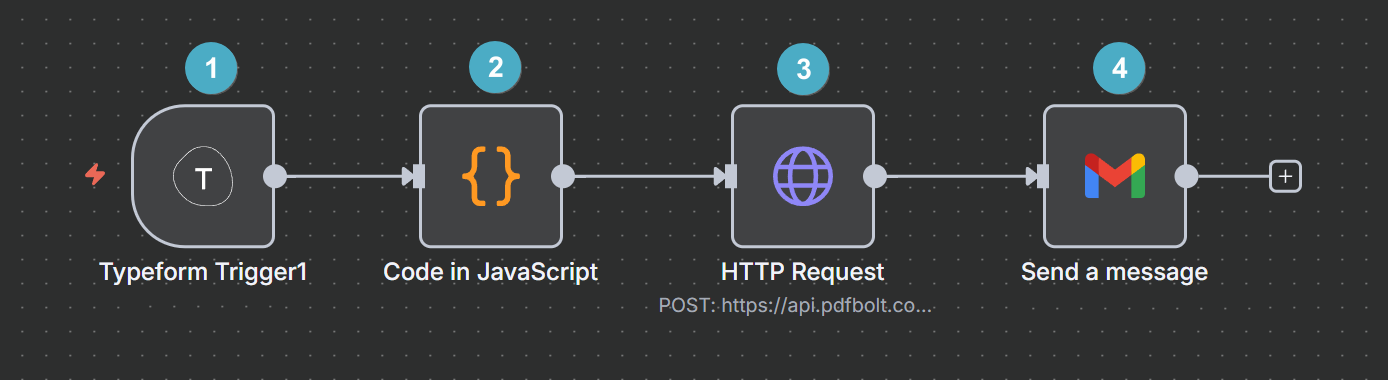
Complete workflow:
- Typeform Trigger – New registration form submitted.
- Code Node – Generate event program (Base64-encoded HTML content).
- HTTP Request (PDFBolt) – Generate a PDF.
- Gmail – Send confirmation email with PDF program to the attendee.
By separating PDF settings into the HTTP Request body, you can adjust format, margins, and other options without modifying the HTML code. See Conversion Parameters for all available options.
Source 3: URL
Generate PDFs from any publicly accessible HTTPS webpage – useful for archiving web content, capturing dashboards, or generating reports.
How It Works
- Provide the target URL.
- PDFBolt loads and renders the page.
- Returns a PDF of the rendered page.
Example: Daily Dashboard Report
Real-world scenario: Your team uses an analytics dashboard. Every morning, automatically capture the dashboard as PDF and share it on Slack so the team stays informed.
In the HTTP Request node body, configure the URL and PDF settings:
{
  "url": "https://analytics.yourcompany.com/dashboard",
  "format": "A4",
  "landscape": true,
  "printBackground": true,
  "waitUntil": "networkidle",
  "margin": {
    "top": "20px",
    "right": "20px",
    "bottom": "20px",
    "left": "20px"
  }
}
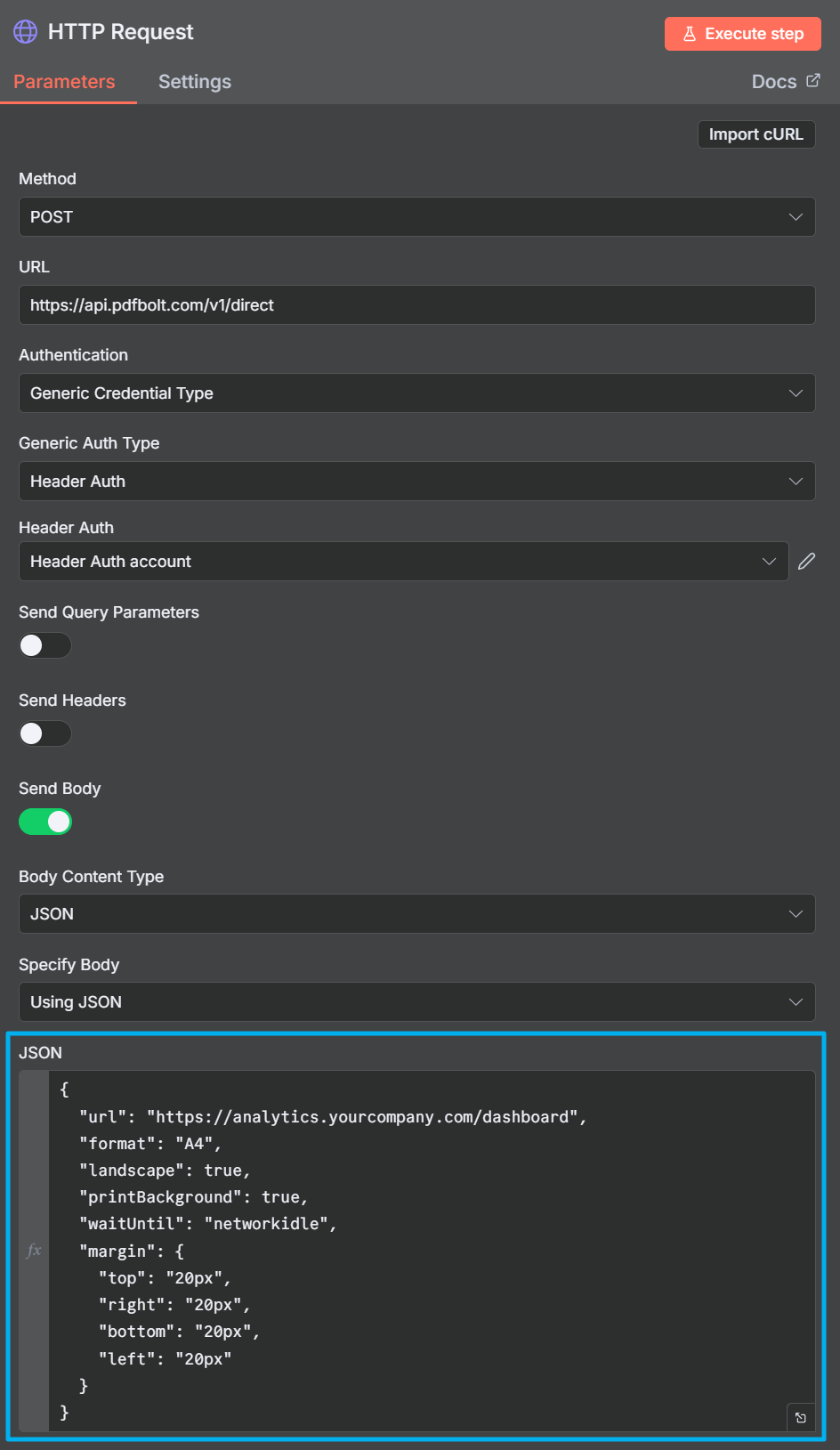
Use waitUntil: "networkidle" to ensure all dashboard charts and data finish loading before capturing the PDF. For pages with specific loading indicators, use waitForSelector instead.
URL Workflow Example
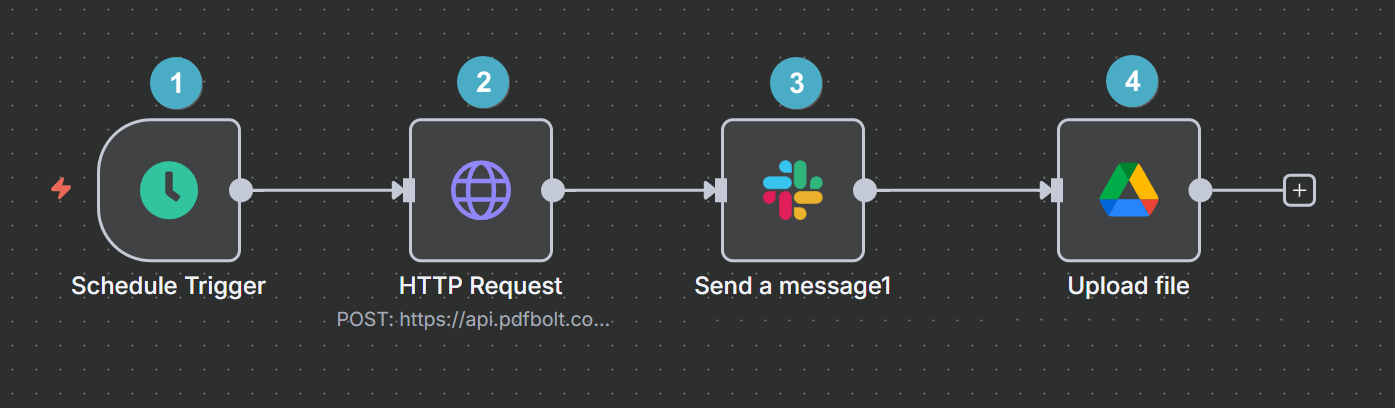
Complete workflow:
- Schedule Trigger – Every weekday at 8:00 AM.
- HTTP Request (PDFBolt) – Capture dashboard as PDF.
- Slack – Shares report with team.
- Google Drive – Archives PDF.
Additional Resources
PDFBolt Documentation
- Template Management Guide – Detailed creation and management instructions.
- Templates Overview – Templates overview, benefits, and use cases.
- API Endpoints – All available endpoints.
- Conversion Parameters – Complete parameter reference.
- Error Handling – Error codes and solutions.
- S3 Bucket Upload – Store PDFs permanently.
- Automate PDF Generation in n8n – Step-by-step invoice workflow using the HTTP Request node.